Laboratories, workshops, fieldwork, research, campus events and residences.
Search by function, activity, role or workflow action.
Browse by operating domain
Dedicated workspace
Prepare a laboratory activity, link chemicals and risk controls, verify competency and attach evidence before independent approval.
Use the standard User Guide button in the topbar whenever you need help. All industry instructions are maintained here.
01START HEREYour workflow from setup to closureWho does what, in which order, and how source controls apply.
Set up access and working scope
The organization administrator selects the industry, enables available workspaces and assigns roles with organization-unit scope. Additional workspaces can be disabled from Industry workspaces; the default workspace cannot be disabled. Disabling retains records and history. Package entitlements still control available functions.
Activity workflow
Create the activity with its operating context, location, owner, planned dates and internal, contractor or mixed workforce.
Open Detail, complete the readiness checks, resolve failed checks and attach evidence that passes scanning. Use Work controls to link saved records from the correct organization unit.
Submit for review. A reviewer independent of the creator and owner approves the activity.
Start within the approved date window. Permit-required work also needs a directly linked active PTW within its validity window.
Complete the work, attach completion evidence and request verification. An independent reviewer closes it after directly linked PTW and CAPA are resolved.
Open shared modules without leaving your industry
Open your industry workspace and select the required module from the grouped menu, such as HIRARC, Permit to work, CAPA or Assets & certificates. Resources → Shared services lists the available connections.
The register opens within the industry page. Select Open workspace to review a record and follow its linked Work Package, JSA, permit or other source record in the same industry context.
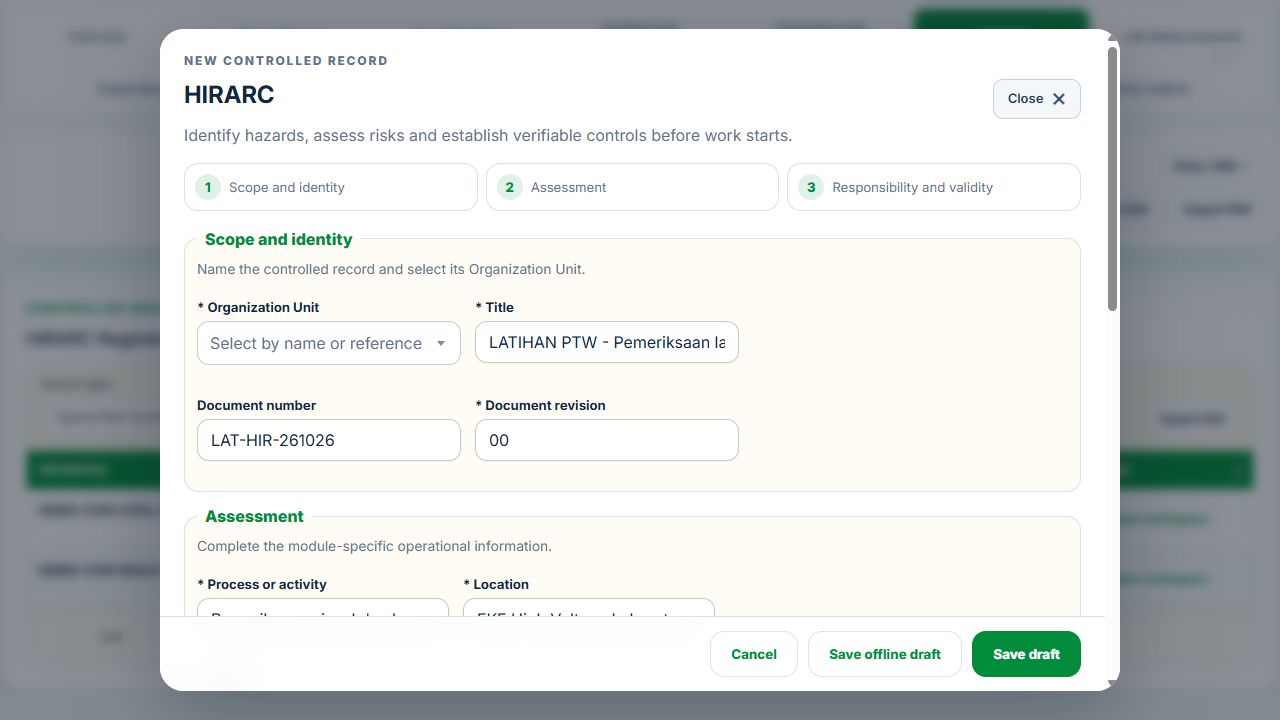
Use New record, Add, Edit or Renew where available. The original form opens in a modal. Select the correct site and organization unit; registers follow the module’s filters and your authorized scope.
Save or submit through the form’s existing controls. Required evidence, assignment, status and independent approval still apply. Use Close at the upper right to dismiss the form; closing a modal does not close the business record.
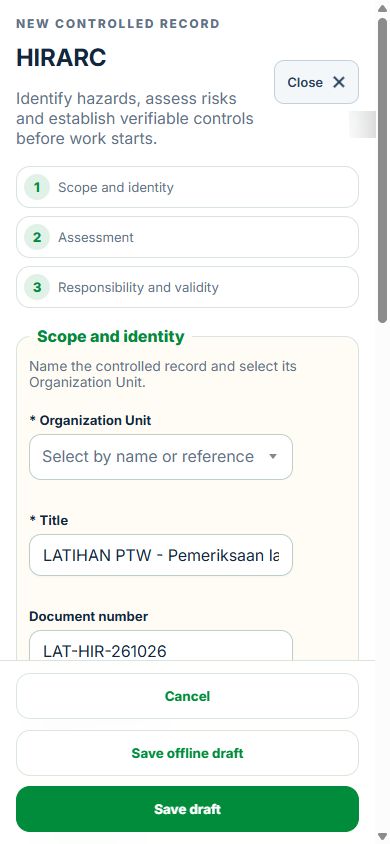
Use the record’s Print / PDF control for its controlled document. Printing and downloads open separately. On mobile the same forms fill the screen, with scrollable content and accessible Close controls.
Desktop · Original HIRARC form and Close controlMobile · Same fields and actions, full-screen form
How linked controls work
Work controls shows the source record, current status, direct links and dependencies reached through a Work Package or PTW. A typed reference does not create a relationship. Activity approval does not approve a Work Package, verify LOTO or activate a permit. Follow each source record's own approval and release workflow; reopen Detail to refresh its status.
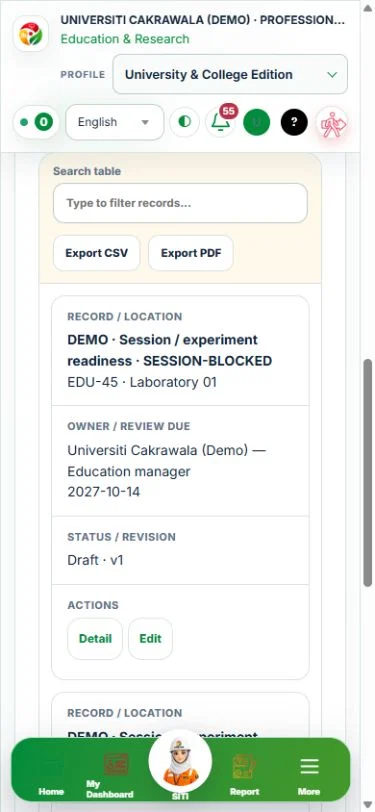
Use Add and Edit to open the permitted form. Detail holds evidence, linked records, workflow and history. On mobile, table rows become labeled cards with the same actions.
Education & Research workflow
School, University & College and Research Institution profiles share the same source records. Select the institution profile that fits your work; package limits and assigned permissions continue to apply.
In Planning, register the campus and physical locations under existing organization units. Link laboratories and workshops to the shared GIS / Facilities location. Rooms do not create additional organization units.
Add students and visiting researchers in Participants using institutional IDs. Link staff and contractors to their existing identity. Verify non-login participant training against an existing course and clean evidence supplied by another person; staff and contractor competency remains in its source module.
Create a laboratory profile with HIRARC, inspection and emergency evidence. Prepare session readiness with the laboratory profile, named participants, required competency and Equipment. Chemical custody references existing inventory, SDS, CHRA and movement records. Equipment certificates, renewals and maintenance use the common Equipment workflow.
Register research with its PI, team, scope and dates. Screen ethics, biosafety / IBC, animal ethics and ionizing radiation separately. Specialist approvals must name the same project reference and protocol version. The organization administrator appoints independent specialist reviewers with an expiry date. HSE approval cannot substitute for those permissions.
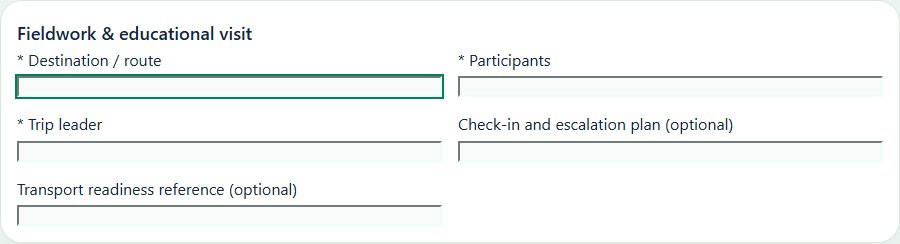
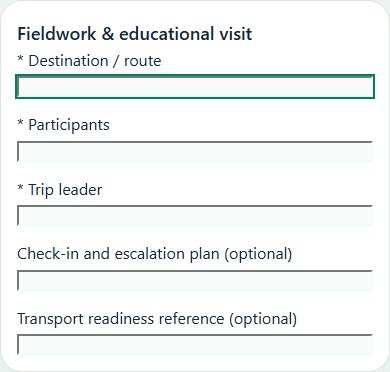
For fieldwork, record the itinerary, participants, supervisor, check-in plan, consent required by policy and transport assurance. Record departure, check-in, hold and return in the journey journal. Campus vehicle and driver checks reuse the existing workforce, competency, Equipment and inspection records.
Save Draft, attach evidence, submit for independent review and accept only after every live prerequisite is met. Map each activity to its exact readiness / clearance record and location. Use Work controls to see why work is blocked and follow source links to resolve it. Work Packages, JSA, PTW and LOTO retain their own approvals.
A critical equipment failure restricts the canonical Equipment asset and schedules maintenance. Complete the linked repair Work Package, independently verify maintenance, reconcile permits / isolations and accept a new return-to-service review before releasing the asset.
Enable a public reporting link on an active mapped campus location. The revocable link binds reports to that institution and unit while the ordinary public form remains Starter-only. Reports enter the existing Event Register and acknowledgement / status process. Assess occupational reporting duties separately from student / public incident classification.
Use overview KPIs, workflow and monthly graphs, GIS and the action queue to follow up. Verified occupational rates use employee / contractor hours; student incidents are a separate count. Missing verified campus-months display unavailable rates. Export the 15 report families from Education reports.
SIS / HR / LMS imports enter a review inbox; BMS / IoT observations reference existing Equipment. Retries with the same external ID are idempotent; conflicting payloads are rejected. Imported data never approves research, grants access or releases equipment.
Accepted evidence is retained. Use New revision after changes, expiry or revocation. Clinical, identifiable research-subject and detailed medical datasets do not belong in this workspace.
02Education & ResearchOverview, scope and navigationStart with the right operating context.
How to use this section
Open the enabled industry from the navigation rail or the mobile More menu. Expand the grouped top menu to choose the next stage of work.
Select the organization unit and available project, factory or site context. KPI cards, graphs, maps and registers reflect the scope supported by that workspace.
Follow a KPI or source link to the underlying record. A missing or incomplete reporting value is not an assumed zero.
On mobile, registers become labeled cards. Use the same Detail, Edit and permitted workflow controls from each card.
Choose Add on the relevant activity card. Enter its organization unit, location, owner, planned dates and internal, contractor or mixed workforce.
Save the draft, open Detail and complete the readiness checks below. Explain failed or not-applicable answers; resolve failed checks and attach supporting evidence before review.
Open Work controls to link saved HSE source records. A typed reference alone does not create a relationship or grant approval.
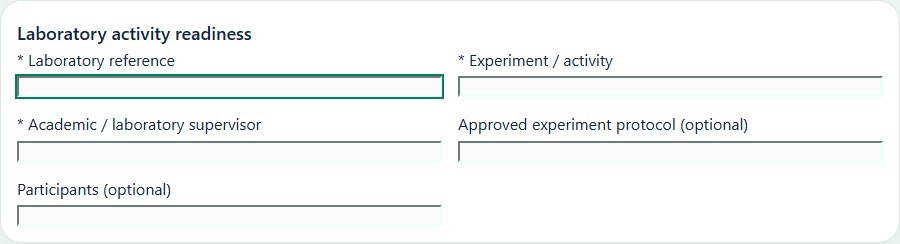
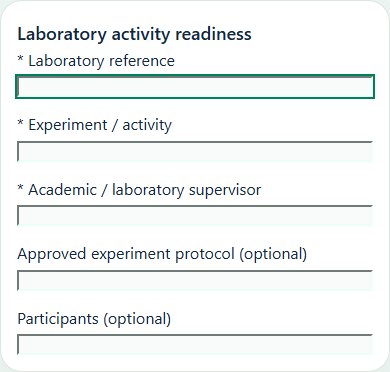
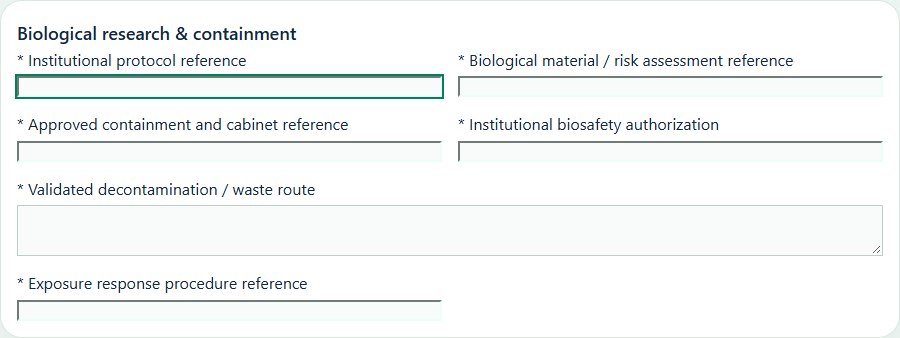
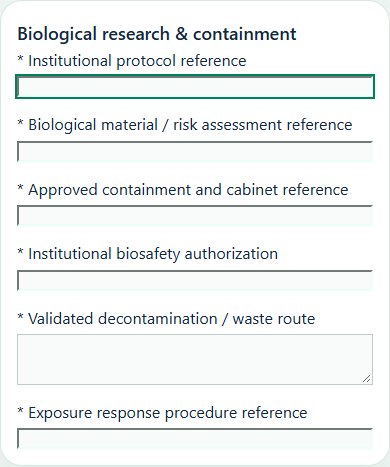
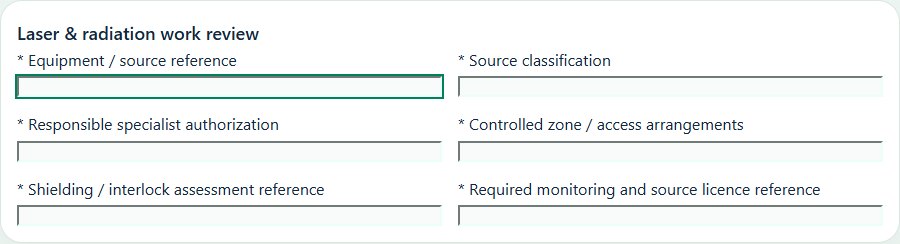
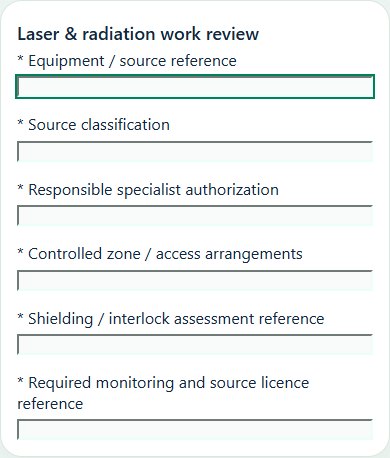
Desktop · Laboratory activity readiness · Activity formMobile · Laboratory activity readiness · Activity formDesktop · Biological research & containment · Activity formMobile · Biological research & containment · Activity formDesktop · Laser & radiation work review · Activity formMobile · Laser & radiation work review · Activity form
Laboratory activity readiness
Record these details: Laboratory reference · Experiment / activity · Academic / laboratory supervisor · Approved experiment protocol · Participants
Readiness checks
Experiment risk assessment and supervision reviewed
Chemical / biological controls identified
Equipment, ventilation and emergency equipment checked
Participants briefed and waste route confirmed
Biological research & containment
Record these details: Institutional protocol reference · Biological material / risk assessment reference · Approved containment and cabinet reference · Institutional biosafety authorization · Validated decontamination / waste route · Exposure response procedure reference
Readiness checks
Institutional assessment and authorization verified
Containment matches the approved protocol
Cabinet / equipment source certificates reviewed
Access, training and supervision confirmed
Decontamination and waste arrangements verified
Exposure and emergency escalation briefed
Laser & radiation work review
Record these details: Equipment / source reference · Source classification · Responsible specialist authorization · Controlled zone / access arrangements · Shielding / interlock assessment reference · Required monitoring and source licence reference
Readiness checks
Source classification and applicability reviewed by specialist
Controlled access, signs and supervision in place
Shielding and protective devices verified
Training and source authorization verified
Monitoring and emergency arrangements confirmed
Equipment and licence evidence linked to source records
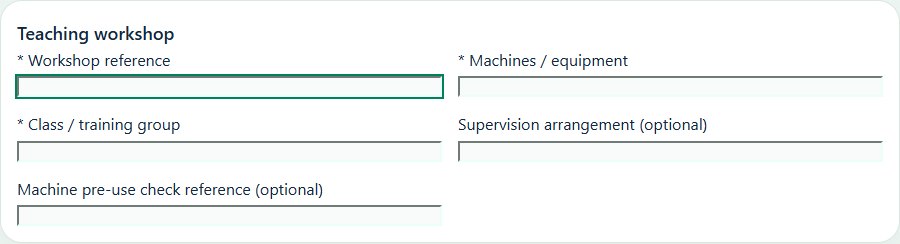
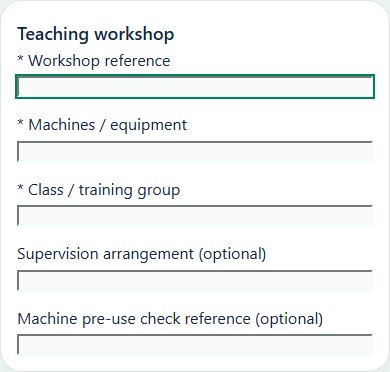
04Education & ResearchTeaching workshopsRecord class groups, instructor supervision and safe use of teaching machines.
How to use this section
Choose Add on the relevant activity card. Enter its organization unit, location, owner, planned dates and internal, contractor or mixed workforce.
Save the draft, open Detail and complete the readiness checks below. Explain failed or not-applicable answers; resolve failed checks and attach supporting evidence before review.
Open Work controls to link saved HSE source records. A typed reference alone does not create a relationship or grant approval.
Choose Add on the relevant activity card. Enter its organization unit, location, owner, planned dates and internal, contractor or mixed workforce.
Save the draft, open Detail and complete the readiness checks below. Explain failed or not-applicable answers; resolve failed checks and attach supporting evidence before review.
Open Work controls to link saved HSE source records. A typed reference alone does not create a relationship or grant approval.
Choose Add on the relevant activity card. Enter its organization unit, location, owner, planned dates and internal, contractor or mixed workforce.
Save the draft, open Detail and complete the readiness checks below. Explain failed or not-applicable answers; resolve failed checks and attach supporting evidence before review.
Open Work controls to link saved HSE source records. A typed reference alone does not create a relationship or grant approval.
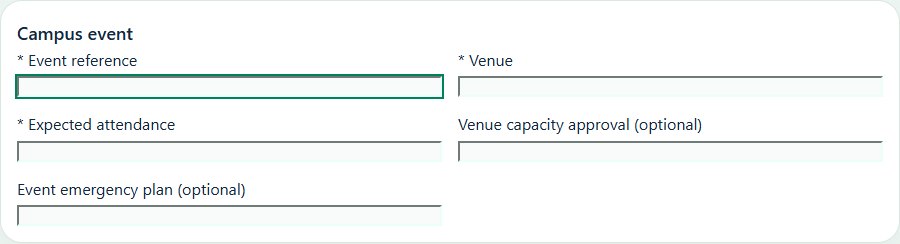
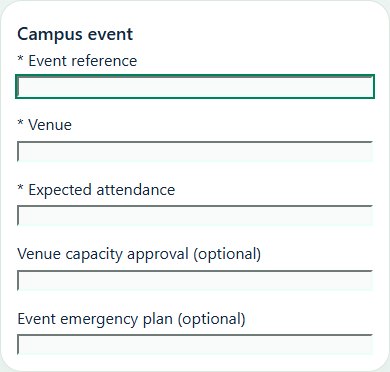
Record these details: Event reference · Venue · Expected attendance · Venue capacity approval · Event emergency plan
Readiness checks
Capacity, access and crowd flow checked
Temporary electrical and structures reviewed
Contractors and food vendors coordinated
Emergency and welfare arrangements confirmed
07Education & ResearchResearch & after-hours workReview research materials and supervision, lone-working and out-of-hours escalation.
How to use this section
Choose Add on the relevant activity card. Enter its organization unit, location, owner, planned dates and internal, contractor or mixed workforce.
Save the draft, open Detail and complete the readiness checks below. Explain failed or not-applicable answers; resolve failed checks and attach supporting evidence before review.
Open Work controls to link saved HSE source records. A typed reference alone does not create a relationship or grant approval.
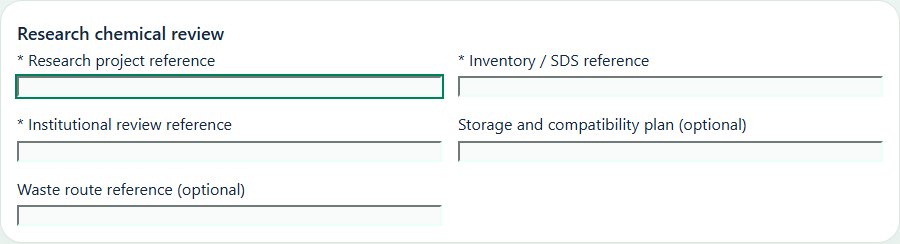
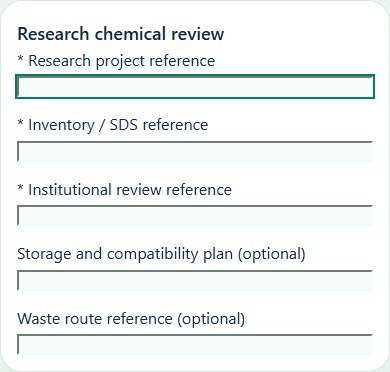
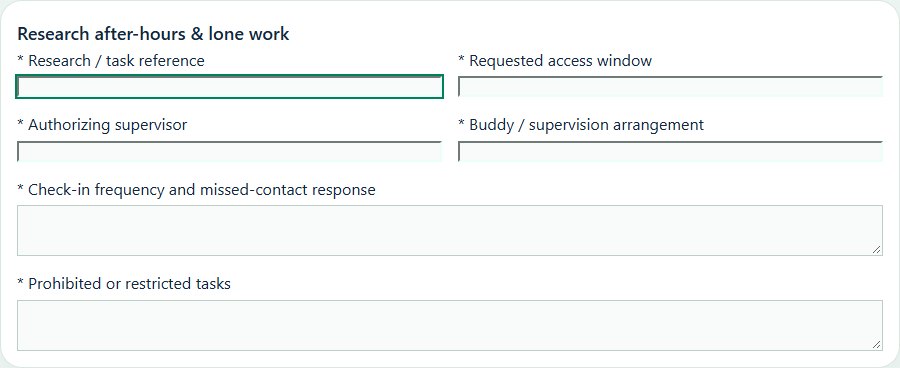
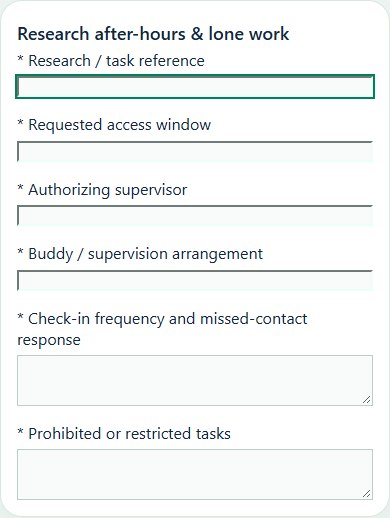
Desktop · Research chemical review · Activity formMobile · Research chemical review · Activity formDesktop · Research after-hours & lone work · Activity formMobile · Research after-hours & lone work · Activity form
Research chemical review
Record these details: Research project reference · Inventory / SDS reference · Institutional review reference · Storage and compatibility plan · Waste route reference
Readiness checks
Hazards, quantities and compatibility reviewed
Storage, ventilation and exposure controls checked
Authorized researchers and training verified
Waste, spill and emergency plans agreed
Research after-hours & lone work
Record these details: Research / task reference · Requested access window · Authorizing supervisor · Buddy / supervision arrangement · Check-in frequency and missed-contact response · Prohibited or restricted tasks
Readiness checks
Task suitability for out-of-hours work assessed
Source after-hours authorization checked where required
Restricted tasks and supervision limits briefed
Security access and emergency contacts confirmed
Missed check-in escalation has an accountable responder
End-of-work check-out and equipment safe state arranged
08Education & ResearchResidences & campus buildingsCoordinate resident safety checks and maintenance with the Facilities workspace.
How to use this section
Choose Add on the relevant activity card. Enter its organization unit, location, owner, planned dates and internal, contractor or mixed workforce.
Save the draft, open Detail and complete the readiness checks below. Explain failed or not-applicable answers; resolve failed checks and attach supporting evidence before review.
Open Work controls to link saved HSE source records. A typed reference alone does not create a relationship or grant approval.
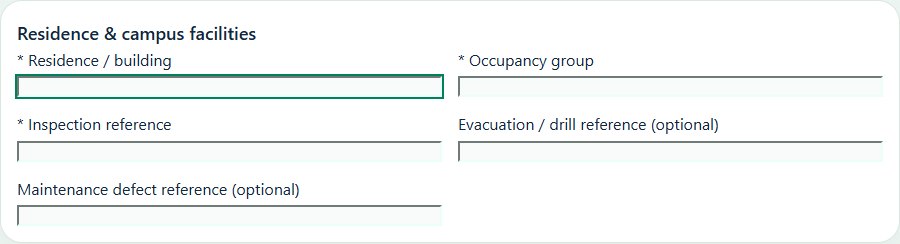
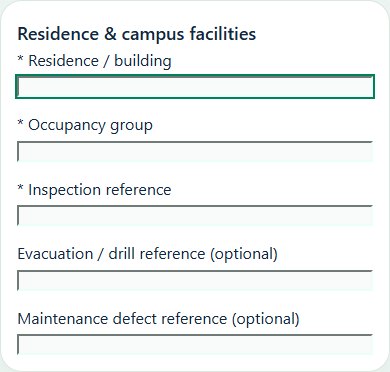
Record these details: Residence / building · Occupancy group · Inspection reference · Evacuation / drill reference · Maintenance defect reference
Readiness checks
Fire exits, alarms and assembly routes checked
Electrical, housekeeping and access hazards reviewed
Resident reporting and emergency contacts visible
Maintenance defects and follow-up assigned
09Education & ResearchInstitution profile & responsibilitiesPrepare a source-linked assurance record and obtain independent acceptance.
How to use this section
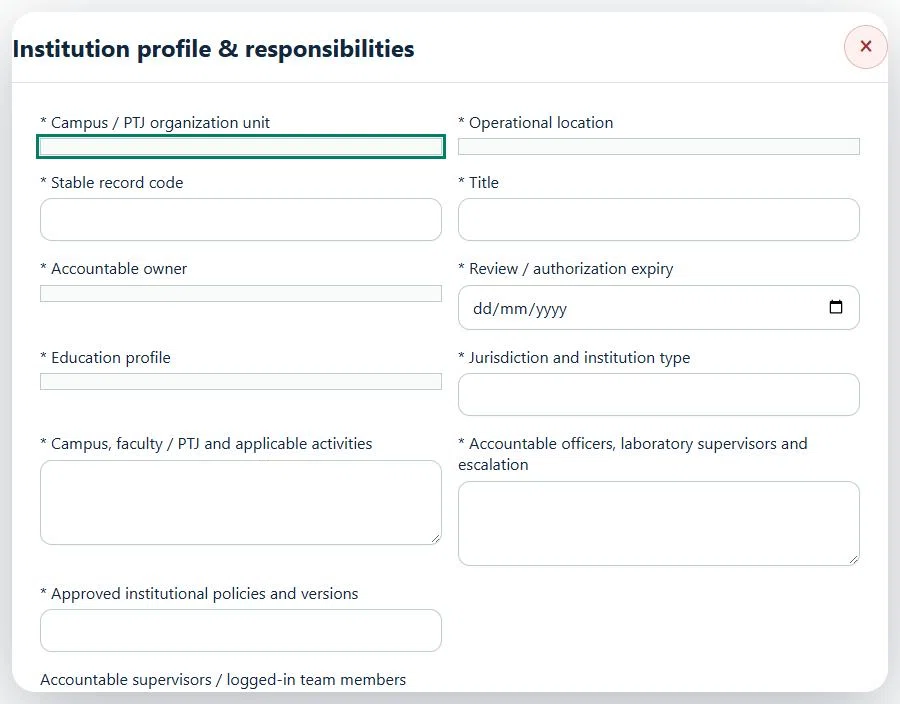
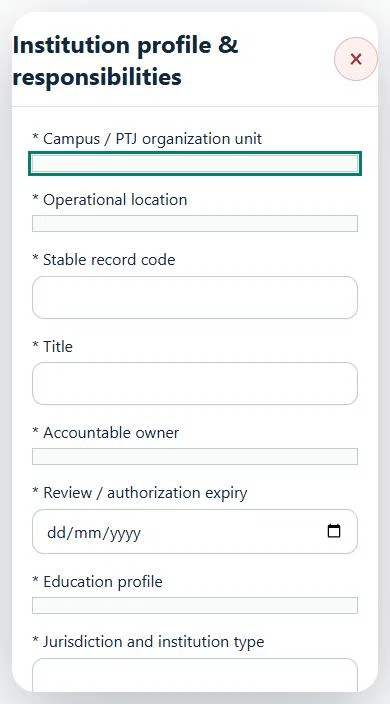
Select the operating context, owner and review due date. Record: Education profile; Jurisdiction and institution type; Campus, faculty / PTJ and applicable activities; Accountable officers, laboratory supervisors and escalation; Approved institutional policies and versions.
Link the relevant saved source records and any required accepted dependencies. Save the draft and attach supporting evidence in Detail.
Submit for independent review; resolve rejected or incomplete evidence before resubmitting. Acceptance does not approve or release the linked source work.
Use a new revision for changes to accepted records. Follow source links to resolve expired evidence, changed sources or failed prerequisites before progressing work.
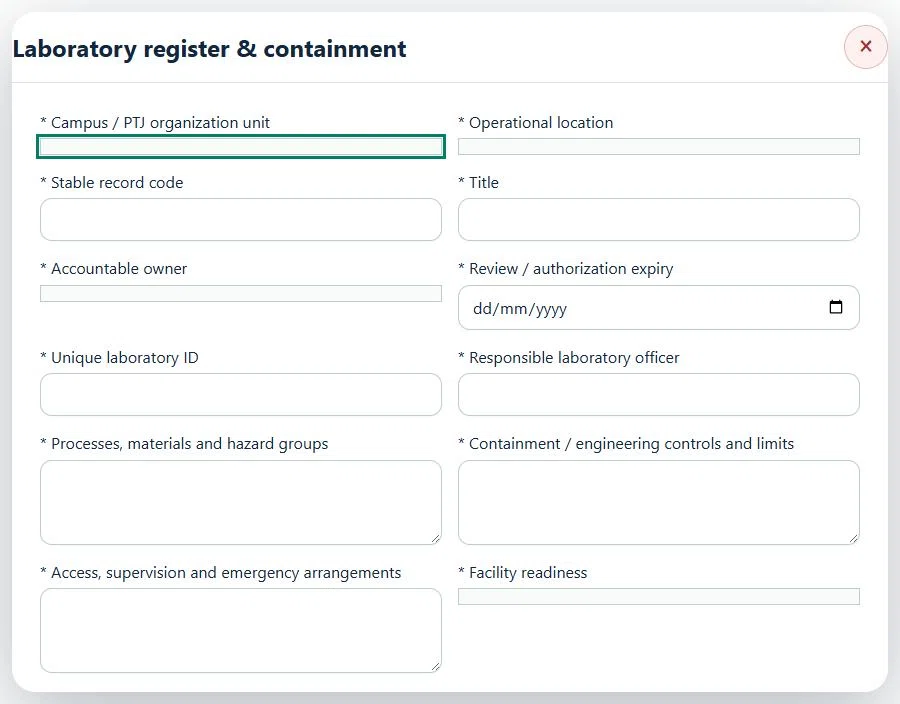
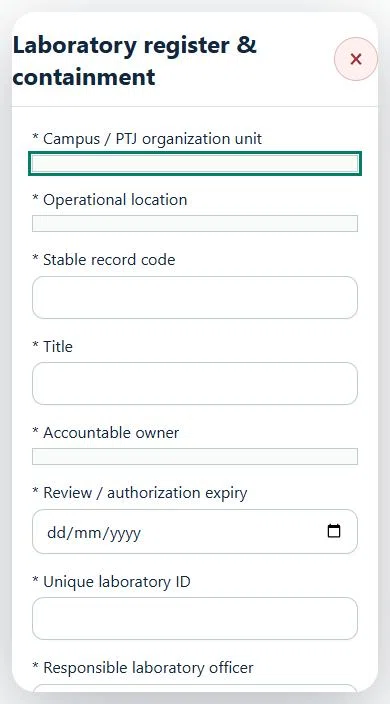
10Education & ResearchLaboratory register & containmentPrepare a source-linked assurance record and obtain independent acceptance.
How to use this section
Select the operating context, owner and review due date. Record: Unique laboratory ID; Responsible laboratory officer; Processes, materials and hazard groups; Containment / engineering controls and limits; Access, supervision and emergency arrangements; Facility readiness.
Link the relevant saved source records and any required accepted dependencies. Save the draft and attach supporting evidence in Detail.
Submit for independent review; resolve rejected or incomplete evidence before resubmitting. Acceptance does not approve or release the linked source work.
Use a new revision for changes to accepted records. Follow source links to resolve expired evidence, changed sources or failed prerequisites before progressing work.
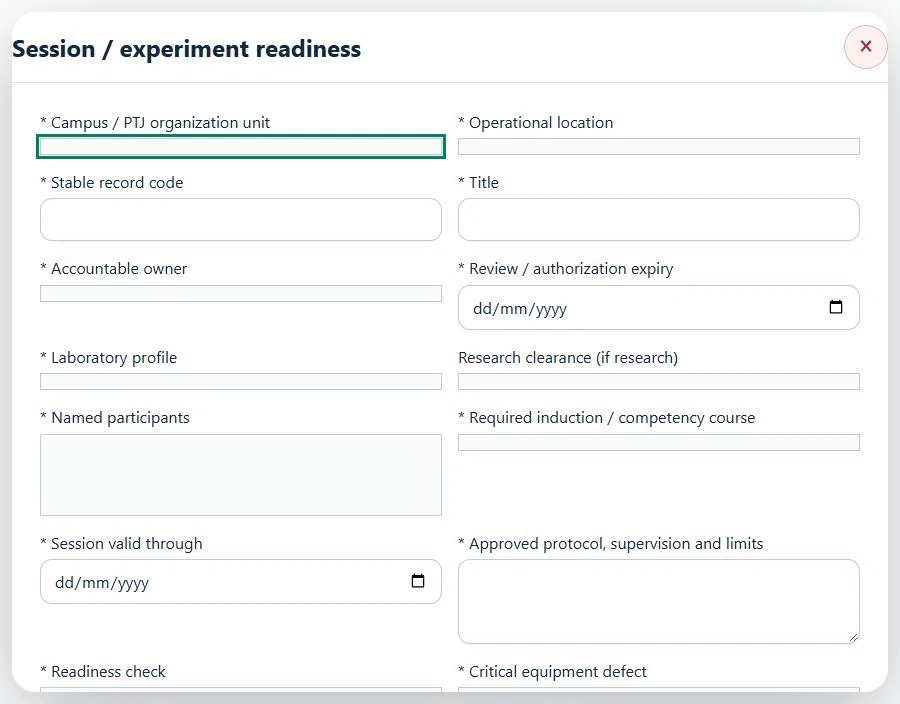
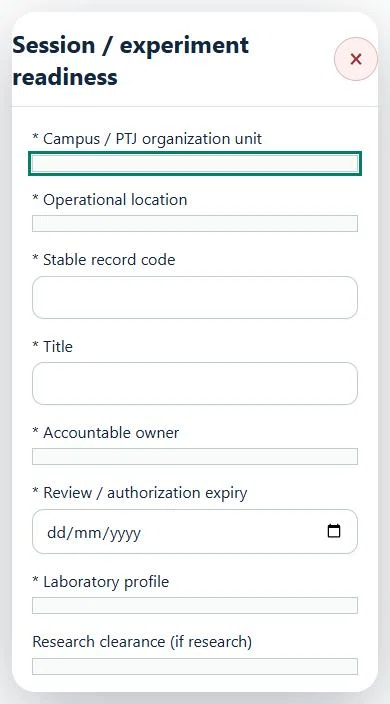
11Education & ResearchSession / experiment readinessPrepare a source-linked assurance record and obtain independent acceptance.
How to use this section
Select the operating context, owner and review due date. Record: Laboratory profile; Research clearance (if research); Named participants; Required induction / competency course; Session valid through; Approved protocol, supervision and limits; Readiness check; Critical equipment defect; Waste segregation, disposal and emergency controls.
Link the relevant saved source records and any required accepted dependencies. Save the draft and attach supporting evidence in Detail.
Submit for independent review; resolve rejected or incomplete evidence before resubmitting. Acceptance does not approve or release the linked source work.
Use a new revision for changes to accepted records. Follow source links to resolve expired evidence, changed sources or failed prerequisites before progressing work.
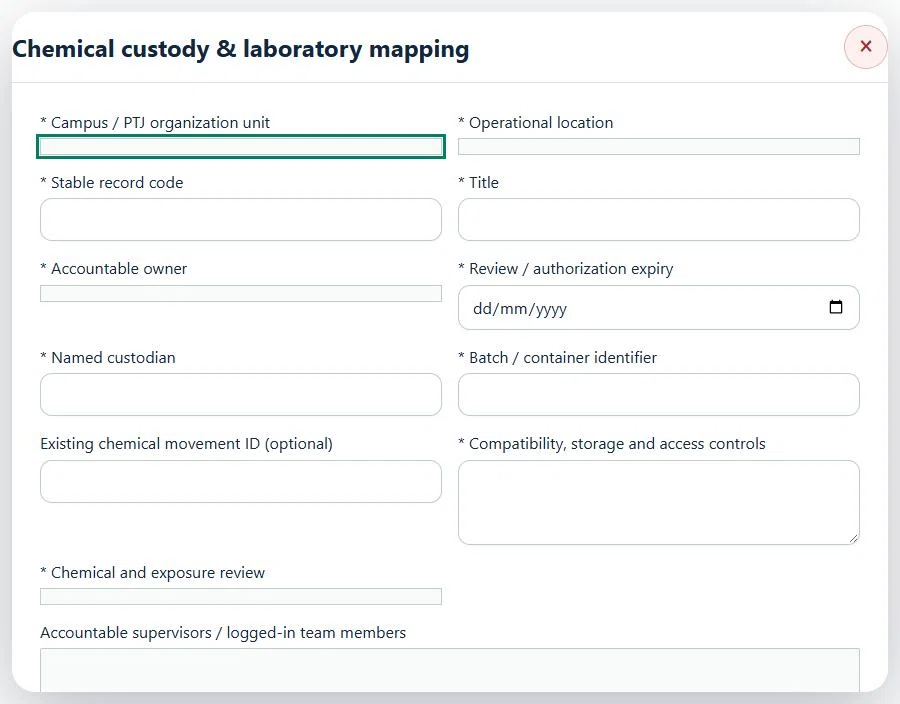
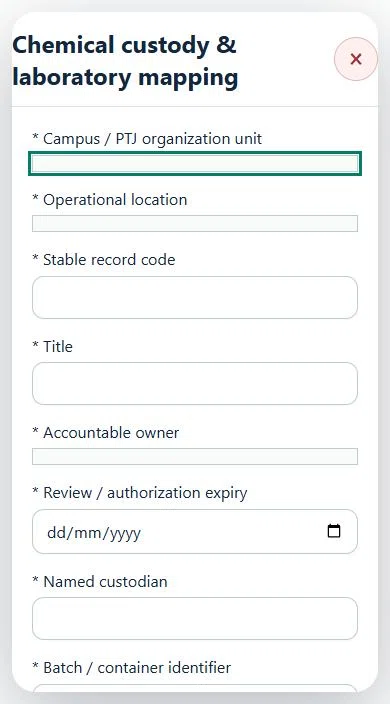
12Education & ResearchChemical custody & laboratory mappingPrepare a source-linked assurance record and obtain independent acceptance.
How to use this section
Select the operating context, owner and review due date. Record: Named custodian; Batch / container identifier; Existing chemical movement ID (optional); Compatibility, storage and access controls; Chemical and exposure review.
Link the relevant saved source records and any required accepted dependencies. Save the draft and attach supporting evidence in Detail.
Submit for independent review; resolve rejected or incomplete evidence before resubmitting. Acceptance does not approve or release the linked source work.
Use a new revision for changes to accepted records. Follow source links to resolve expired evidence, changed sources or failed prerequisites before progressing work.
Desktop · Chemical custody & laboratory mapping · Highlight: * Campus / PTJ organization unitMobile · Chemical custody & laboratory mapping · Highlight: * Campus / PTJ organization unit
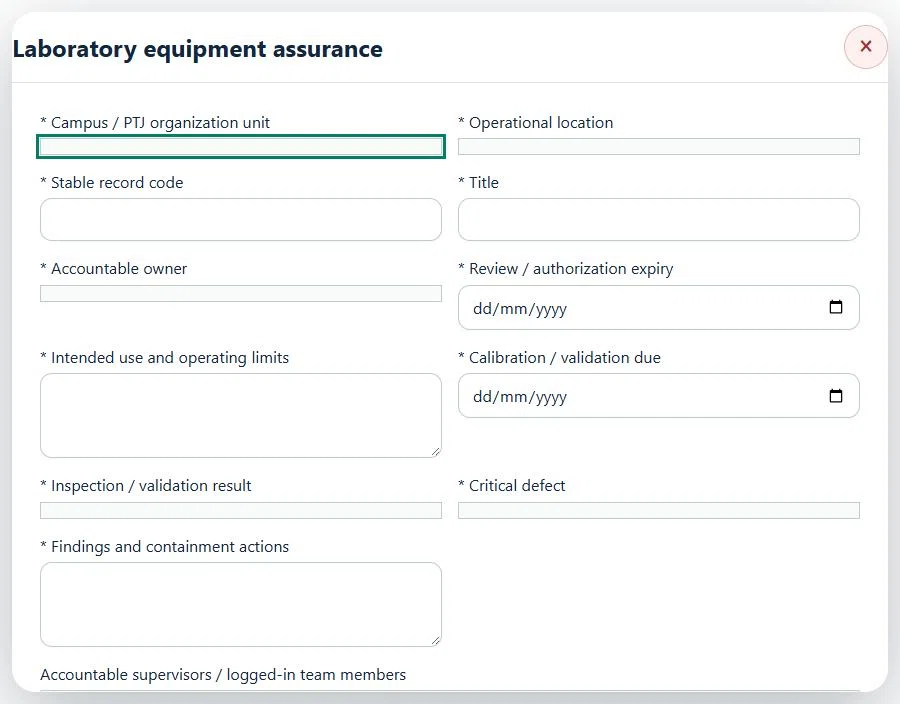
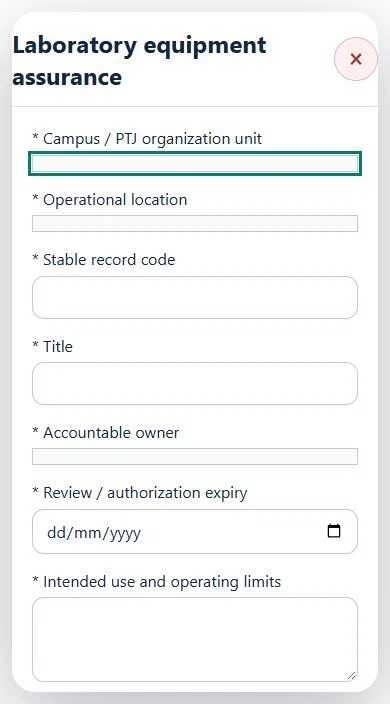
13Education & ResearchLaboratory equipment assurancePrepare a source-linked assurance record and obtain independent acceptance.
How to use this section
Select the operating context, owner and review due date. Record: Intended use and operating limits; Calibration / validation due; Inspection / validation result; Critical defect; Findings and containment actions.
Link the relevant saved source records and any required accepted dependencies. Save the draft and attach supporting evidence in Detail.
Submit for independent review; resolve rejected or incomplete evidence before resubmitting. Acceptance does not approve or release the linked source work.
Use a new revision for changes to accepted records. Follow source links to resolve expired evidence, changed sources or failed prerequisites before progressing work.
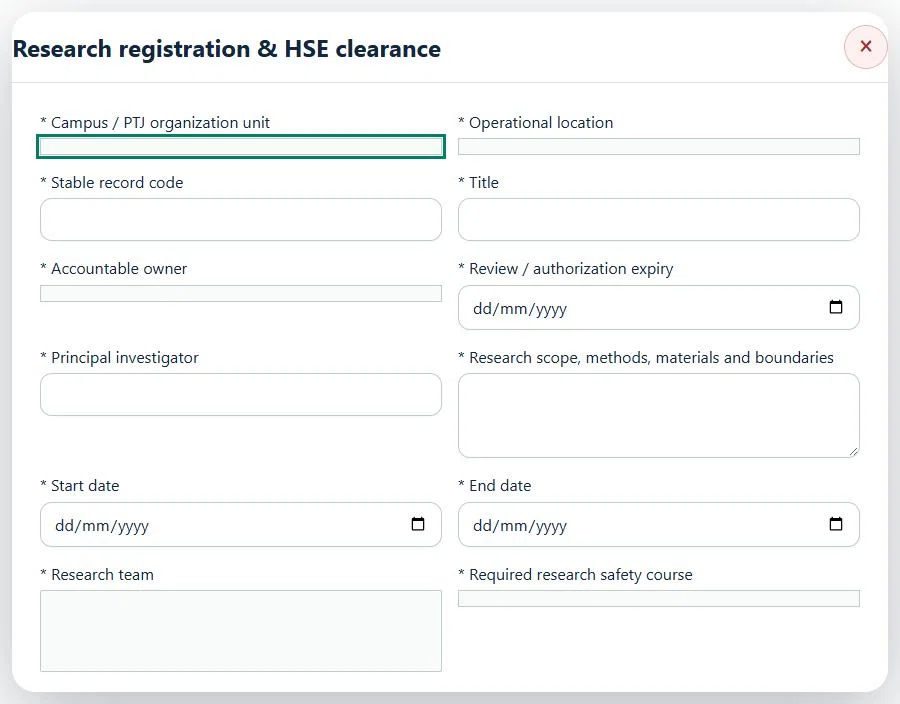
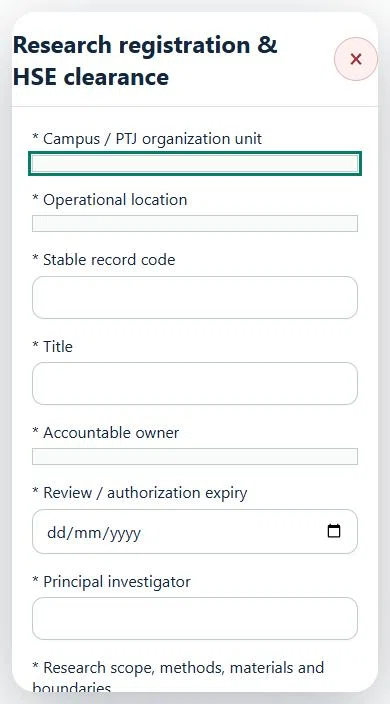
14Education & ResearchResearch registration & HSE clearancePrepare a source-linked assurance record and obtain independent acceptance.
How to use this section
Select the operating context, owner and review due date. Record: Principal investigator; Research scope, methods, materials and boundaries; Start date; End date; Research team; Required research safety course; Human research / ethics approval required; Ethics approval; IBC / biosafety approval required; IBC approval; Animal ethics approval required; Animal ethics approval; Ionizing radiation authorization required; Radiation authorization; Risk screening and applicability rationale.
Link the relevant saved source records and any required accepted dependencies. Save the draft and attach supporting evidence in Detail.
Submit for independent review; resolve rejected or incomplete evidence before resubmitting. Acceptance does not approve or release the linked source work.
Use a new revision for changes to accepted records. Follow source links to resolve expired evidence, changed sources or failed prerequisites before progressing work.
Desktop · Research registration & HSE clearance · Highlight: * Campus / PTJ organization unitMobile · Research registration & HSE clearance · Highlight: * Campus / PTJ organization unit
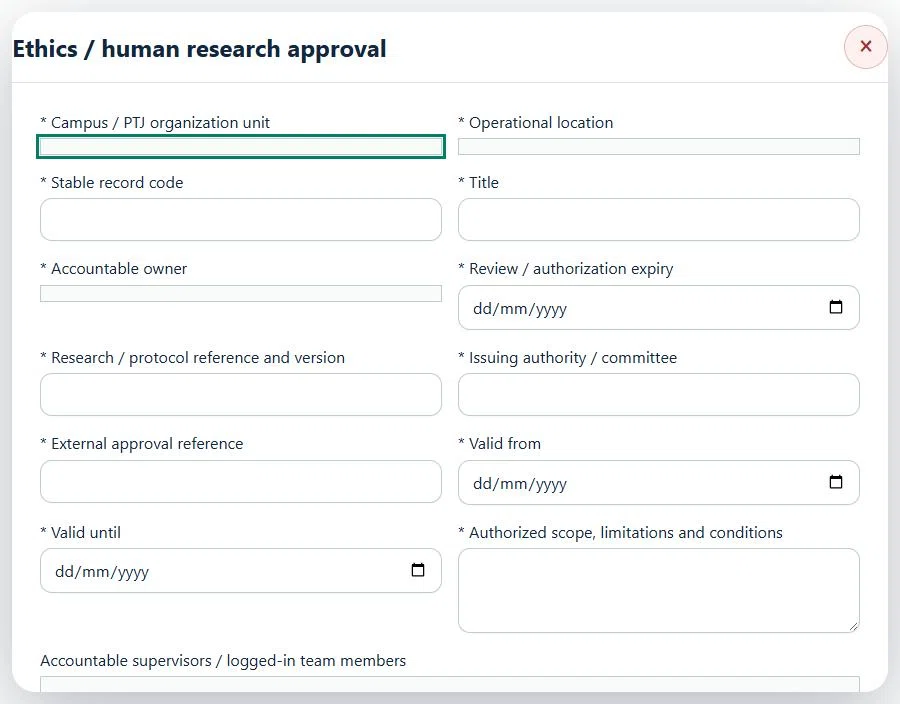
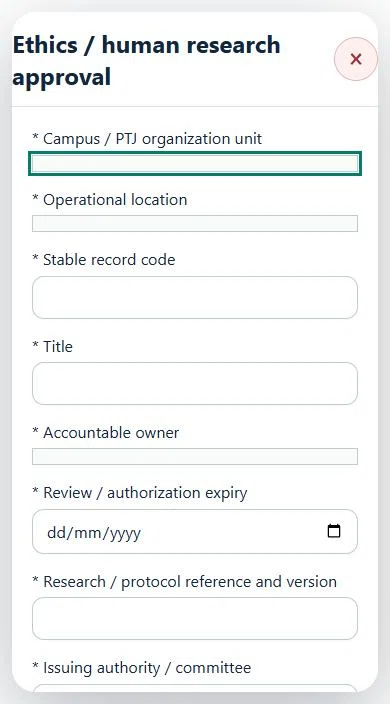
15Education & ResearchEthics / human research approvalPrepare a source-linked assurance record and obtain independent acceptance.
How to use this section
Select the operating context, owner and review due date. Record: Research / protocol reference and version; Issuing authority / committee; External approval reference; Valid from; Valid until; Authorized scope, limitations and conditions.
Link the relevant saved source records and any required accepted dependencies. Save the draft and attach supporting evidence in Detail.
Submit for independent review; resolve rejected or incomplete evidence before resubmitting. Acceptance does not approve or release the linked source work.
Use a new revision for changes to accepted records. Follow source links to resolve expired evidence, changed sources or failed prerequisites before progressing work.
Desktop · Ethics / human research approval · Highlight: * Campus / PTJ organization unitMobile · Ethics / human research approval · Highlight: * Campus / PTJ organization unit
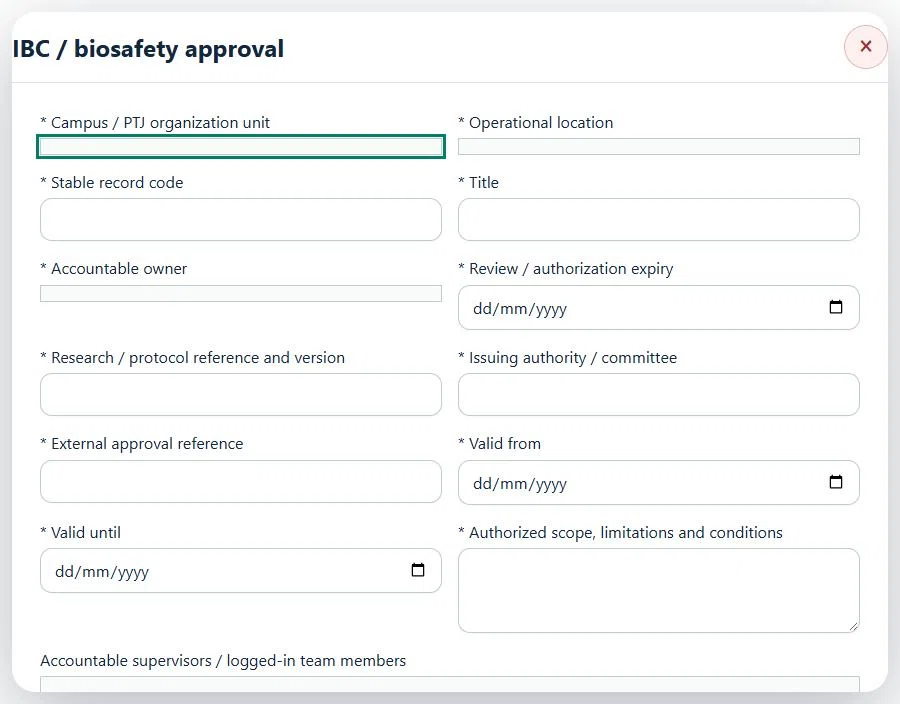
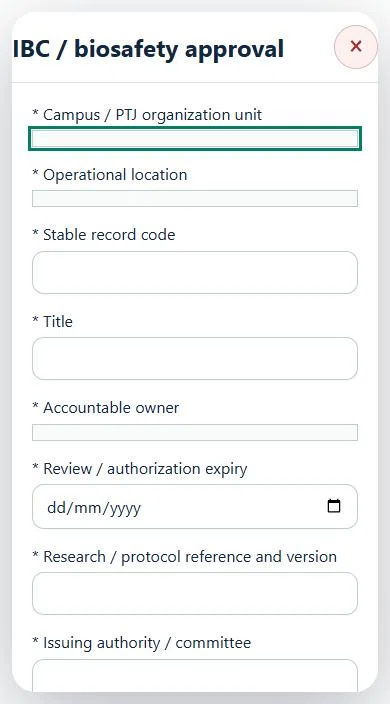
16Education & ResearchIBC / biosafety approvalPrepare a source-linked assurance record and obtain independent acceptance.
How to use this section
Select the operating context, owner and review due date. Record: Research / protocol reference and version; Issuing authority / committee; External approval reference; Valid from; Valid until; Authorized scope, limitations and conditions.
Link the relevant saved source records and any required accepted dependencies. Save the draft and attach supporting evidence in Detail.
Submit for independent review; resolve rejected or incomplete evidence before resubmitting. Acceptance does not approve or release the linked source work.
Use a new revision for changes to accepted records. Follow source links to resolve expired evidence, changed sources or failed prerequisites before progressing work.
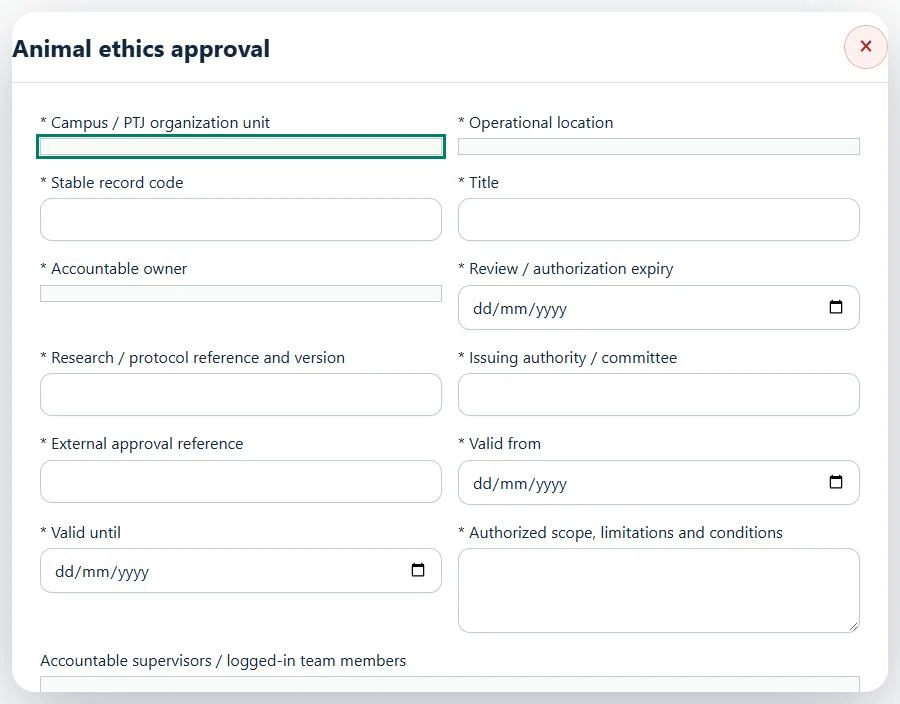
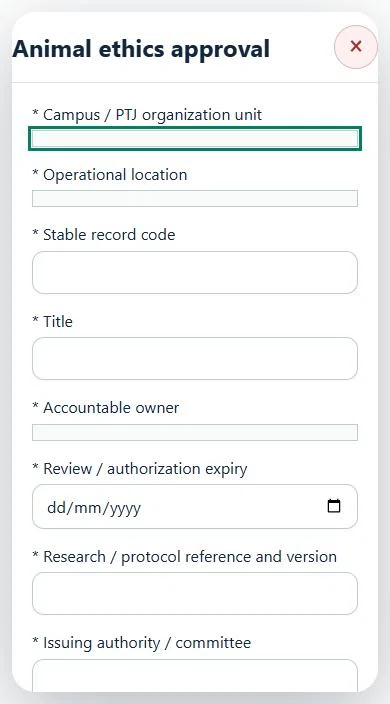
17Education & ResearchAnimal ethics approvalPrepare a source-linked assurance record and obtain independent acceptance.
How to use this section
Select the operating context, owner and review due date. Record: Research / protocol reference and version; Issuing authority / committee; External approval reference; Valid from; Valid until; Authorized scope, limitations and conditions.
Link the relevant saved source records and any required accepted dependencies. Save the draft and attach supporting evidence in Detail.
Submit for independent review; resolve rejected or incomplete evidence before resubmitting. Acceptance does not approve or release the linked source work.
Use a new revision for changes to accepted records. Follow source links to resolve expired evidence, changed sources or failed prerequisites before progressing work.
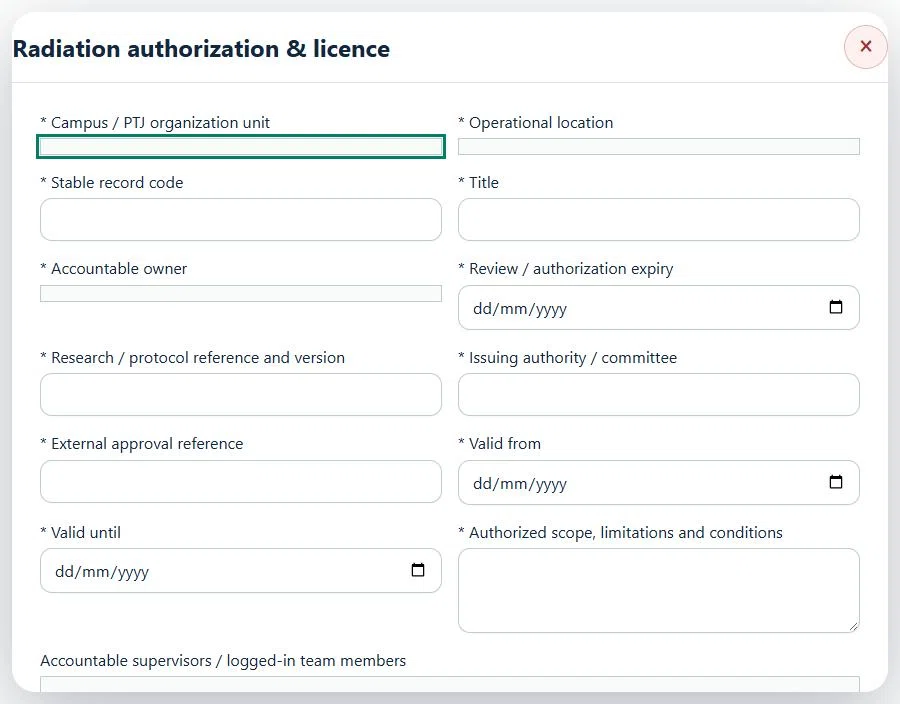
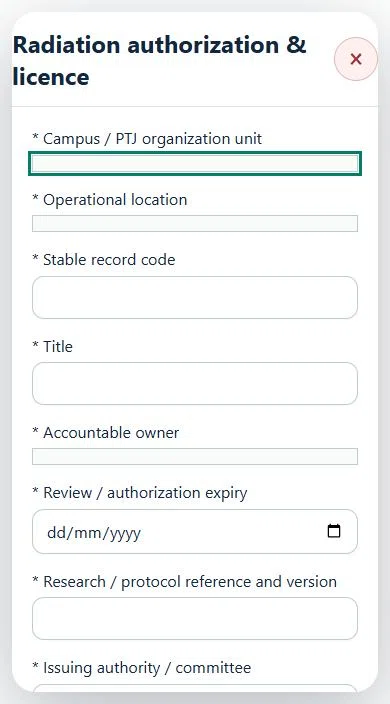
18Education & ResearchRadiation authorization & licencePrepare a source-linked assurance record and obtain independent acceptance.
How to use this section
Select the operating context, owner and review due date. Record: Research / protocol reference and version; Issuing authority / committee; External approval reference; Valid from; Valid until; Authorized scope, limitations and conditions.
Link the relevant saved source records and any required accepted dependencies. Save the draft and attach supporting evidence in Detail.
Submit for independent review; resolve rejected or incomplete evidence before resubmitting. Acceptance does not approve or release the linked source work.
Use a new revision for changes to accepted records. Follow source links to resolve expired evidence, changed sources or failed prerequisites before progressing work.
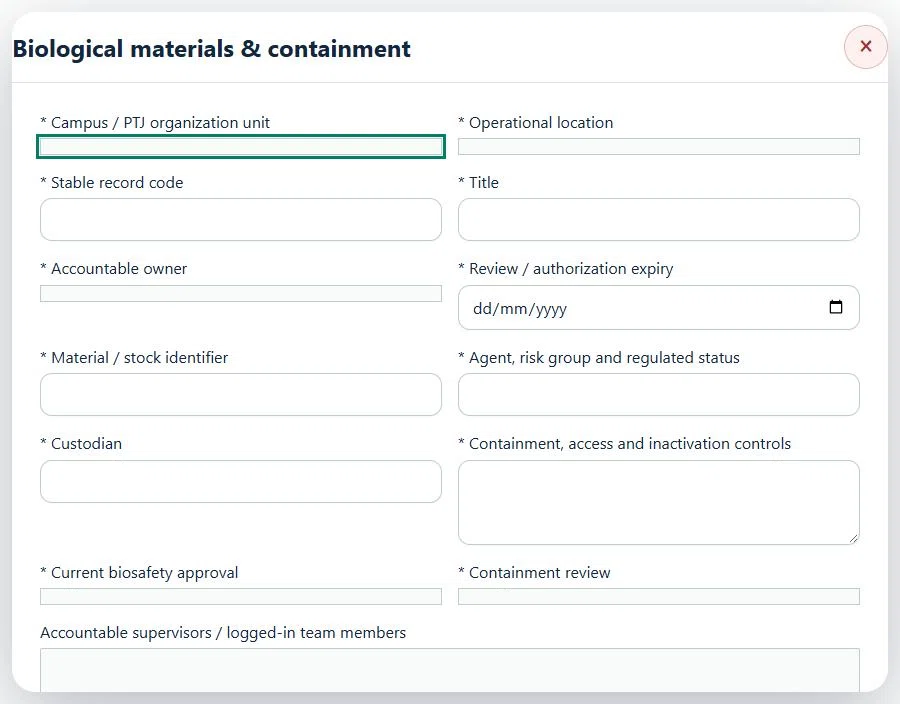
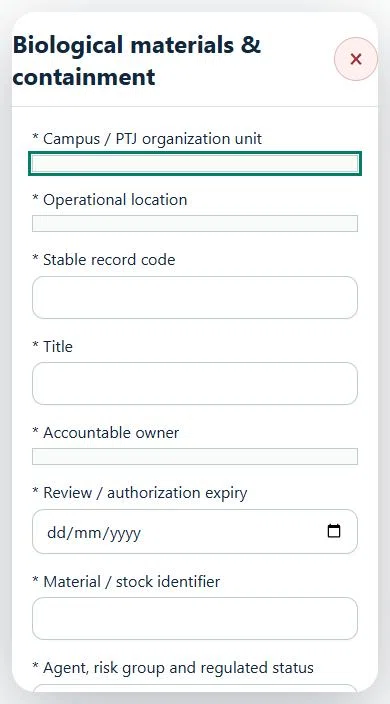
19Education & ResearchBiological materials & containmentPrepare a source-linked assurance record and obtain independent acceptance.
How to use this section
Select the operating context, owner and review due date. Record: Material / stock identifier; Agent, risk group and regulated status; Custodian; Containment, access and inactivation controls; Current biosafety approval; Containment review.
Link the relevant saved source records and any required accepted dependencies. Save the draft and attach supporting evidence in Detail.
Submit for independent review; resolve rejected or incomplete evidence before resubmitting. Acceptance does not approve or release the linked source work.
Use a new revision for changes to accepted records. Follow source links to resolve expired evidence, changed sources or failed prerequisites before progressing work.
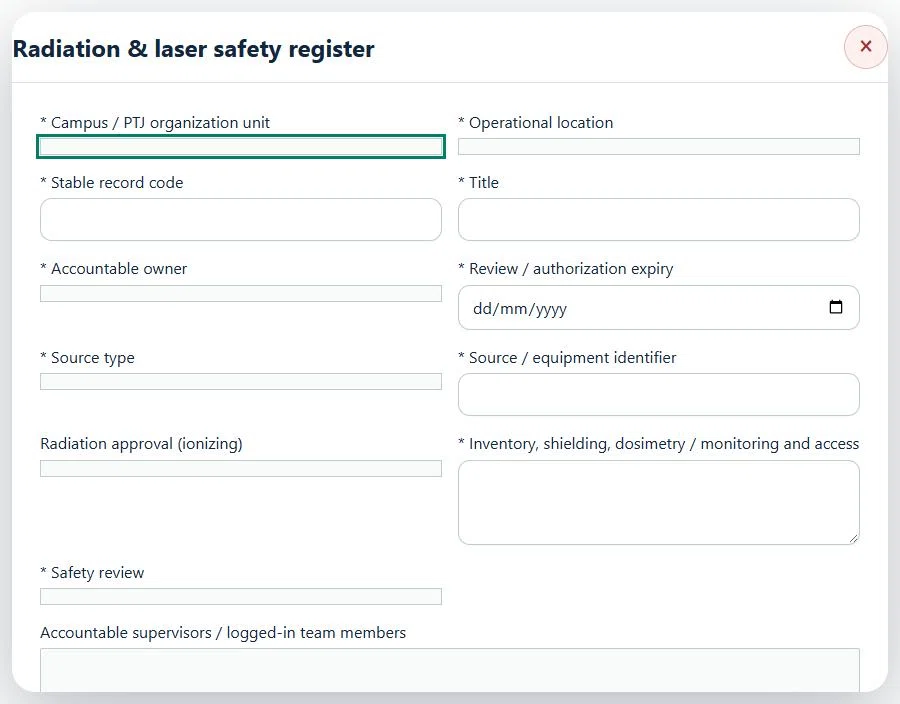
20Education & ResearchRadiation & laser safety registerPrepare a source-linked assurance record and obtain independent acceptance.
How to use this section
Select the operating context, owner and review due date. Record: Source type; Source / equipment identifier; Radiation approval (ionizing); Inventory, shielding, dosimetry / monitoring and access; Safety review.
Link the relevant saved source records and any required accepted dependencies. Save the draft and attach supporting evidence in Detail.
Submit for independent review; resolve rejected or incomplete evidence before resubmitting. Acceptance does not approve or release the linked source work.
Use a new revision for changes to accepted records. Follow source links to resolve expired evidence, changed sources or failed prerequisites before progressing work.
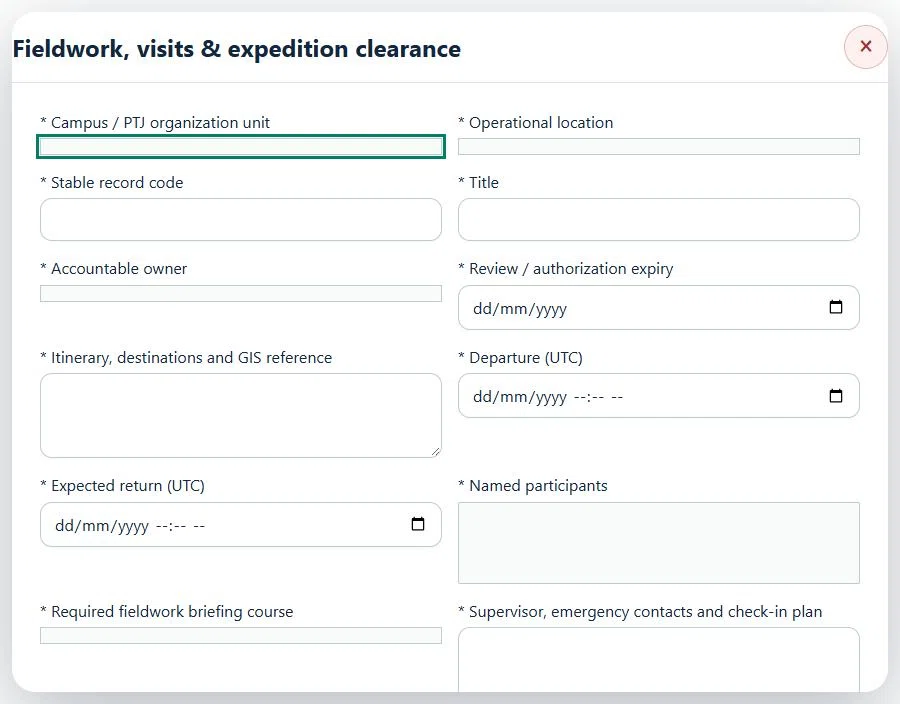
21Education & ResearchFieldwork, visits & expedition clearancePrepare a source-linked assurance record and obtain independent acceptance.
How to use this section
Select the operating context, owner and review due date. Record: Itinerary, destinations and GIS reference; Departure (UTC); Expected return (UTC); Named participants; Required fieldwork briefing course; Supervisor, emergency contacts and check-in plan; Guardian consent required by policy; Consent evidence verified; Transport; Campus transport assurance; Weather, terrain and rescue readiness.
Link the relevant saved source records and any required accepted dependencies. Save the draft and attach supporting evidence in Detail.
Submit for independent review; resolve rejected or incomplete evidence before resubmitting. Acceptance does not approve or release the linked source work.
Use a new revision for changes to accepted records. Follow source links to resolve expired evidence, changed sources or failed prerequisites before progressing work.
Link the relevant saved source records and any required accepted dependencies. Save the draft and attach supporting evidence in Detail.
Submit for independent review; resolve rejected or incomplete evidence before resubmitting. Acceptance does not approve or release the linked source work.
Use a new revision for changes to accepted records. Follow source links to resolve expired evidence, changed sources or failed prerequisites before progressing work.
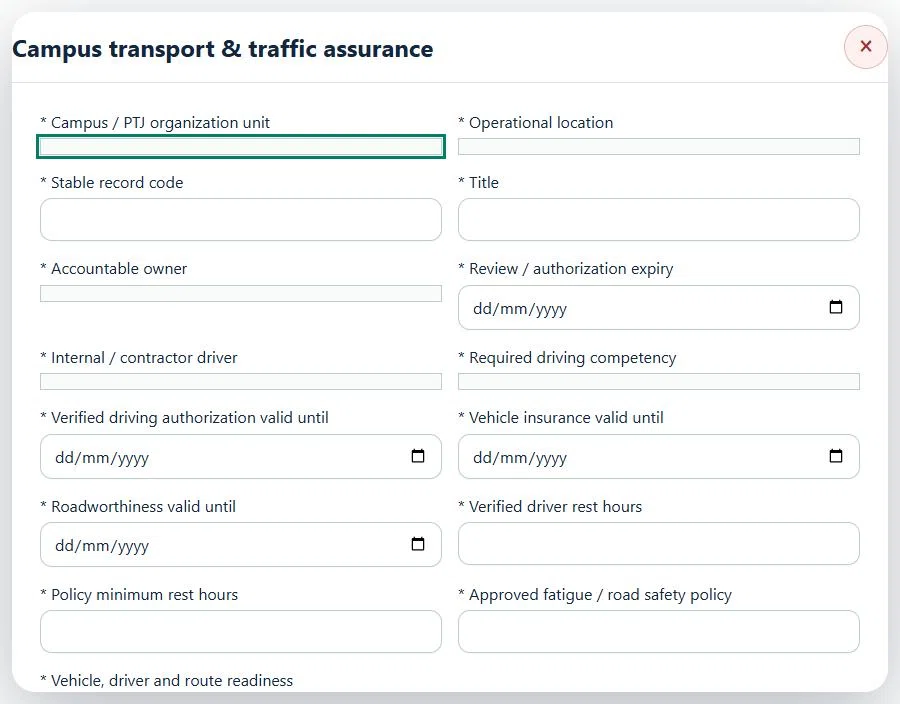
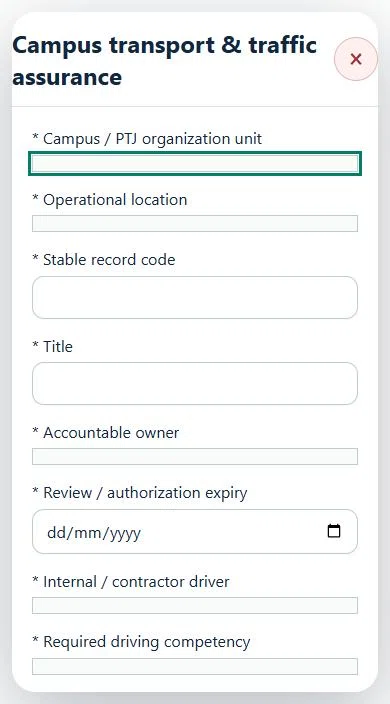
Desktop · Campus transport & traffic assurance · Highlight: * Campus / PTJ organization unitMobile · Campus transport & traffic assurance · Highlight: * Campus / PTJ organization unit
23Education & ResearchCampus, hostel, sports & public safetyPrepare a source-linked assurance record and obtain independent acceptance.
How to use this section
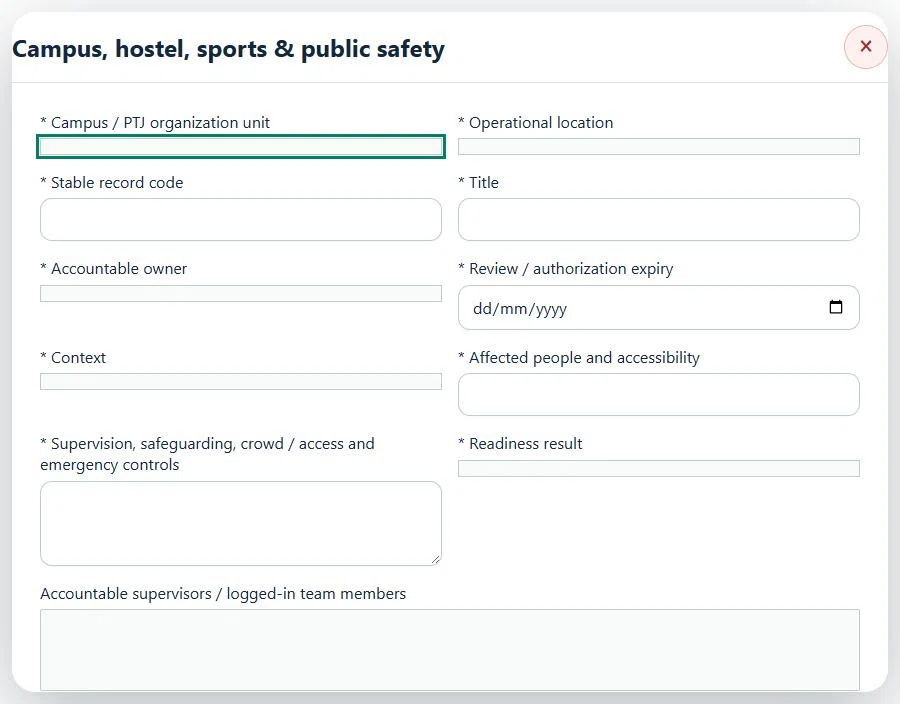
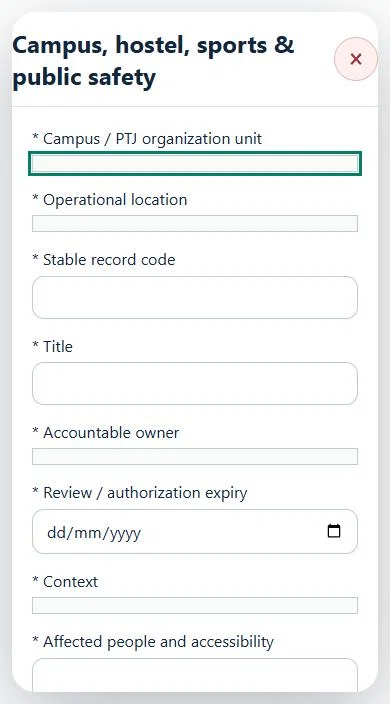
Select the operating context, owner and review due date. Record: Context; Affected people and accessibility; Supervision, safeguarding, crowd / access and emergency controls; Readiness result.
Link the relevant saved source records and any required accepted dependencies. Save the draft and attach supporting evidence in Detail.
Submit for independent review; resolve rejected or incomplete evidence before resubmitting. Acceptance does not approve or release the linked source work.
Use a new revision for changes to accepted records. Follow source links to resolve expired evidence, changed sources or failed prerequisites before progressing work.
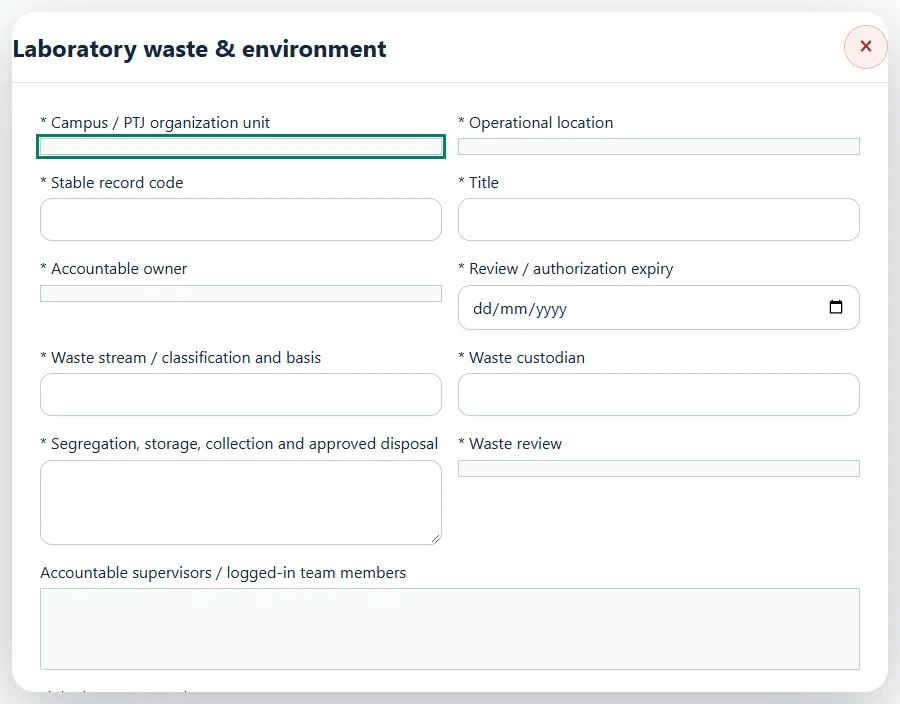
24Education & ResearchLaboratory waste & environmentPrepare a source-linked assurance record and obtain independent acceptance.
How to use this section
Select the operating context, owner and review due date. Record: Waste stream / classification and basis; Waste custodian; Segregation, storage, collection and approved disposal; Waste review.
Link the relevant saved source records and any required accepted dependencies. Save the draft and attach supporting evidence in Detail.
Submit for independent review; resolve rejected or incomplete evidence before resubmitting. Acceptance does not approve or release the linked source work.
Use a new revision for changes to accepted records. Follow source links to resolve expired evidence, changed sources or failed prerequisites before progressing work.
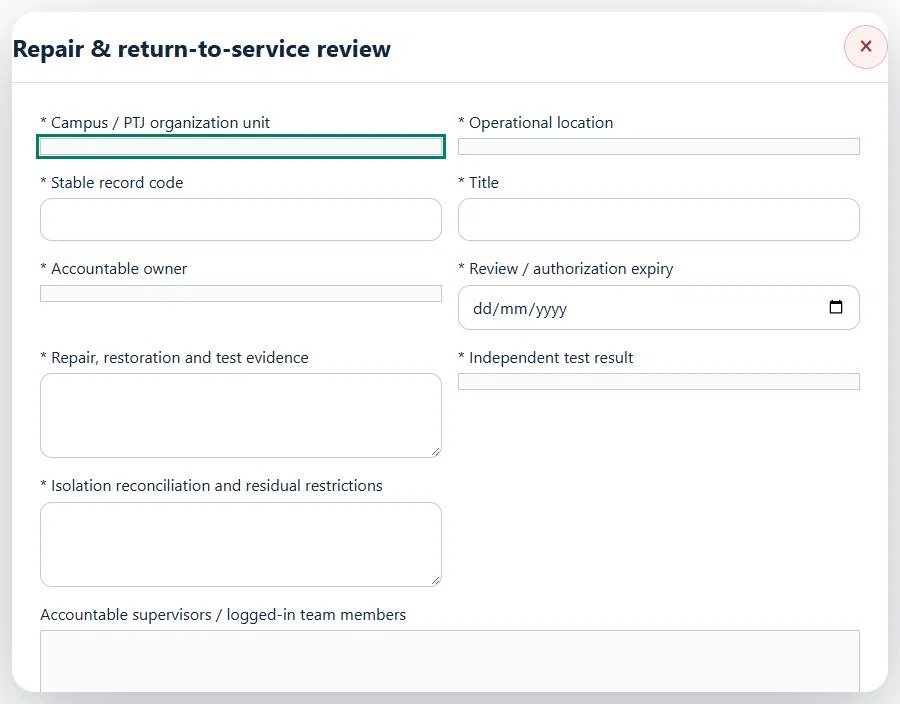
25Education & ResearchRepair & return-to-service reviewPrepare a source-linked assurance record and obtain independent acceptance.
How to use this section
Select the operating context, owner and review due date. Record: Repair, restoration and test evidence; Independent test result; Isolation reconciliation and residual restrictions.
Link the relevant saved source records and any required accepted dependencies. Save the draft and attach supporting evidence in Detail.
Submit for independent review; resolve rejected or incomplete evidence before resubmitting. Acceptance does not approve or release the linked source work.
Use a new revision for changes to accepted records. Follow source links to resolve expired evidence, changed sources or failed prerequisites before progressing work.
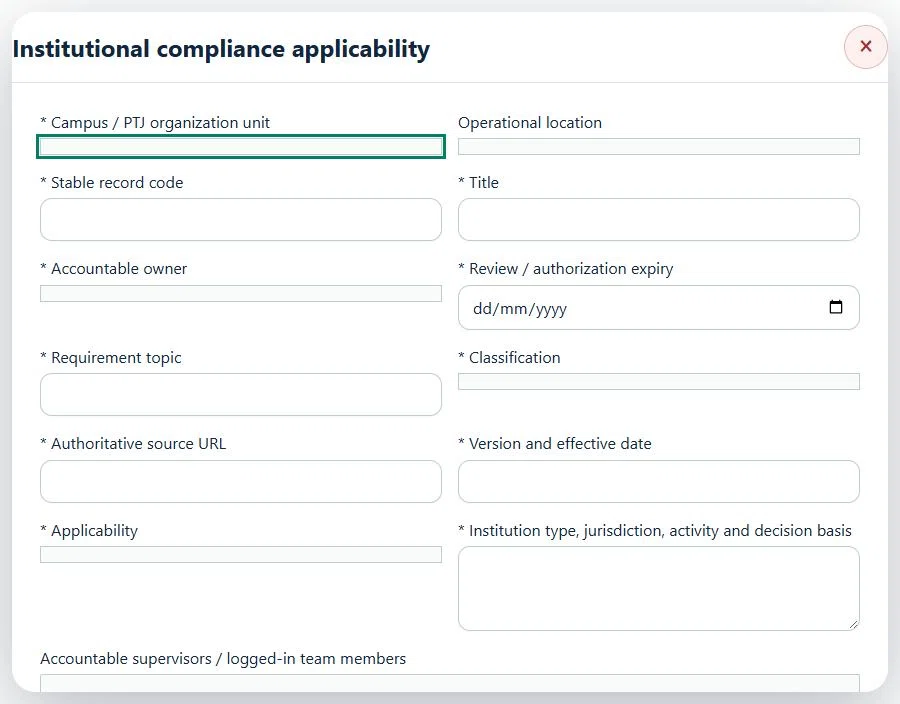
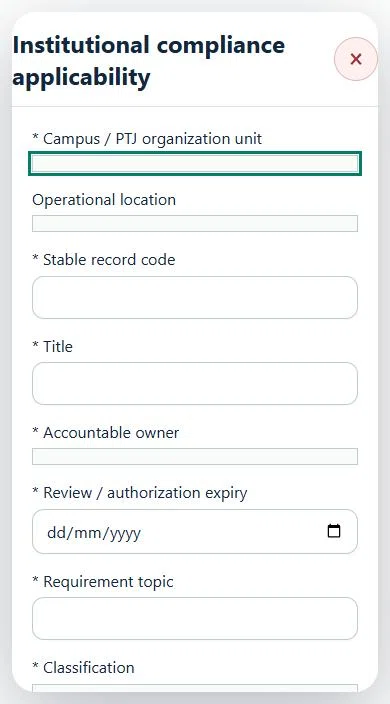
26Education & ResearchInstitutional compliance applicabilityPrepare a source-linked assurance record and obtain independent acceptance.
How to use this section
Select the operating context, owner and review due date. Record: Requirement topic; Classification; Authoritative source URL; Version and effective date; Applicability; Institution type, jurisdiction, activity and decision basis.
Link the relevant saved source records and any required accepted dependencies. Save the draft and attach supporting evidence in Detail.
Submit for independent review; resolve rejected or incomplete evidence before resubmitting. Acceptance does not approve or release the linked source work.
Use a new revision for changes to accepted records. Follow source links to resolve expired evidence, changed sources or failed prerequisites before progressing work.
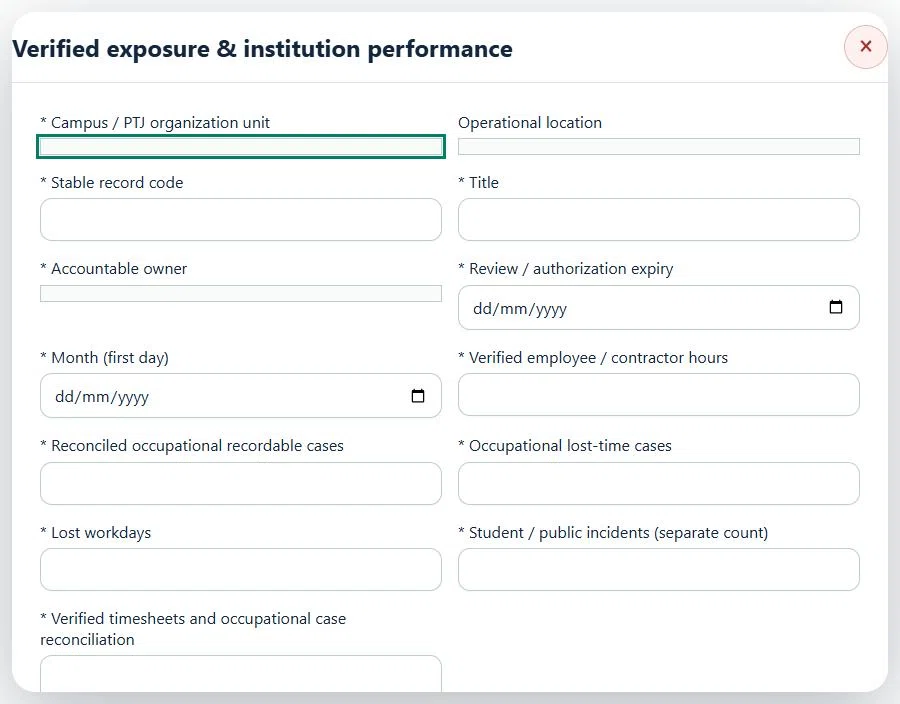
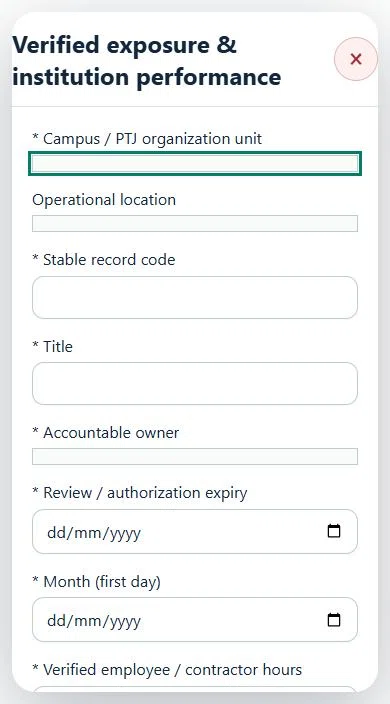
27Education & ResearchVerified exposure & institution performancePrepare a source-linked assurance record and obtain independent acceptance.
How to use this section
Select the operating context, owner and review due date. Record: Month (first day); Verified employee / contractor hours; Reconciled occupational recordable cases; Occupational lost-time cases; Lost workdays; Student / public incidents (separate count); Verified timesheets and occupational case reconciliation.
Link the relevant saved source records and any required accepted dependencies. Save the draft and attach supporting evidence in Detail.
Submit for independent review; resolve rejected or incomplete evidence before resubmitting. Acceptance does not approve or release the linked source work.
Use a new revision for changes to accepted records. Follow source links to resolve expired evidence, changed sources or failed prerequisites before progressing work.
28Education & ResearchLaboratory session & safe closeCarry out the work with measured results and independent handover.
How to use this section
Manager: select the profile and site, open Operations & handovers → Plan operation, choose Laboratory session & safe close, name the owner and a different authorized reviewer, enter the deadline (UTC), and link saved source records and accepted site reviews.
Owner: open the operation in this workspace. Check its scope and source links; choose Start operation. Add the readings and evidence in the step form, using Add row for each additional observation or person. GPS is recorded with the action when captured.
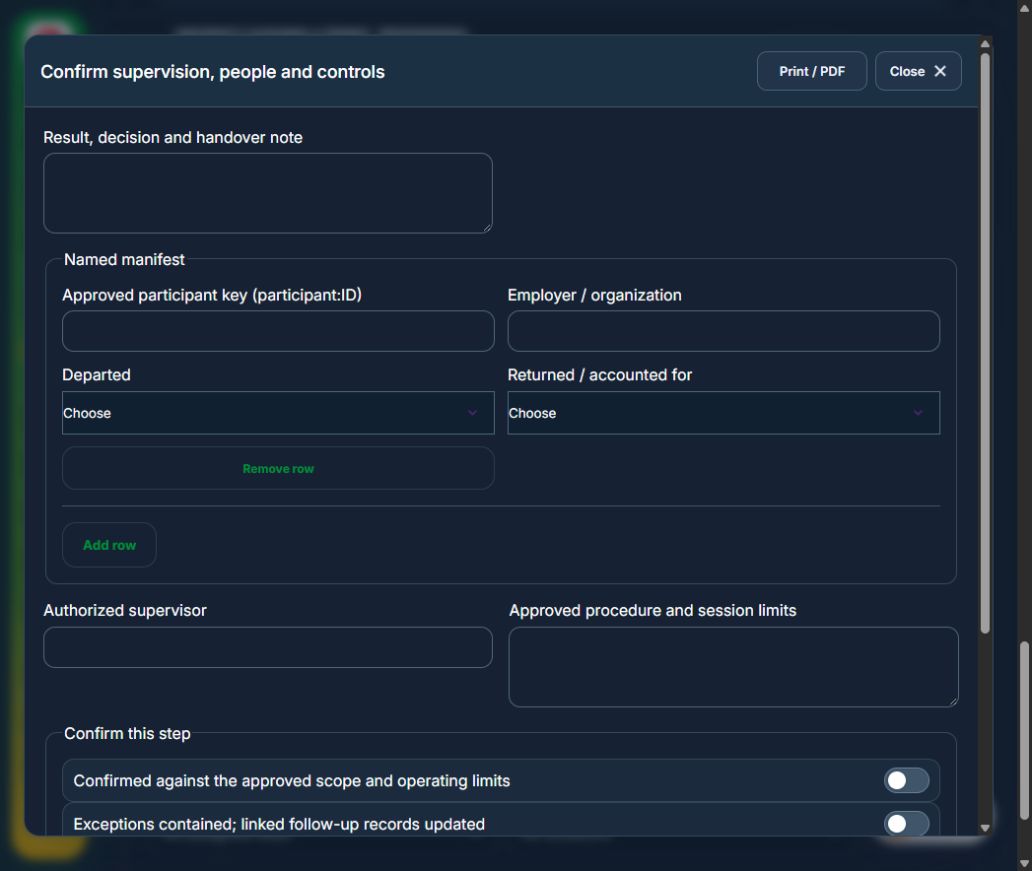
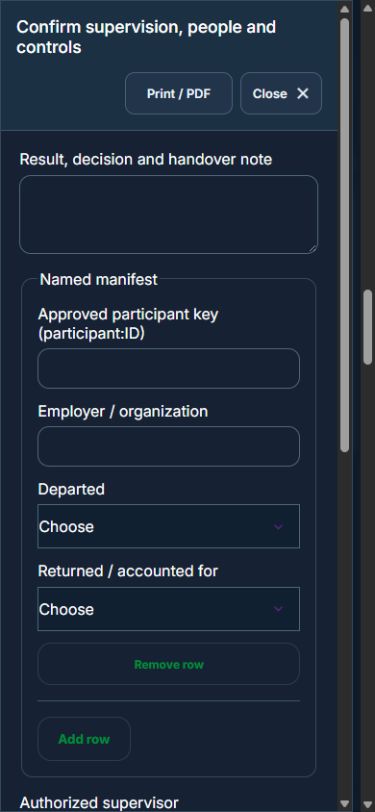
Owner: Confirm supervision, people and controls. Enter Named manifest (Approved participant key (participant:ID), Employer / organization, Departed, Returned / accounted for); Authorized supervisor; Approved procedure and session limits. Complete the required confirmations: Confirmed against the approved scope and operating limits; Exceptions contained; linked follow-up records updated. Requires current independently accepted reviews: lab readiness.
Owner: Record execution and deviations. Enter Session controls; Measurements, deviations and corrective actions / none. Complete the required confirmations: Confirmed against the approved scope and operating limits; Exceptions contained; linked follow-up records updated. Requires current independently accepted reviews: lab readiness.
Owner: Reconcile participants, materials and equipment. Enter Named manifest (Approved participant key (participant:ID), Employer / organization, Departed, Returned / accounted for); Waste segregation, return of materials and equipment condition. Complete the required confirmations: Confirmed against the approved scope and operating limits; Exceptions contained; linked follow-up records updated.
Independent reviewer: Independent verification & closure. Enter Effectiveness, handover and follow-up review date. Complete the required confirmations: Confirmed against the approved scope and operating limits; Exceptions contained; linked follow-up records updated.
If a check fails: close the step form, choose Hold / quarantine and save the failure, containment evidence and GPS. Correct the source records in the same industry workspace. A different authorized reviewer checks fresh clean recovery evidence before releasing the hold; the owner cannot self-release.
At final sign-off, all required reviews are rechecked. Linked Work Packages, PTW, CAPA and after-hours must be finished, and linked LOTO restoration verified. The independent reviewer closes the operation. Reopen requires that reviewer, a reason and new recovery evidence; earlier readings stay in history.
Use Print / PDF at the operation header or form header for the controlled form, QR and evidence/GPS attachments. Close dismisses a form; it does not close the business record. My Actions and My Deadline use the next permitted role; reminders follow existing in-app, PWA and email preferences.
Desktop · Confirm supervision, people and controlsMobile · Confirm supervision, people and controls
29Education & ResearchTVET / workshop session & handbackCarry out the work with measured results and independent handover.
How to use this section
Manager: select the profile and site, open Operations & handovers → Plan operation, choose TVET / workshop session & handback, name the owner and a different authorized reviewer, enter the deadline (UTC), and link saved source records and accepted site reviews.
Owner: open the operation in this workspace. Check its scope and source links; choose Start operation. Add the readings and evidence in the step form, using Add row for each additional observation or person. GPS is recorded with the action when captured.
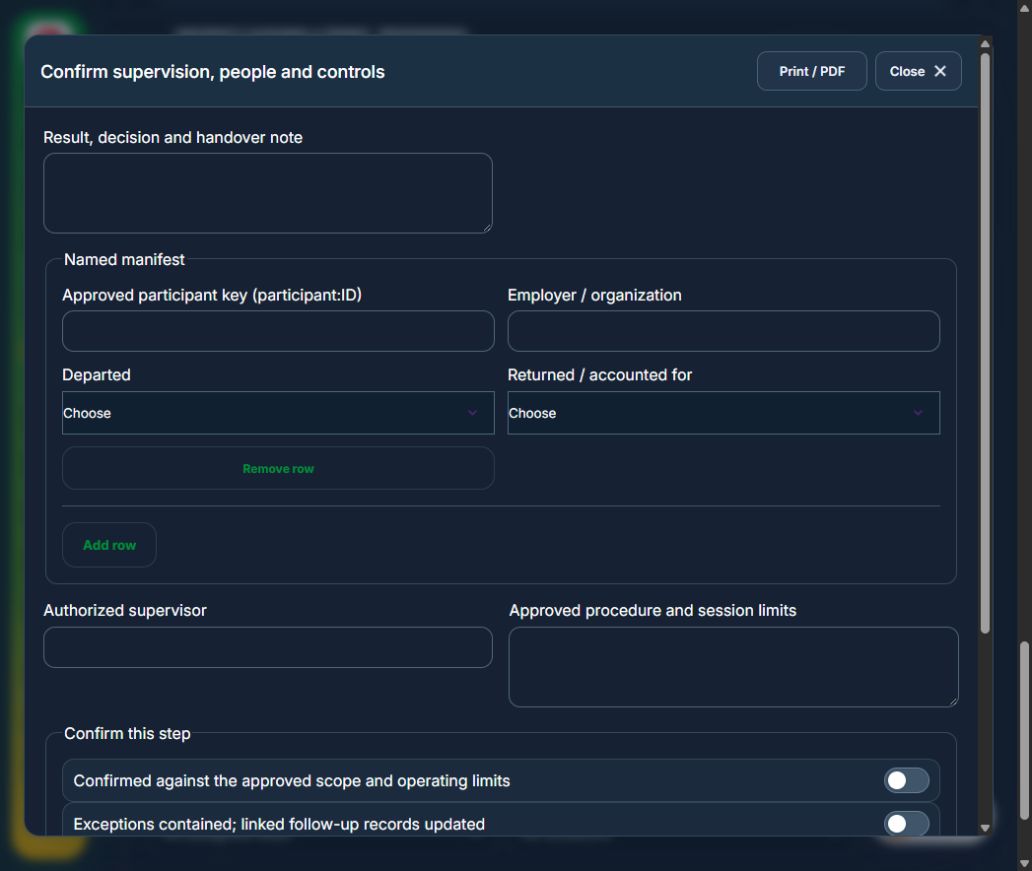
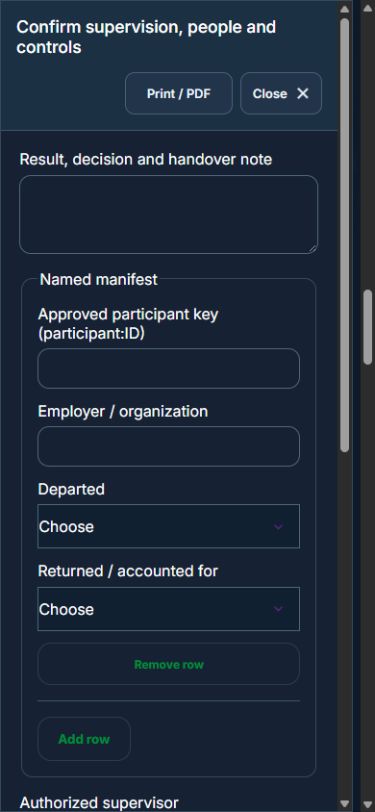
Owner: Confirm supervision, people and controls. Enter Named manifest (Approved participant key (participant:ID), Employer / organization, Departed, Returned / accounted for); Authorized supervisor; Approved procedure and session limits. Complete the required confirmations: Confirmed against the approved scope and operating limits; Exceptions contained; linked follow-up records updated. Requires current independently accepted reviews: equipment review, lab readiness.
Owner: Record execution and deviations. Enter Session controls; Measurements, deviations and corrective actions / none. Complete the required confirmations: Confirmed against the approved scope and operating limits; Exceptions contained; linked follow-up records updated. Requires current independently accepted reviews: equipment review, lab readiness.
Owner: Reconcile participants, materials and equipment. Enter Named manifest (Approved participant key (participant:ID), Employer / organization, Departed, Returned / accounted for); Waste segregation, return of materials and equipment condition. Complete the required confirmations: Confirmed against the approved scope and operating limits; Exceptions contained; linked follow-up records updated.
Independent reviewer: Independent verification & closure. Enter Effectiveness, handover and follow-up review date. Complete the required confirmations: Confirmed against the approved scope and operating limits; Exceptions contained; linked follow-up records updated.
If a check fails: close the step form, choose Hold / quarantine and save the failure, containment evidence and GPS. Correct the source records in the same industry workspace. A different authorized reviewer checks fresh clean recovery evidence before releasing the hold; the owner cannot self-release.
At final sign-off, all required reviews are rechecked. Linked Work Packages, PTW, CAPA and after-hours must be finished, and linked LOTO restoration verified. The independent reviewer closes the operation. Reopen requires that reviewer, a reason and new recovery evidence; earlier readings stay in history.
Use Print / PDF at the operation header or form header for the controlled form, QR and evidence/GPS attachments. Close dismisses a form; it does not close the business record. My Actions and My Deadline use the next permitted role; reminders follow existing in-app, PWA and email preferences.
Desktop · Confirm supervision, people and controlsMobile · Confirm supervision, people and controls
30Education & ResearchFieldwork departure, check-in & safe returnCarry out the work with measured results and independent handover.
How to use this section
Manager: select the profile and site, open Operations & handovers → Plan operation, choose Fieldwork departure, check-in & safe return, name the owner and a different authorized reviewer, enter the deadline (UTC), and link saved source records and accepted site reviews.
Owner: open the operation in this workspace. Check its scope and source links; choose Start operation. Add the readings and evidence in the step form, using Add row for each additional observation or person. GPS is recorded with the action when captured.
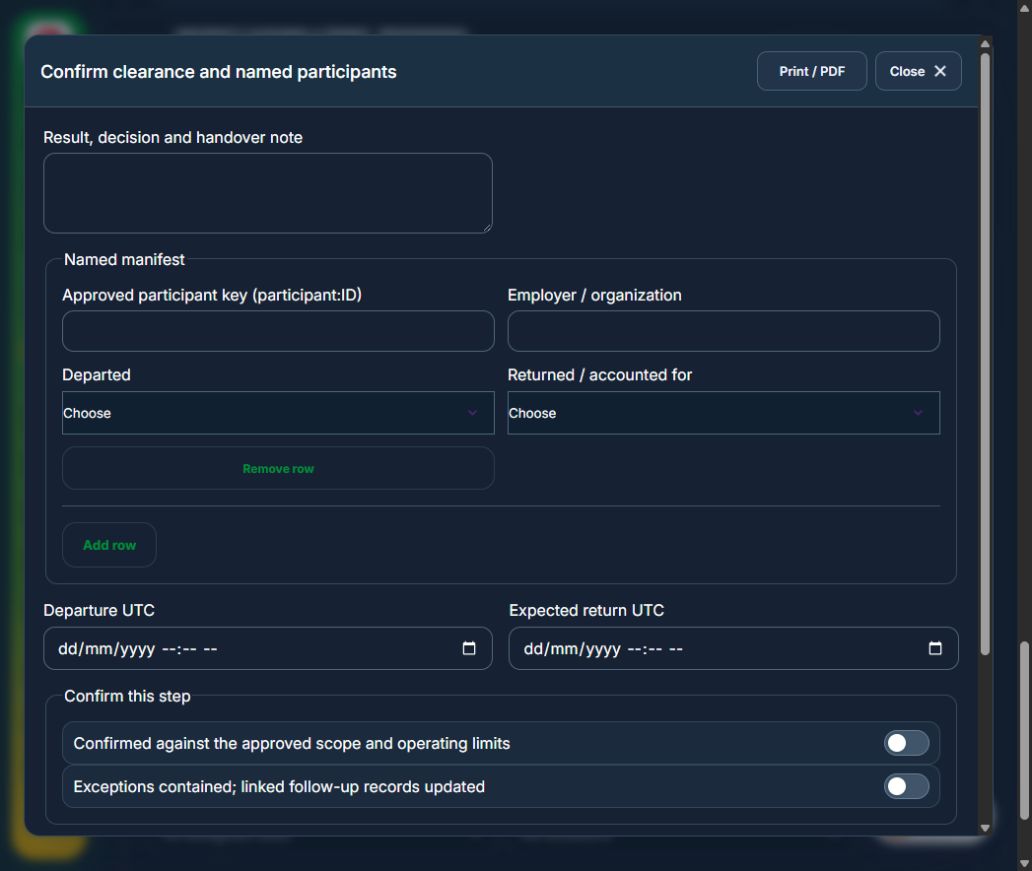
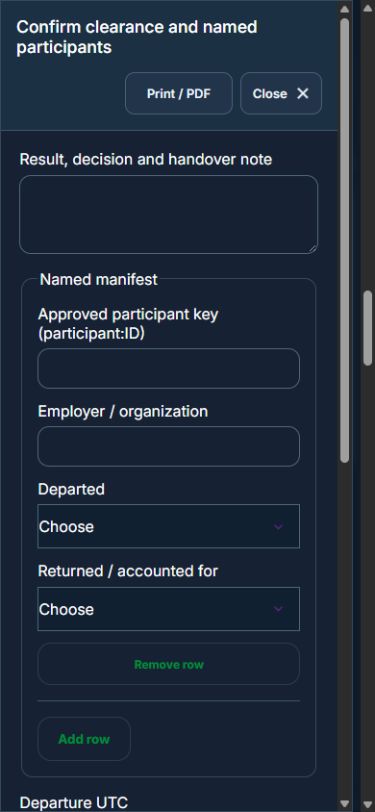
Owner: Confirm clearance and named participants. Enter Named manifest (Approved participant key (participant:ID), Employer / organization, Departed, Returned / accounted for); Departure UTC; Expected return UTC. Complete the required confirmations: Confirmed against the approved scope and operating limits; Exceptions contained; linked follow-up records updated. Requires current independently accepted reviews: fieldwork clearance.
Owner: Record route, weather and welfare. Enter Time, location, weather and welfare. Complete the required confirmations: Confirmed against the approved scope and operating limits; Exceptions contained; linked follow-up records updated. Requires current independently accepted reviews: fieldwork clearance.
Owner: Reconcile every participant on return. Enter Named manifest (Approved participant key (participant:ID), Employer / organization, Departed, Returned / accounted for). Complete the required confirmations: Confirmed against the approved scope and operating limits; Exceptions contained; linked follow-up records updated.
Independent reviewer: Independent verification & closure. Enter Effectiveness, handover and follow-up review date. Complete the required confirmations: Confirmed against the approved scope and operating limits; Exceptions contained; linked follow-up records updated.
If a check fails: close the step form, choose Hold / quarantine and save the failure, containment evidence and GPS. Correct the source records in the same industry workspace. A different authorized reviewer checks fresh clean recovery evidence before releasing the hold; the owner cannot self-release.
At final sign-off, all required reviews are rechecked. Linked Work Packages, PTW, CAPA and after-hours must be finished, and linked LOTO restoration verified. The independent reviewer closes the operation. Reopen requires that reviewer, a reason and new recovery evidence; earlier readings stay in history.
Use Print / PDF at the operation header or form header for the controlled form, QR and evidence/GPS attachments. Close dismisses a form; it does not close the business record. My Actions and My Deadline use the next permitted role; reminders follow existing in-app, PWA and email preferences.
Desktop · Confirm clearance and named participantsMobile · Confirm clearance and named participants
31Education & ResearchResearch amendment & renewed authorizationCarry out the work with measured results and independent handover.
How to use this section
Manager: select the profile and site, open Operations & handovers → Plan operation, choose Research amendment & renewed authorization, name the owner and a different authorized reviewer, enter the deadline (UTC), and link saved source records and accepted site reviews.
Owner: open the operation in this workspace. Check its scope and source links; choose Start operation. Add the readings and evidence in the step form, using Add row for each additional observation or person. GPS is recorded with the action when captured.
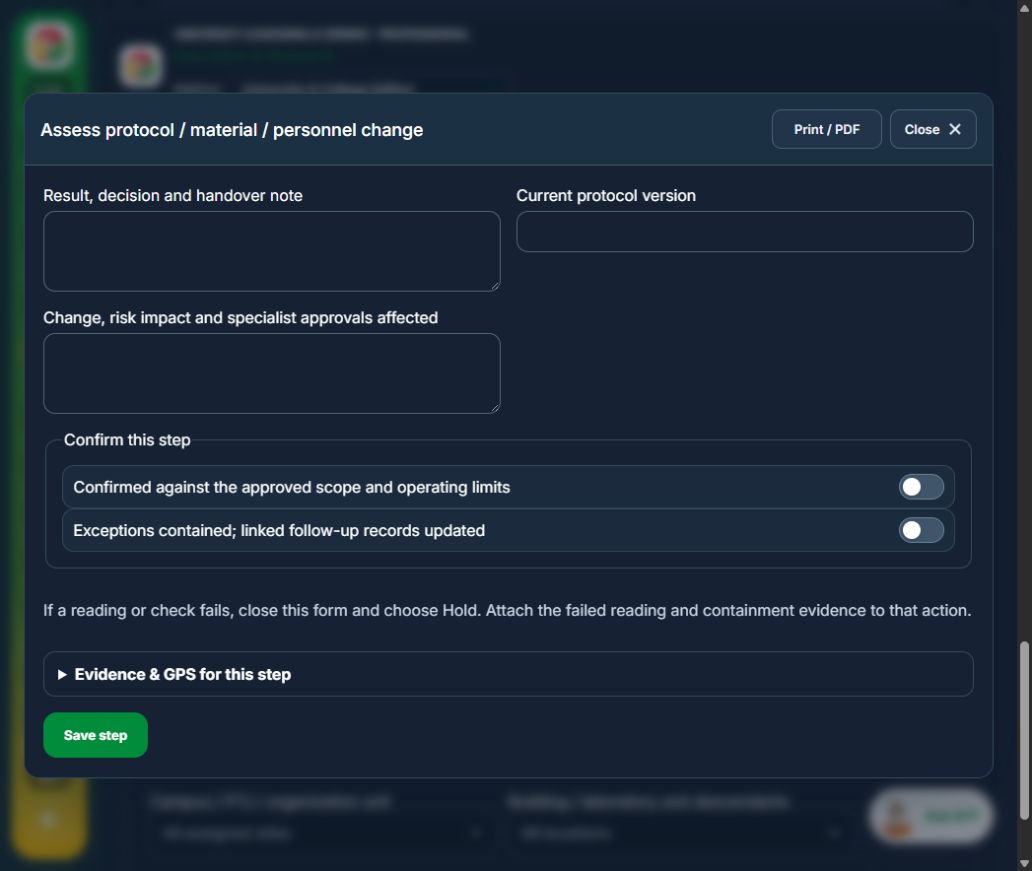
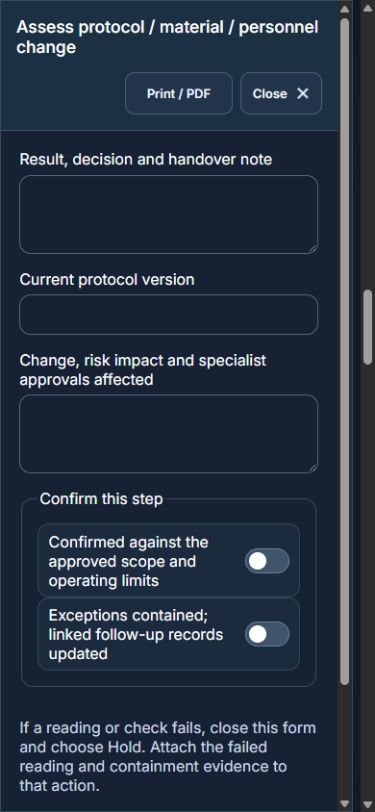
Owner: Assess protocol / material / personnel change. Enter Current protocol version; Change, risk impact and specialist approvals affected. Complete the required confirmations: Confirmed against the approved scope and operating limits; Exceptions contained; linked follow-up records updated. Requires current independently accepted reviews: research project.
Independent reviewer: Verify revised project and specialist decisions. Enter New accepted research revision number; Ethics / biosafety / animal / radiation decisions as applicable. Complete the required confirmations: Confirmed against the approved scope and operating limits; Exceptions contained; linked follow-up records updated. Requires current independently accepted reviews: research project.
Owner: Brief people and implement approved revision. Enter Briefed participants and implementation record. Complete the required confirmations: Confirmed against the approved scope and operating limits; Exceptions contained; linked follow-up records updated.
Independent reviewer: Independent verification & closure. Enter Effectiveness, handover and follow-up review date. Complete the required confirmations: Confirmed against the approved scope and operating limits; Exceptions contained; linked follow-up records updated.
If a check fails: close the step form, choose Hold / quarantine and save the failure, containment evidence and GPS. Correct the source records in the same industry workspace. A different authorized reviewer checks fresh clean recovery evidence before releasing the hold; the owner cannot self-release.
At final sign-off, all required reviews are rechecked. Linked Work Packages, PTW, CAPA and after-hours must be finished, and linked LOTO restoration verified. The independent reviewer closes the operation. Reopen requires that reviewer, a reason and new recovery evidence; earlier readings stay in history.
Use Print / PDF at the operation header or form header for the controlled form, QR and evidence/GPS attachments. Close dismisses a form; it does not close the business record. My Actions and My Deadline use the next permitted role; reminders follow existing in-app, PWA and email preferences.
Desktop · Assess protocol / material / personnel changeMobile · Assess protocol / material / personnel change
32Education & ResearchResearch monitoring & project closeoutCarry out the work with measured results and independent handover.
How to use this section
Manager: select the profile and site, open Operations & handovers → Plan operation, choose Research monitoring & project closeout, name the owner and a different authorized reviewer, enter the deadline (UTC), and link saved source records and accepted site reviews.
Owner: open the operation in this workspace. Check its scope and source links; choose Start operation. Add the readings and evidence in the step form, using Add row for each additional observation or person. GPS is recorded with the action when captured.
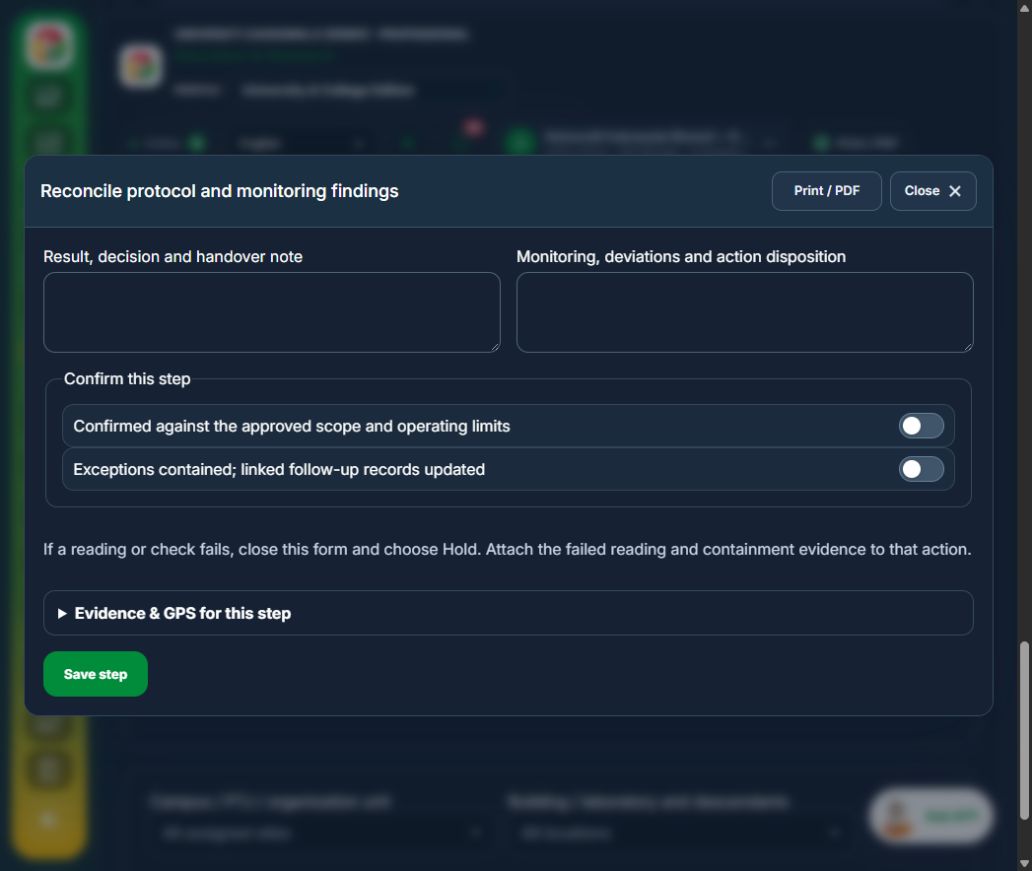
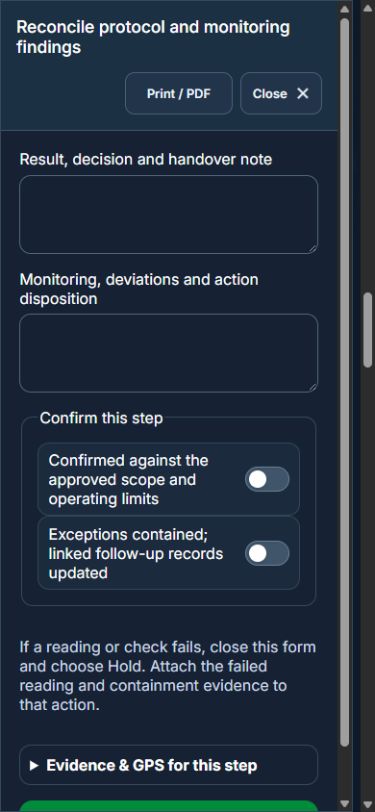
Owner: Reconcile protocol and monitoring findings. Enter Monitoring, deviations and action disposition. Complete the required confirmations: Confirmed against the approved scope and operating limits; Exceptions contained; linked follow-up records updated. Requires current independently accepted reviews: research project.
Owner: Reconcile materials, equipment, data and waste. Enter Material / sample transfer or disposal references; Equipment return and decontamination references; Retention, participant follow-up and outstanding obligations. Complete the required confirmations: Confirmed against the approved scope and operating limits; Exceptions contained; linked follow-up records updated. Link the original capa actions.
Independent reviewer: Independent verification & closure. Enter Effectiveness, handover and follow-up review date. Complete the required confirmations: Confirmed against the approved scope and operating limits; Exceptions contained; linked follow-up records updated.
If a check fails: close the step form, choose Hold / quarantine and save the failure, containment evidence and GPS. Correct the source records in the same industry workspace. A different authorized reviewer checks fresh clean recovery evidence before releasing the hold; the owner cannot self-release.
At final sign-off, all required reviews are rechecked. Linked Work Packages, PTW, CAPA and after-hours must be finished, and linked LOTO restoration verified. The independent reviewer closes the operation. Reopen requires that reviewer, a reason and new recovery evidence; earlier readings stay in history.
Use Print / PDF at the operation header or form header for the controlled form, QR and evidence/GPS attachments. Close dismisses a form; it does not close the business record. My Actions and My Deadline use the next permitted role; reminders follow existing in-app, PWA and email preferences.
Desktop · Reconcile protocol and monitoring findingsMobile · Reconcile protocol and monitoring findings
33Education & ResearchBiological material custody, use & disposalCarry out the work with measured results and independent handover.
How to use this section
Manager: select the profile and site, open Operations & handovers → Plan operation, choose Biological material custody, use & disposal, name the owner and a different authorized reviewer, enter the deadline (UTC), and link saved source records and accepted site reviews.
Owner: open the operation in this workspace. Check its scope and source links; choose Start operation. Add the readings and evidence in the step form, using Add row for each additional observation or person. GPS is recorded with the action when captured.
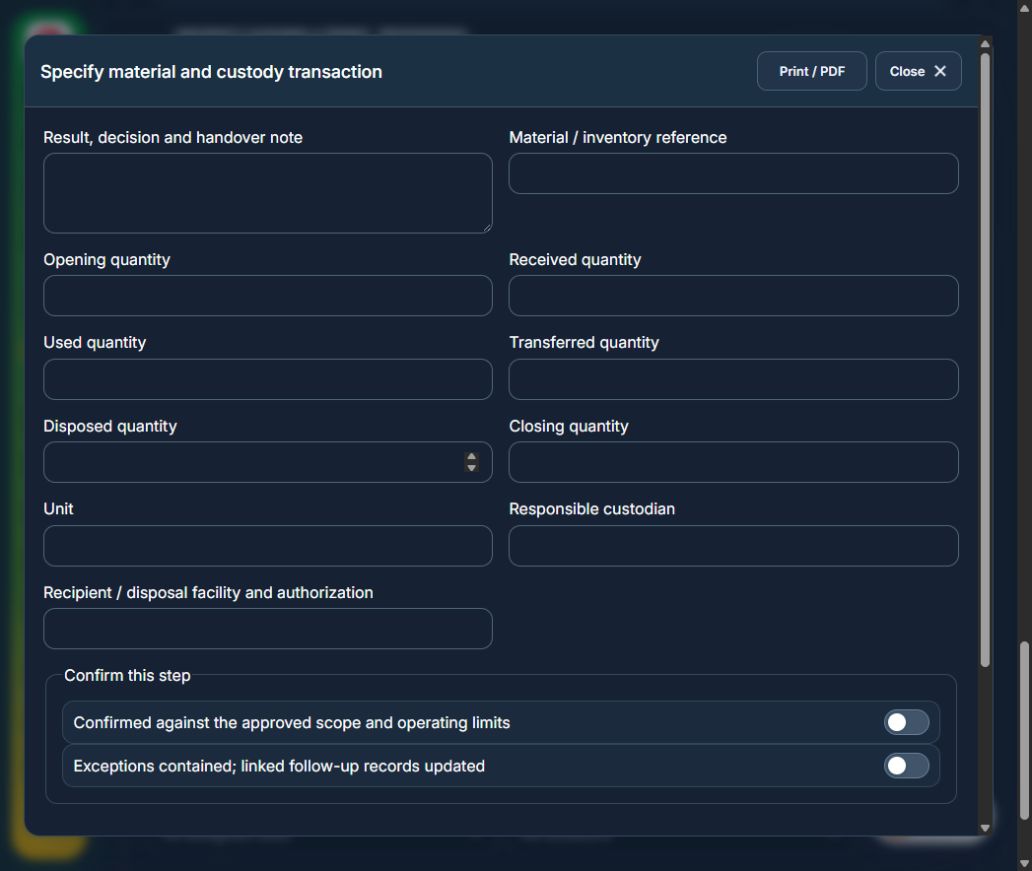
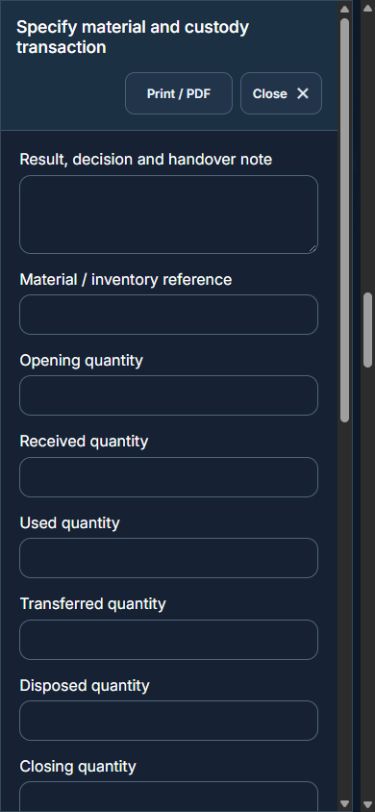
Owner: Specify material and custody transaction. Enter Material / inventory reference; Opening quantity; Received quantity; Used quantity; Transferred quantity; Disposed quantity; Closing quantity; Unit; Responsible custodian; Recipient / disposal facility and authorization. Complete the required confirmations: Confirmed against the approved scope and operating limits; Exceptions contained; linked follow-up records updated. Requires current independently accepted reviews: biological material.
Independent reviewer: Verify containment, chain of custody and disposal. Enter Transfer acceptance, decontamination and disposal manifest. Complete the required confirmations: Confirmed against the approved scope and operating limits; Exceptions contained; linked follow-up records updated. Requires current independently accepted reviews: biosafety approval.
Independent reviewer: Independent verification & closure. Enter Effectiveness, handover and follow-up review date. Complete the required confirmations: Confirmed against the approved scope and operating limits; Exceptions contained; linked follow-up records updated.
If a check fails: close the step form, choose Hold / quarantine and save the failure, containment evidence and GPS. Correct the source records in the same industry workspace. A different authorized reviewer checks fresh clean recovery evidence before releasing the hold; the owner cannot self-release.
At final sign-off, all required reviews are rechecked. Linked Work Packages, PTW, CAPA and after-hours must be finished, and linked LOTO restoration verified. The independent reviewer closes the operation. Reopen requires that reviewer, a reason and new recovery evidence; earlier readings stay in history.
Use Print / PDF at the operation header or form header for the controlled form, QR and evidence/GPS attachments. Close dismisses a form; it does not close the business record. My Actions and My Deadline use the next permitted role; reminders follow existing in-app, PWA and email preferences.
Desktop · Specify material and custody transactionMobile · Specify material and custody transaction
34Education & ResearchRadiation monitoring & source accountabilityCarry out the work with measured results and independent handover.
How to use this section
Manager: select the profile and site, open Operations & handovers → Plan operation, choose Radiation monitoring & source accountability, name the owner and a different authorized reviewer, enter the deadline (UTC), and link saved source records and accepted site reviews.
Owner: open the operation in this workspace. Check its scope and source links; choose Start operation. Add the readings and evidence in the step form, using Add row for each additional observation or person. GPS is recorded with the action when captured.
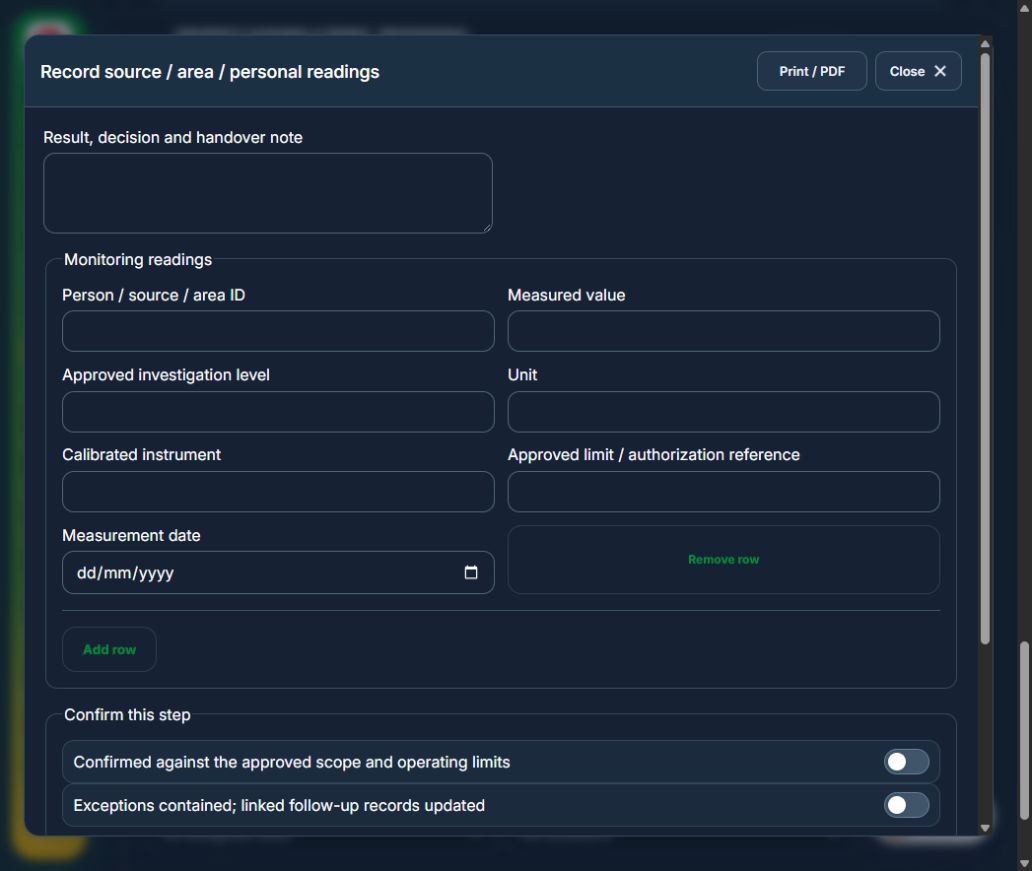
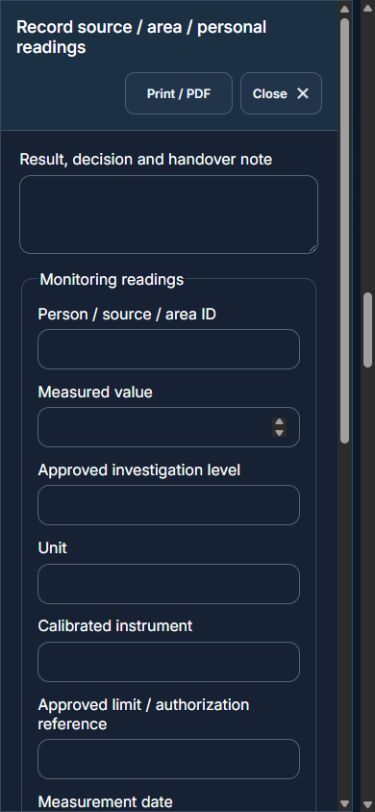
Owner: Record source / area / personal readings. Enter Monitoring readings (Person / source / area ID, Measured value, Approved investigation level, Unit, Calibrated instrument, Approved limit / authorization reference, Measurement date). Complete the required confirmations: Confirmed against the approved scope and operating limits; Exceptions contained; linked follow-up records updated. Requires current independently accepted reviews: radiation source.
Independent reviewer: Specialist review and controlled follow-up. Enter Specialist decision, custody and follow-up / disposal references. Complete the required confirmations: Confirmed against the approved scope and operating limits; Exceptions contained; linked follow-up records updated. Requires current independently accepted reviews: radiation approval.
Independent reviewer: Independent verification & closure. Enter Effectiveness, handover and follow-up review date. Complete the required confirmations: Confirmed against the approved scope and operating limits; Exceptions contained; linked follow-up records updated.
If a check fails: close the step form, choose Hold / quarantine and save the failure, containment evidence and GPS. Correct the source records in the same industry workspace. A different authorized reviewer checks fresh clean recovery evidence before releasing the hold; the owner cannot self-release.
At final sign-off, all required reviews are rechecked. Linked Work Packages, PTW, CAPA and after-hours must be finished, and linked LOTO restoration verified. The independent reviewer closes the operation. Reopen requires that reviewer, a reason and new recovery evidence; earlier readings stay in history.
Use Print / PDF at the operation header or form header for the controlled form, QR and evidence/GPS attachments. Close dismisses a form; it does not close the business record. My Actions and My Deadline use the next permitted role; reminders follow existing in-app, PWA and email preferences.
Desktop · Record source / area / personal readingsMobile · Record source / area / personal readings
35Education & ResearchAssets, certificates, calendar and reportingUse one source record across industry views.
How to use this section
Assets & equipment is a filtered view of Equipment. Use its shared Add, Edit and Detail forms, certificate records and approval workflow.
Certificates & compliance summarizes source certificates and linked legal obligations. Amend the source record instead of entering a duplicate certificate.
All industries use Equipment Certificates & renewals: required types, PIC reminders, draft evidence, independent verification and retained replacement history. Use Maintenance & work controls for internal, contractor or mixed repair work and controlled return to service.
Use Calendar & recurring work to plan due dates. A new cycle creates a fresh draft and requires fresh readiness checks and approval.
Apply the desired scope and filters before exporting CSV or PDF. Open Action Inbox for assigned reviews and follow-up.