 HSE.myUser Guide
HSE.my · PUBLIC USER GUIDE
Facilities & Property Management
Properties, locations, defects, maintenance, occupiers and asset availability.
Search by function, activity, role or workflow action.
Browse by operating domain
Coordinate a lift defect, isolate the Equipment record, complete the repair and obtain independent return-to-service verification.
Use the standard User Guide button in the topbar whenever you need help. All industry instructions are maintained here.
01START HEREYour workflow from setup to closureWho does what, in which order, and how source controls apply.
Set up access and working scope
The organization administrator selects the industry, enables available workspaces and assigns roles with organization-unit scope. Additional workspaces can be disabled from Industry workspaces; the default workspace cannot be disabled. Disabling retains records and history. Package entitlements still control available functions.
Open shared modules without leaving your industry
- Open your industry workspace and select the required module from the grouped menu, such as HIRARC, Permit to work, CAPA or Assets & certificates. Resources → Shared services lists the available connections.
- The register opens within the industry page. Select Open workspace to review a record and follow its linked Work Package, JSA, permit or other source record in the same industry context.
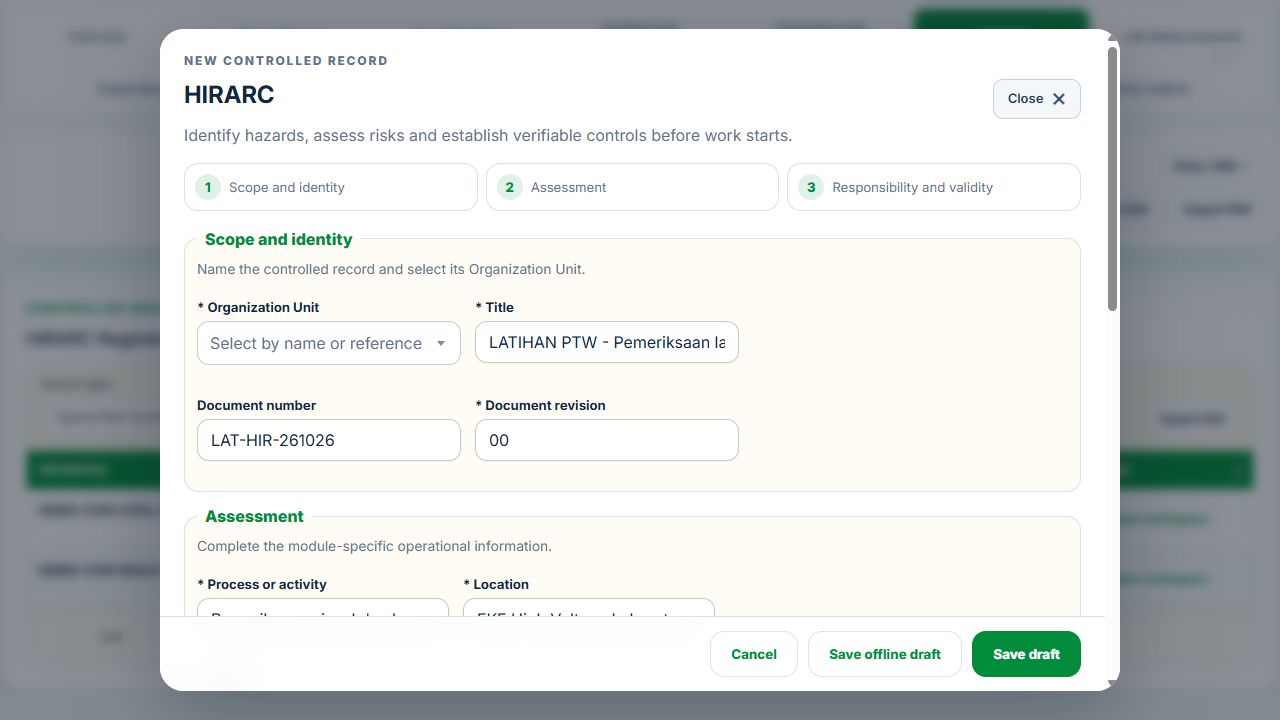
- Use New record, Add, Edit or Renew where available. The original form opens in a modal. Select the correct site and organization unit; registers follow the module’s filters and your authorized scope.
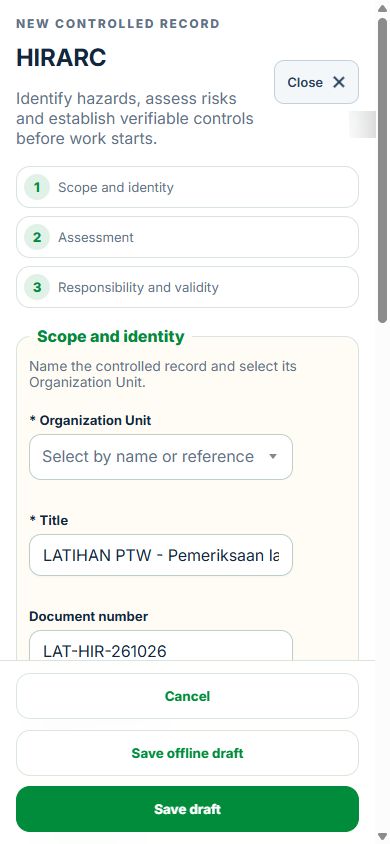
- Save or submit through the form’s existing controls. Required evidence, assignment, status and independent approval still apply. Use Close at the upper right to dismiss the form; closing a modal does not close the business record.
- Use the record’s Print / PDF control for its controlled document. Printing and downloads open separately. On mobile the same forms fill the screen, with scrollable content and accessible Close controls.
How linked controls work
Use the linked source records in Detail to review associated events, CAPA, Work Packages and PTW. A typed reference does not create a relationship. Activity approval does not approve a Work Package, verify LOTO or activate a permit. Follow each source record's own approval and release workflow; reopen Detail to refresh its status.
Use Add and Edit to open the permitted form. Detail holds evidence, linked records, workflow and history. On mobile, table rows become labeled cards with the same actions.
Your facilities workflow
- Enable the Facilities & Property Management industry profile. Add a facility against its existing organization unit; set its map coordinates and emergency contact.
- Create buildings, floors and spaces. Upload floor plans in location details. Use Assets → Add to open the shared Equipment form and choose its facility location.
- Record defects, hazards or fit-out requests. Assign an owner and due date. Link the event, CAPA, Work Package and PTW when applicable.
- Approve, execute and attach completion evidence. A separate verifier closes the case. A closed repair does not automatically reactivate an asset; use Return to service after all related safety cases and certificates are resolved.
- Set recurring inspection / maintenance schedules and certificate owners. Generate due work from Calendar or the configured scheduler.
- Assign occupiers to spaces and existing memberships. Representatives use the Occupier portal; public visitors use an enabled facility QR link.
Configured monitoring limits are operating thresholds, not an automatic legal assessment. Review applicable obligations and source documents before verifying certificates.
Occupier portalOne source for assets and certificates
Assets shows Equipment filtered to this facility. Add and Edit use the Equipment form and workflow; Detail opens the same source record. Certificates & compliance reads current Equipment certificates and unit legal obligations. Enter certificates only in Equipment. Keep legacy entries as history and link an existing source after review.
Select multiple enabled industry views on the Equipment form when an asset serves several contexts. This does not grant new access or create another asset.
Read the overview and act
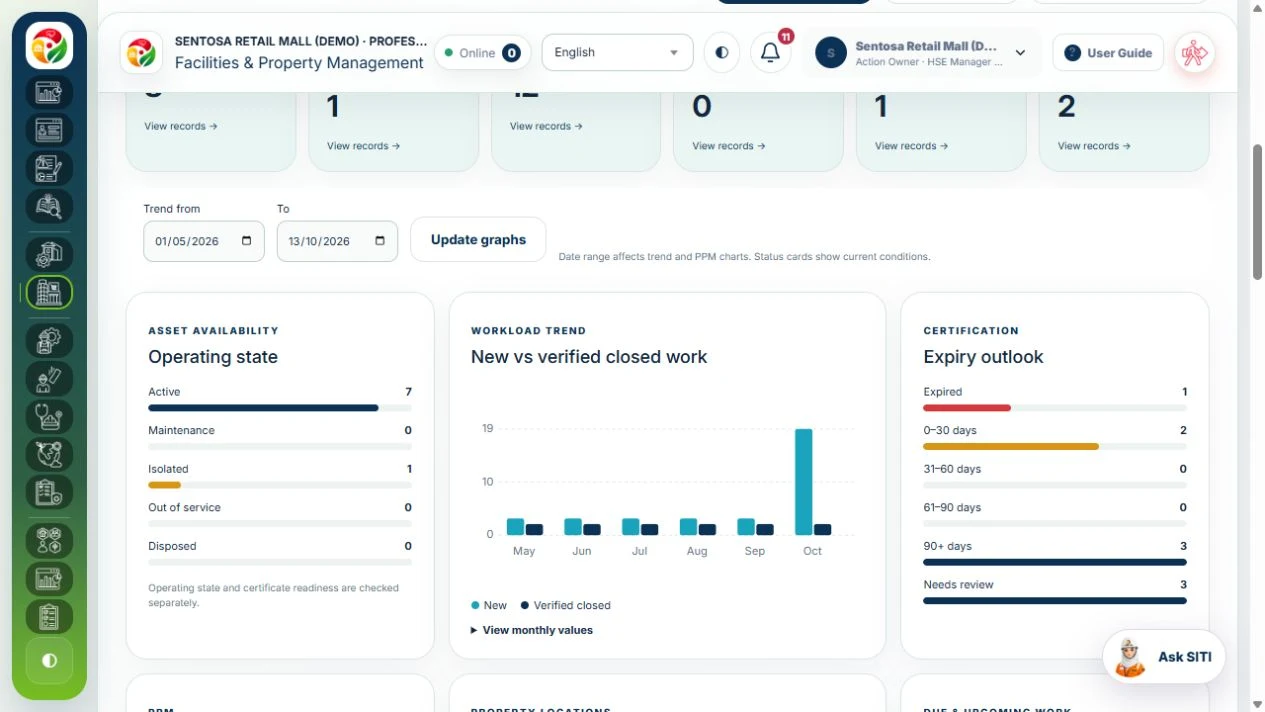
Select one property or All facilities. Status KPIs show today; reporting dates affect workload and maintenance charts. Select a status or expiry bar to open the matching assets. The GIS map shows authorized property locations. Use the priority work queue for overdue or high-priority tasks.
Equipment certificates and repairs follow the same process for every industry and general Equipment. Open the shared Equipment guide →
02Facilities & Property ManagementOverviewSelect one property or All facilities to review the authorized portfolio.
How to use this section
- Select one property or All facilities to review the authorized portfolio.
- Use current KPI cards, operating-state bars, certificate-expiry outlook and GIS property locations to open source records.
- Set reporting dates for new versus closed work and maintenance completed by its due date; current-status cards remain current.
- The priority work queue shows the first 10 open cases ordered by criticality and due date; open All open work for the full register. Export PDF or CSV using the selected scope.
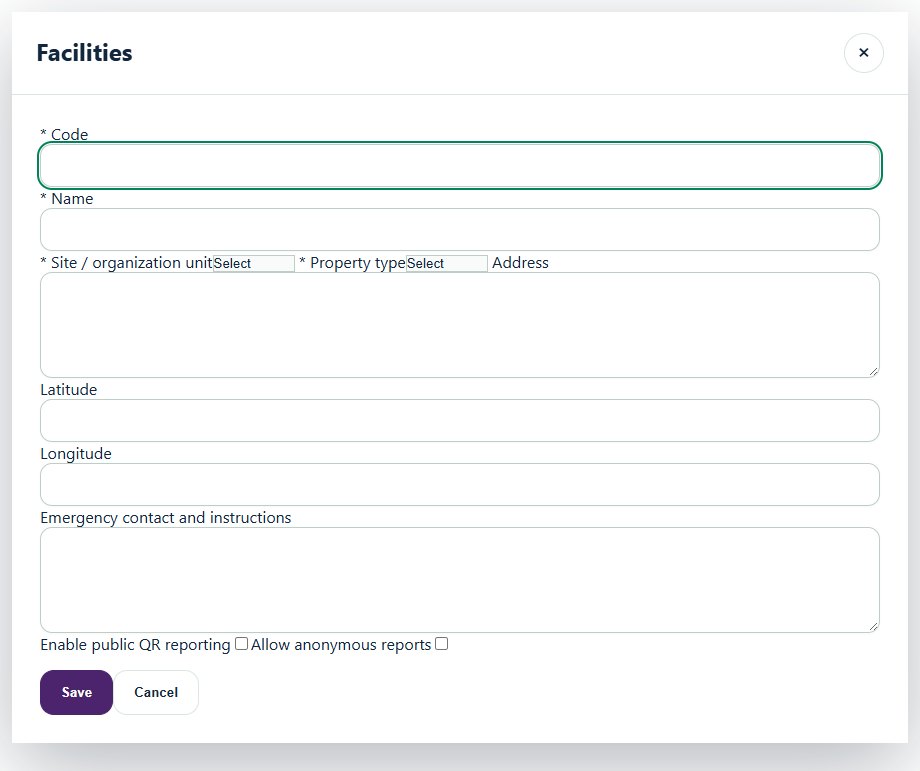
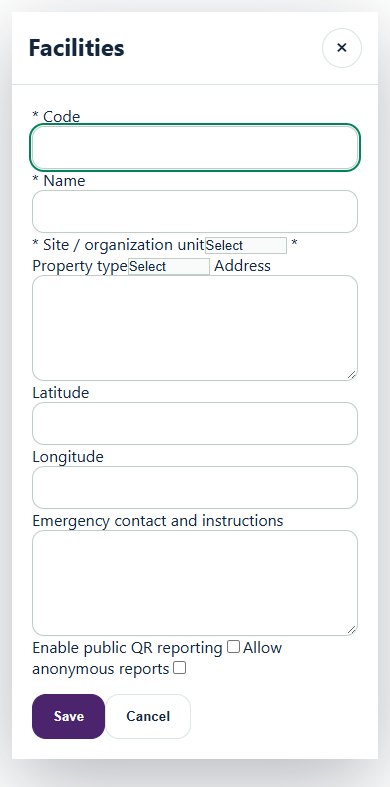
04Facilities & Property ManagementFacilitiesAssign a property to an existing organization unit and select its property type.
How to use this section
- Assign a property to an existing organization unit and select its property type.
- Set address, coordinates and emergency instructions.
- Explicitly enable public reporting and decide whether anonymous submissions are allowed.
05Facilities & Property ManagementLocations & floor plansBuild a building, floor, zone and space hierarchy.
How to use this section
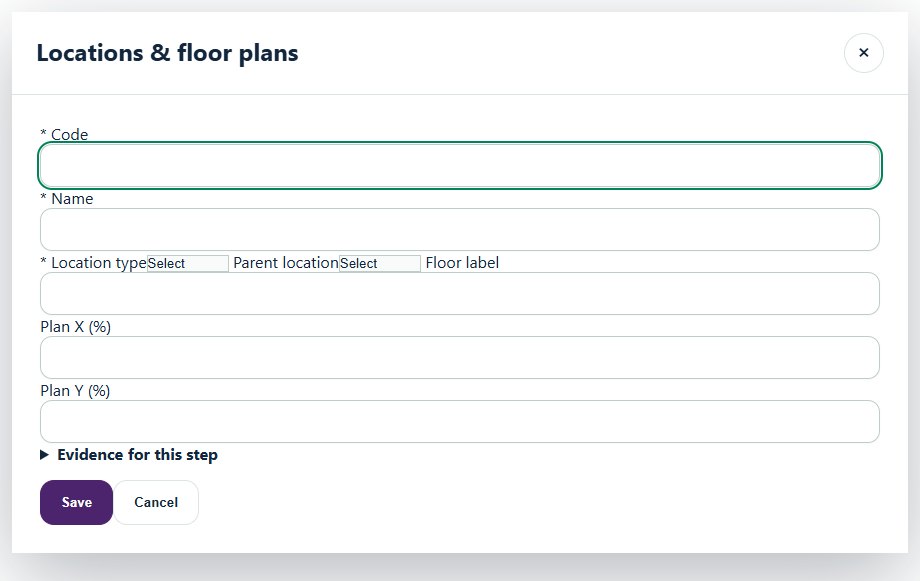
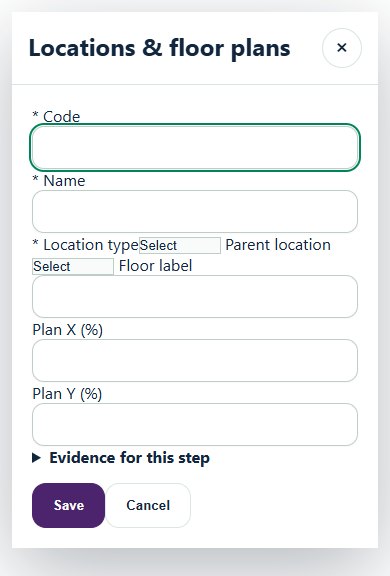
- Build a building, floor, zone and space hierarchy.
- Upload a floor plan and set percentage coordinates for location markers.
- Open a location QR reporting link, or preview a CSV import before committing.
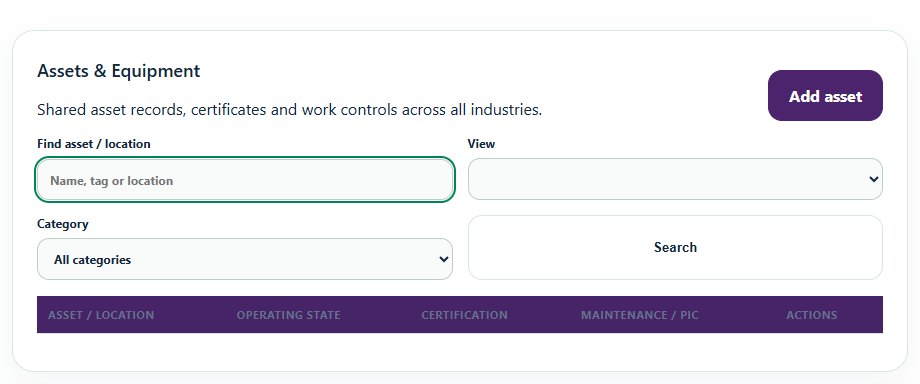
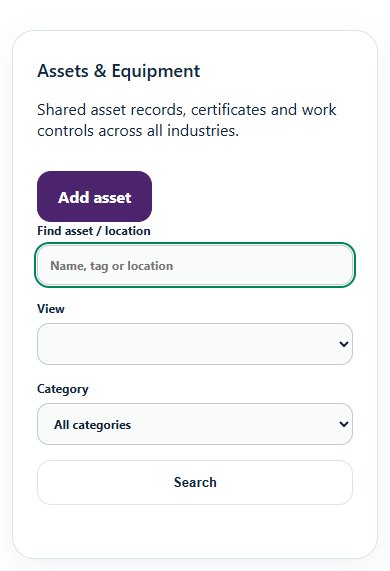
06Facilities & Property ManagementAssets & EquipmentUse the shared Equipment register across all industries; filter by state, certificate expiry, certification gaps, overdue maintenance, category or PIC.
How to use this section
- Use the shared Equipment register across all industries; filter by state, certificate expiry, certification gaps, overdue maintenance, category or PIC.
- Open the same asset to manage Certificates & renewals, Maintenance & work controls, documents and audit history.
- Schedule internal, contractor or mixed work; link Work Packages and PTW when required, attach completion evidence and obtain independent verification.
- Use Isolation / return to service after verified repair closure and current certification; existing Facilities PPM remains linked to its original work-order workflow.
07Facilities & Property ManagementMaintenance & work ordersTriage the request and assign a responsible person, due date and internal, contractor or mixed workforce.
How to use this section
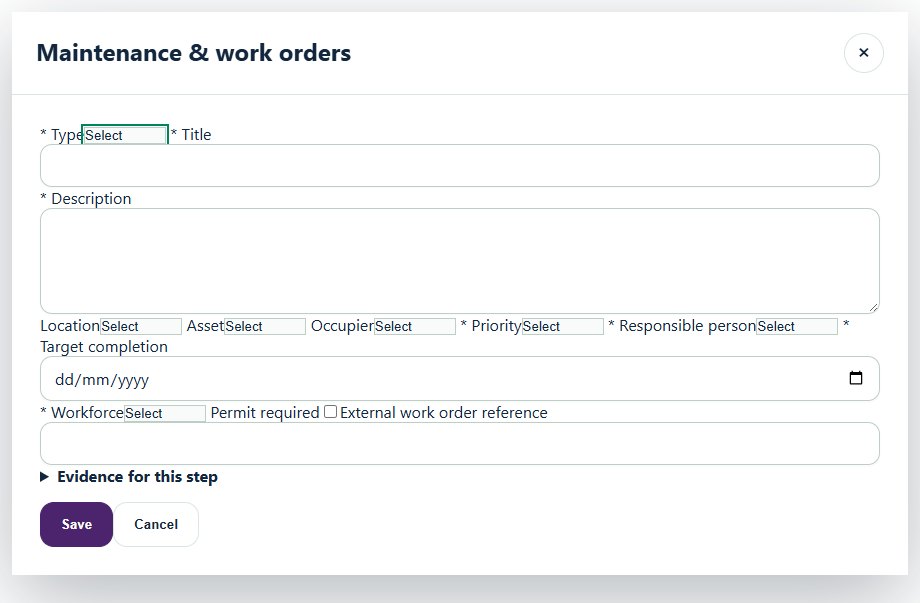
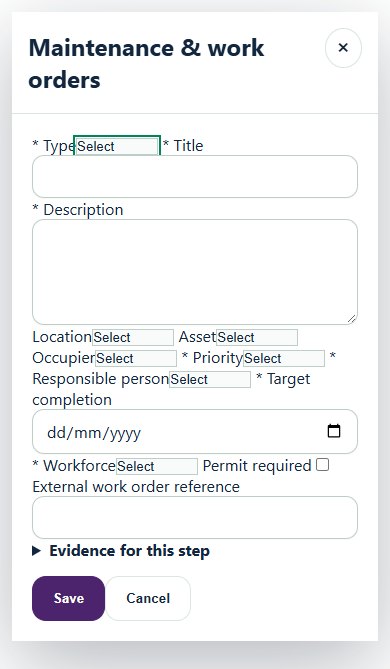
- Triage the request and assign a responsible person, due date and internal, contractor or mixed workforce.
- Open Detail and choose Create Work Package from Work Order, or link one existing package before execution. The standard Work Package form prefills the request scope, unit, location and workforce.
- Use the linked Work Package for readiness, review, approval, execution and amendments. Its scope, workforce, planned completion and status automatically update the Work Order and any linked PPM occurrence. Direct Work Order edits and workflow actions are then locked.
- Keep the asset being repaired separate from equipment used for work. Link PTW, events and CAPA as needed; critical repair targets retain isolation and LOTO checks.
- Attach clean completion evidence through the Work Order. Complete the Work Package to send the Work Order for verification, then obtain independent closure after required PTW and linked CAPA are resolved. Return to service remains a separate controlled action.
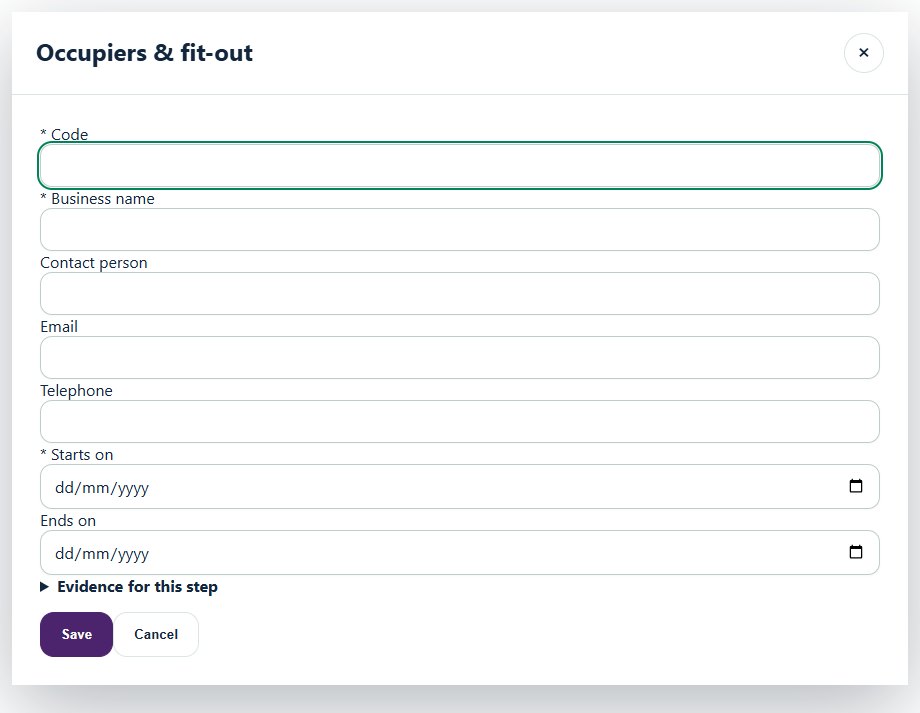
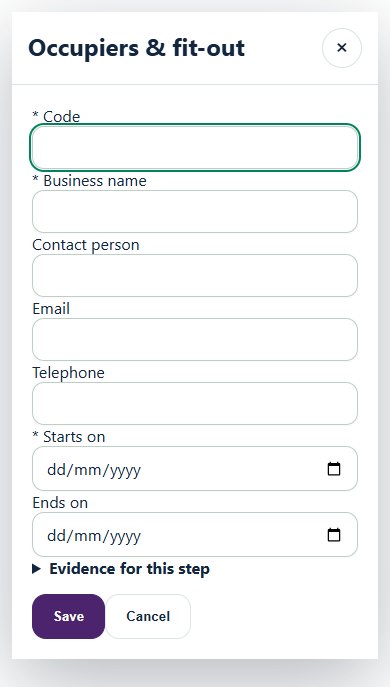
08Facilities & Property ManagementOccupiers & fit-outCreate occupancies with validity dates and contact details.
How to use this section
- Create occupancies with validity dates and contact details.
- Assign spaces and active users with the Occupier Representative role.
- Representatives submit requests for their own spaces through the separate occupier portal.
09Facilities & Property ManagementCalendar & PPMConfigure recurring inspections, PPM, drills, monitoring and reporting tasks.
How to use this section
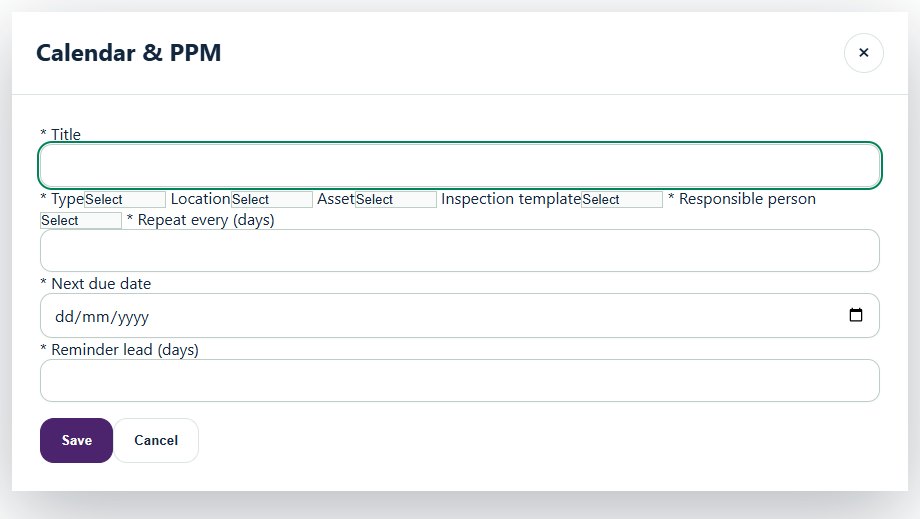
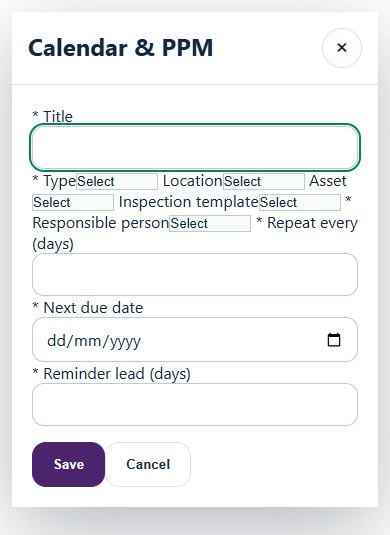
- Configure recurring inspections, PPM, drills, monitoring and reporting tasks.
- Generate due work manually or through the configured CLI scheduler.
- Inspection runs create a canonical inspection; asset maintenance runs create a maintenance history entry.
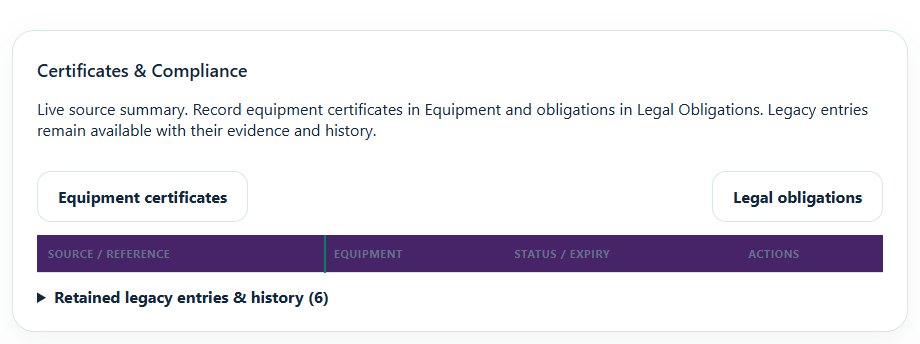
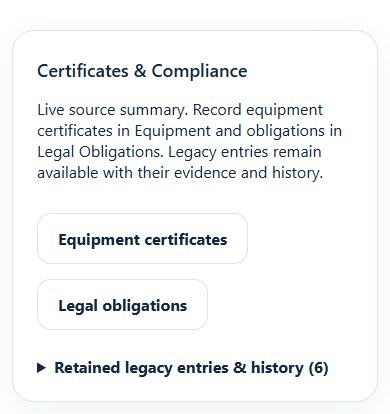
10Facilities & Property ManagementCertificates & renewalsRead current certificates from Equipment and legal requirements from Legal Obligations; enter each certificate once at its source.
How to use this section
- Read current certificates from Equipment and legal requirements from Legal Obligations; enter each certificate once at its source.
- In Equipment, set required certificate types, PIC and reminder days. Save a draft, attach clean evidence, submit and obtain independent verification.
- Renew creates a linked replacement; Continue renewal opens existing work. A verified replacement supersedes the old certificate only when effective, retaining history.
- The shared daily expiry job creates in-app notices and queued emails without duplicate milestones, including overdue reminders and scoped verifier escalation.
- Review retained legacy evidence and link the existing source with a reason. Renewal alone never reactivates isolated equipment.
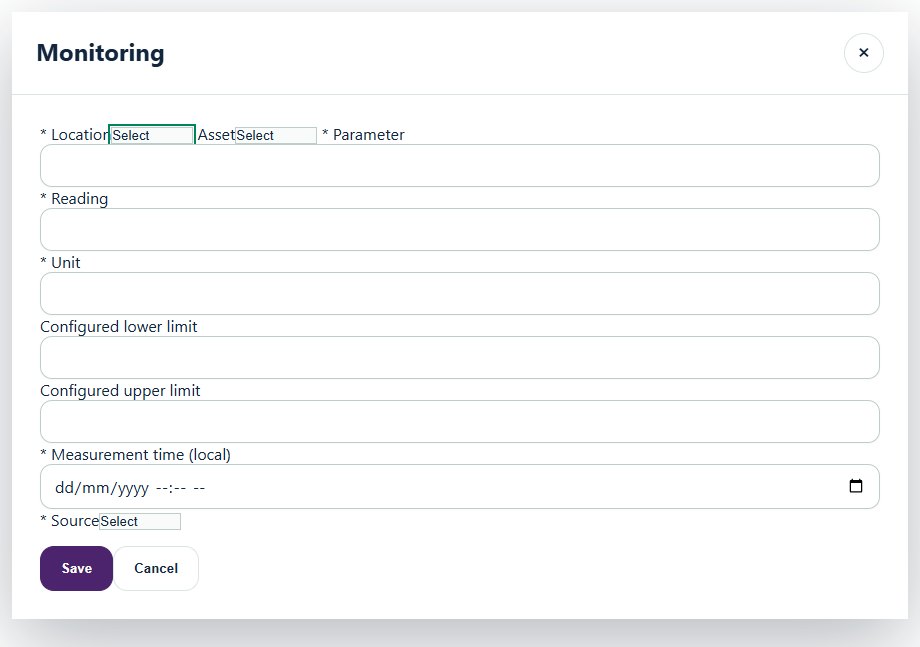
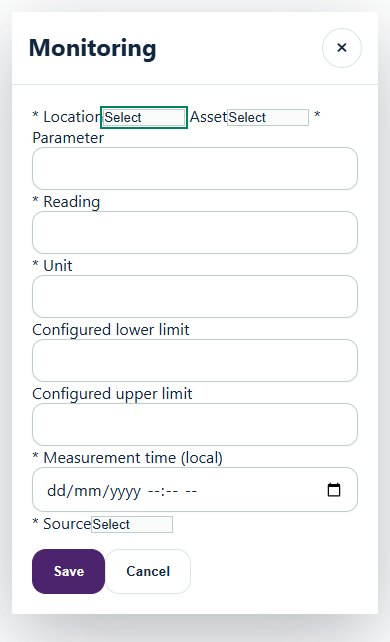
11Facilities & Property ManagementMonitoringEnter dated readings with explicit units and locally configured operating limits.
How to use this section
- Enter dated readings with explicit units and locally configured operating limits.
- Out-of-range readings create review cases.
- Readings are immutable; submit a new corrected reading instead of overwriting history.
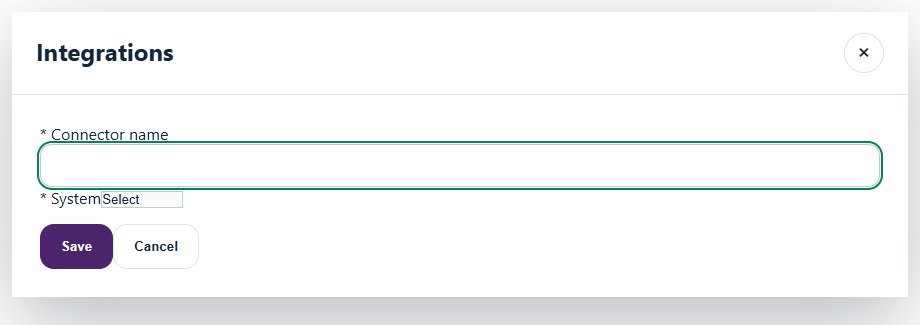
12Facilities & Property ManagementIntegrationsMap stable external asset IDs and create a disabled connector.
How to use this section
- Map stable external asset IDs and create a disabled connector.
- An organization administrator activates or rotates its bearer key.
- Authenticated, deduplicated BMS, CMMS or IoT alarms create review cases; they cannot approve work or close safety records.
No instructions match this search. Try an activity, record type or action.
CONNECTED HSE MODULES
Continue with the source module guide
These links open instructions in this same User Guide. Keep assets, permits, risk assessments and corrective actions in their owning modules.
NEED HELP?
Share the record reference, workspace URL and displayed error reference.
Do not include restricted medical, identity or personal data in a support request.