 HSE.myUser Guide
HSE.my · PUBLIC USER GUIDE
Shared services & field access
Use common services that support every assurance domain without duplicating the authoritative source record.
Search by function, activity, role or workflow action.
Browse by operating domain
SHARED SERVICES
Shared services & field access
Use common services that support every assurance domain without duplicating the authoritative source record.
EXAMPLES
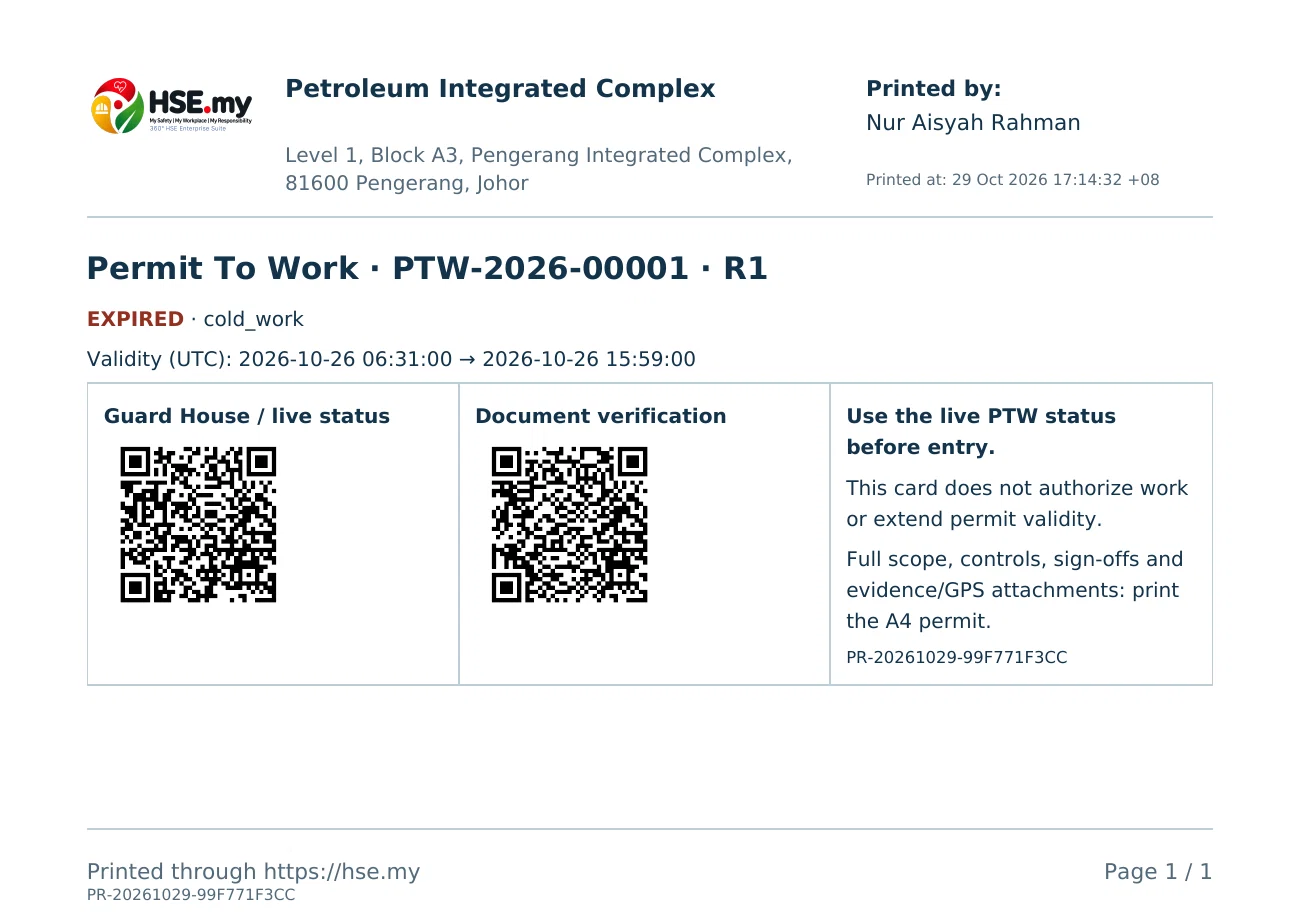
Recognise your printouts and emails
Choose Print / PDF at the right of the record header. In a record modal, it is beside Close ×; see the current desktop and mobile controls. Select the document and paper format. Scan its verification QR to check the reference and revision.
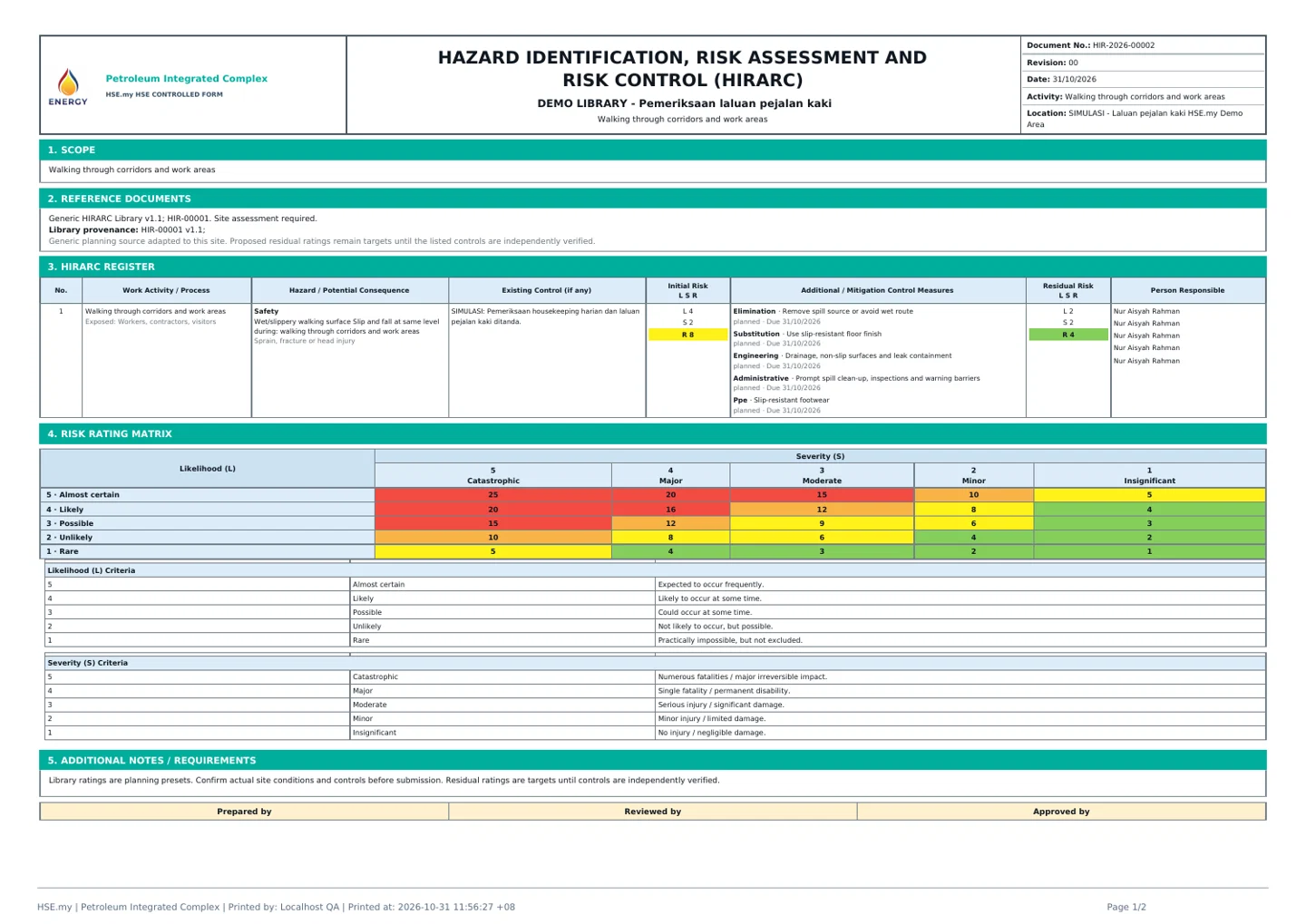
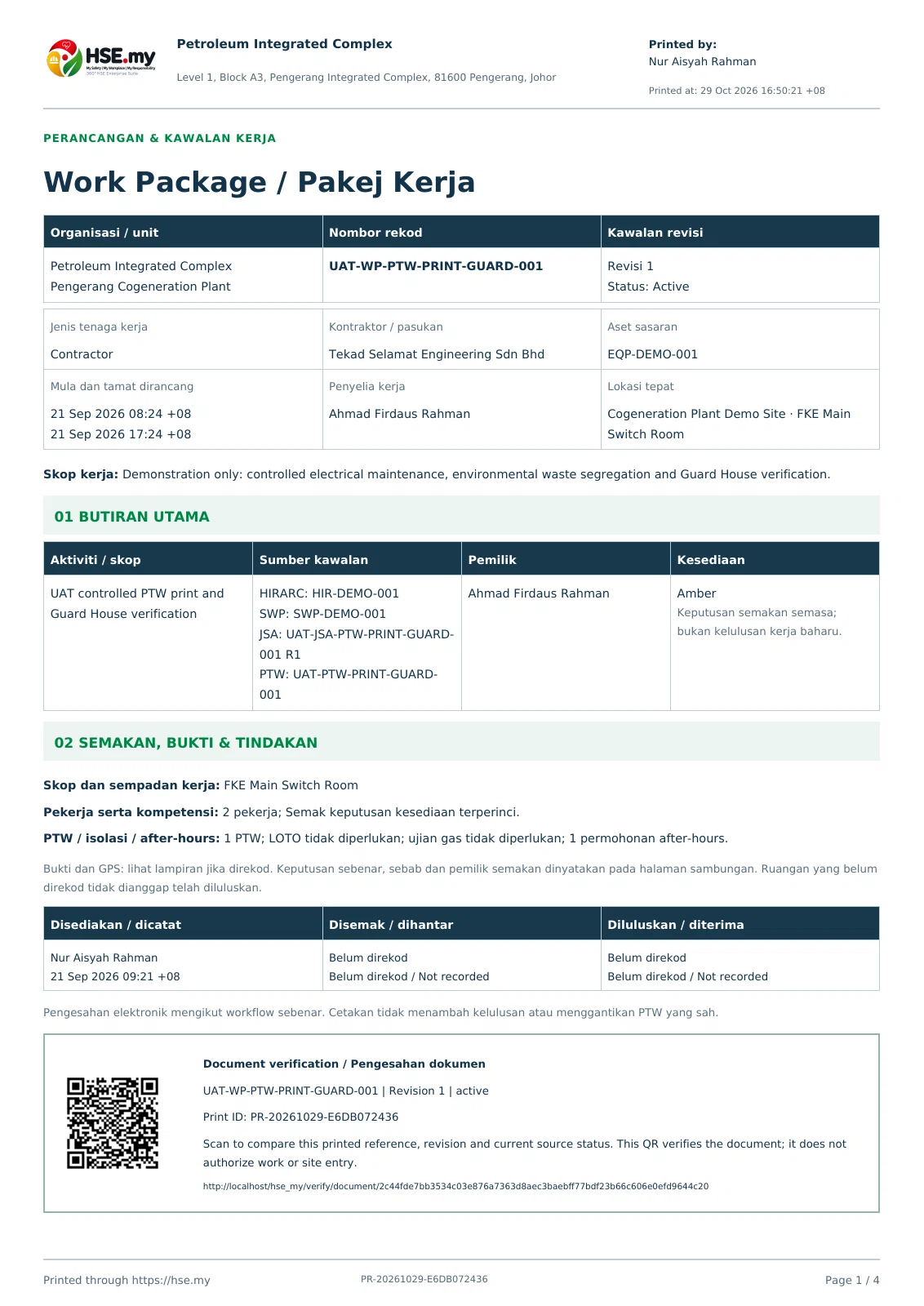
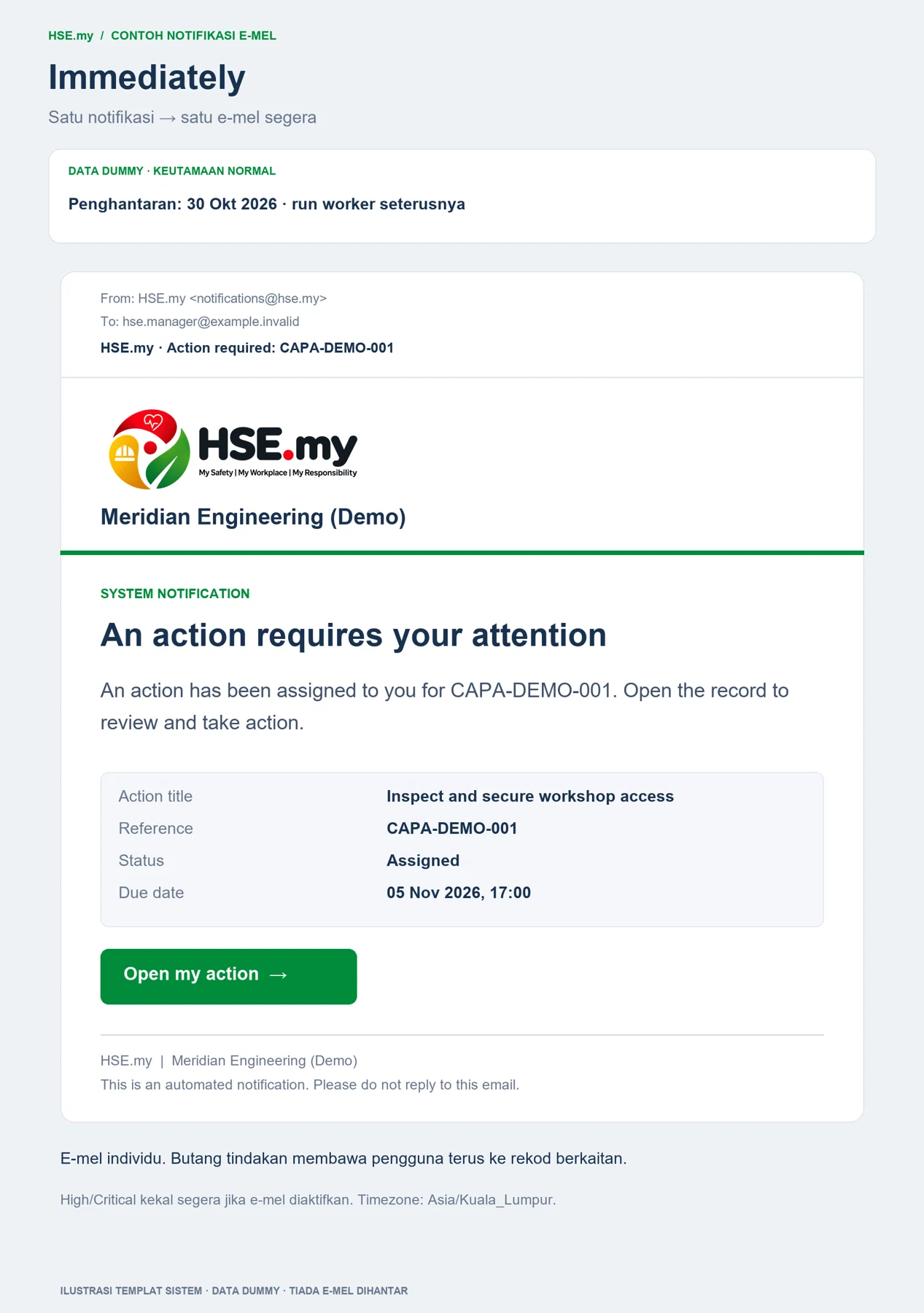
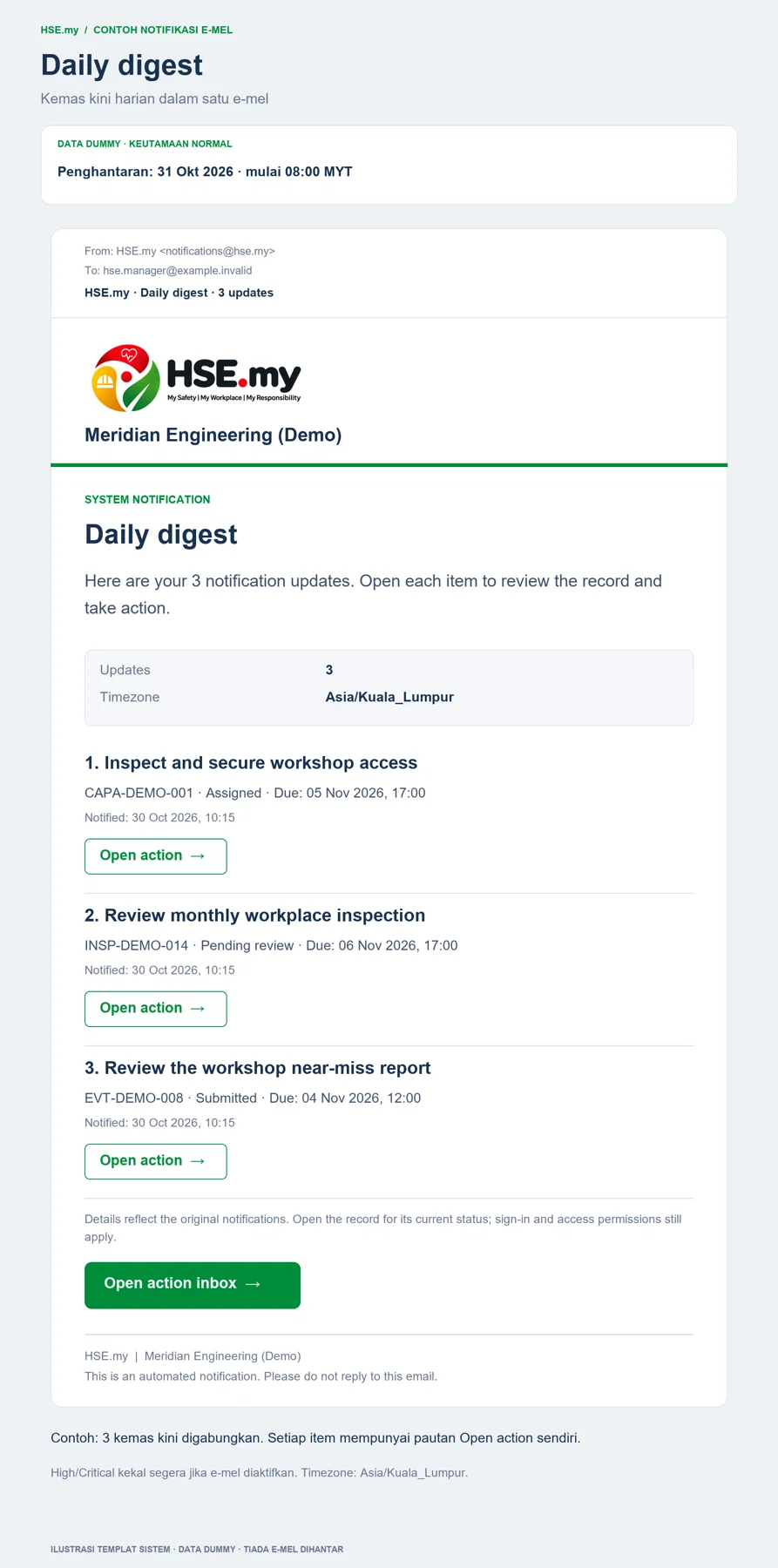
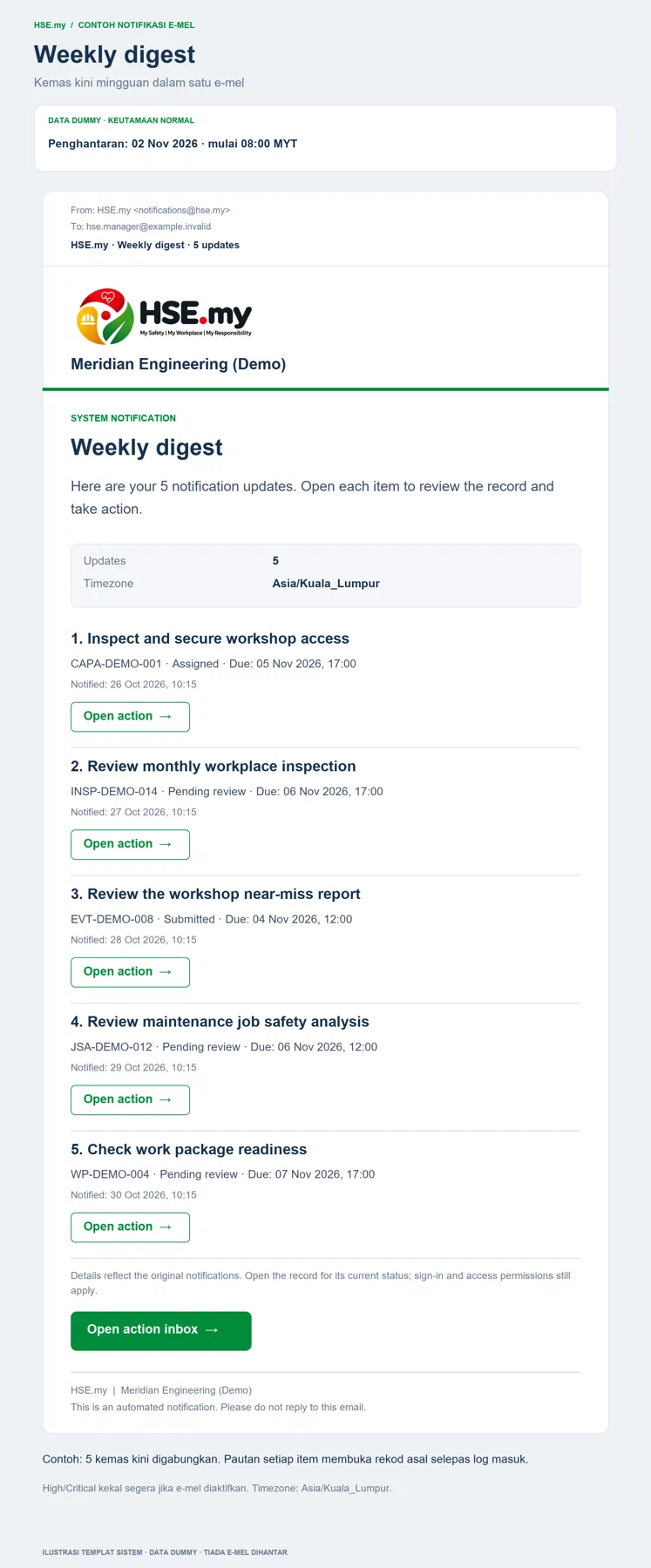
My Actions emails
Immediately sends an individual alert. Daily and Weekly group eligible actions and deadline reminders into one digest. Use the link beside an item to open its source record.
01 SHARED SERVICESKnowledge LibraryControlled policies, procedures, approved references and related knowledge documents.
Working steps
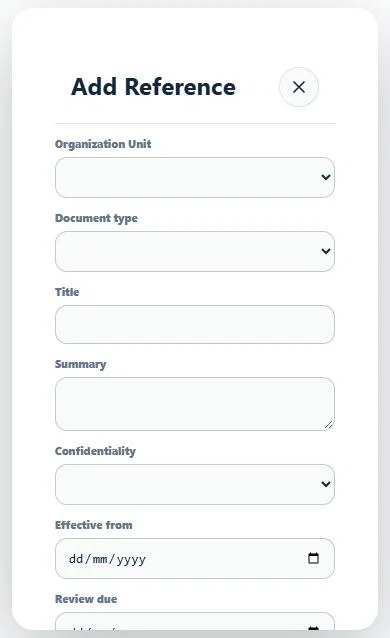
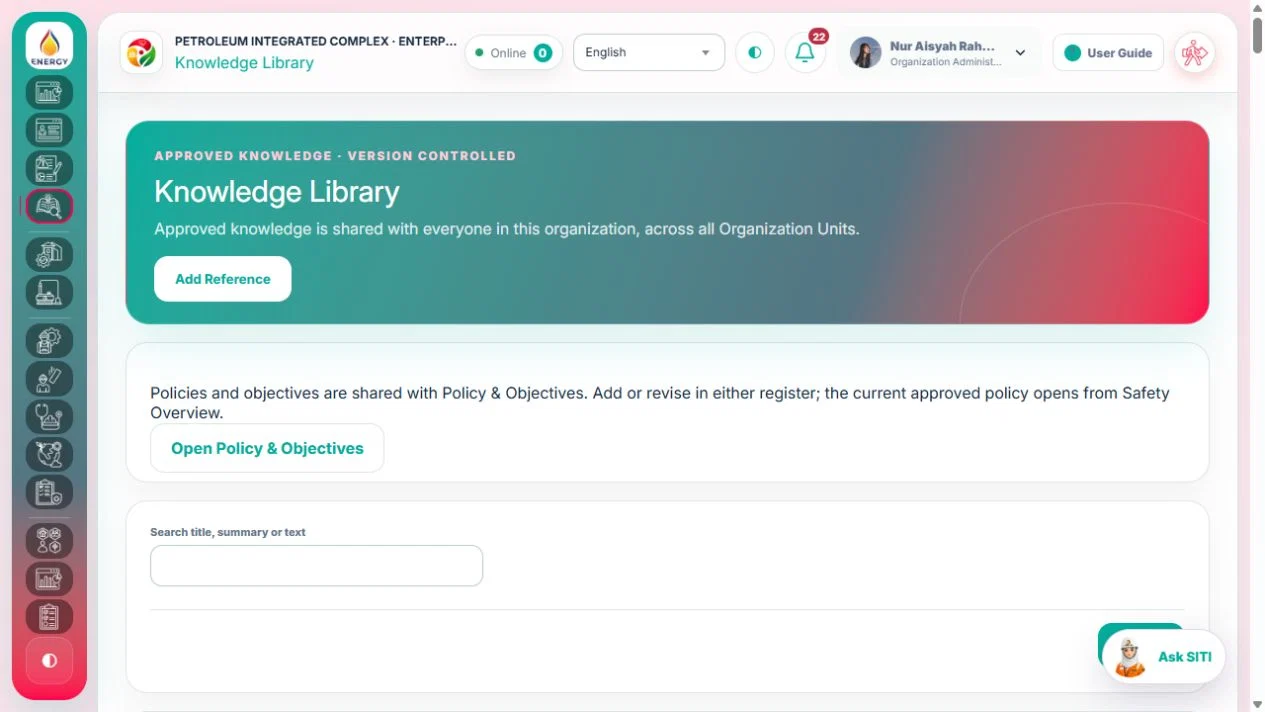
- Search approved/current documents and open the authoritative version.
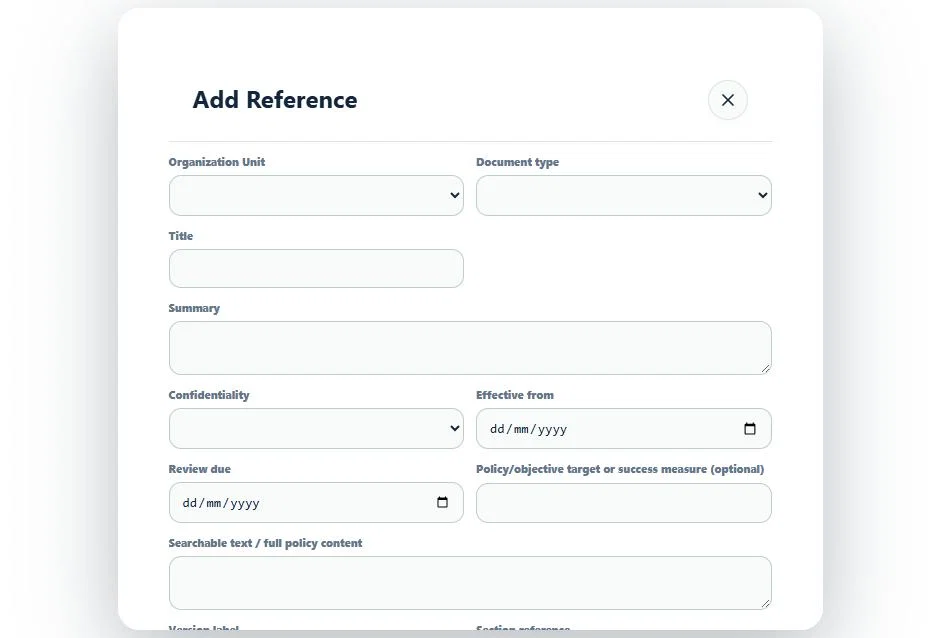
- Policy and Objective records are shared with Governance → Policy & Objectives. Add from either place; changes, attachments, versions and approval status stay linked.
- Authorized knowledge owners create versions and submit them for controlled approval. For a linked policy, use the shared independent review/approval workflow.
- Safety Policy on the overview opens the latest effective approved policy. Drafts and restricted or uncleared documents are excluded.
- Link documents as references; do not attach an uncontrolled copy to another record.
Authorized role examples
All authorized readers; Knowledge Owner/Approver for lifecycle actions.
Example scenario
A team adds a policy in the library, reviews the same record in Policy & Objectives and opens the approved issue from Safety Overview.
Before you start
Open Knowledge Library in your signed-in workspace.
Standard package access · Starter, Essential, Professional, Enterprise. Your assigned permissions, site scope and any active promotion also apply.
/workspace/knowledge- Tap More in the bottom navigation.
- Select the relevant shared service or search for it in the module picker.
- Open the linked controlled workspace before taking an action.
The service displays only the records/functions authorized by your active role and organization-unit scope.
02 SHARED SERVICESGIS & GeofencingSites, locations, boundaries and location evidence used by field records and guard verification.
Working steps
- The organization-bound map appears first. Below it, search the managed-location and geofence registers by name, code or unit. Main organization boundaries are labelled separately from unit boundaries; select View for coordinates, radius/polygon details and status.
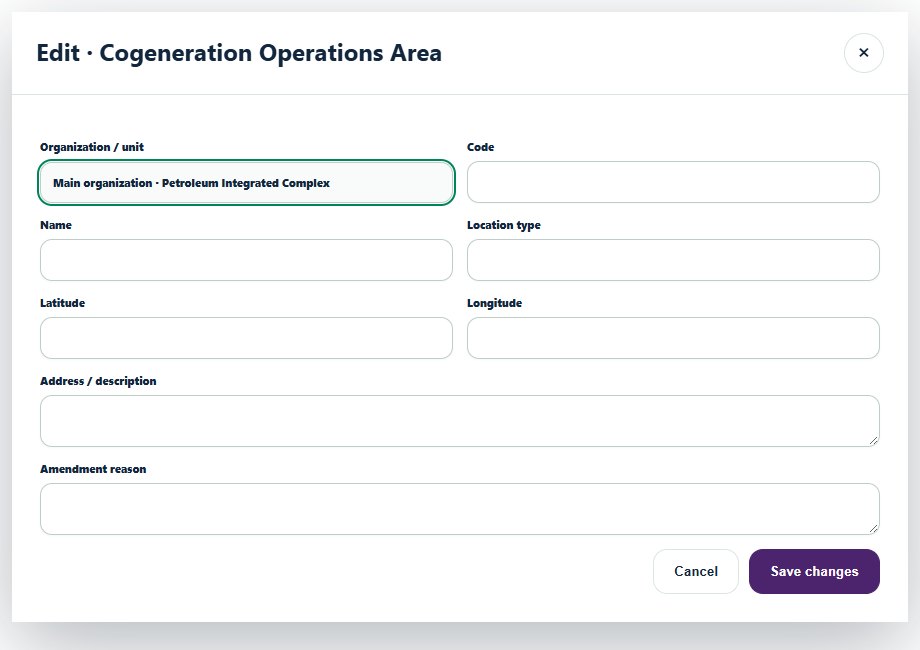
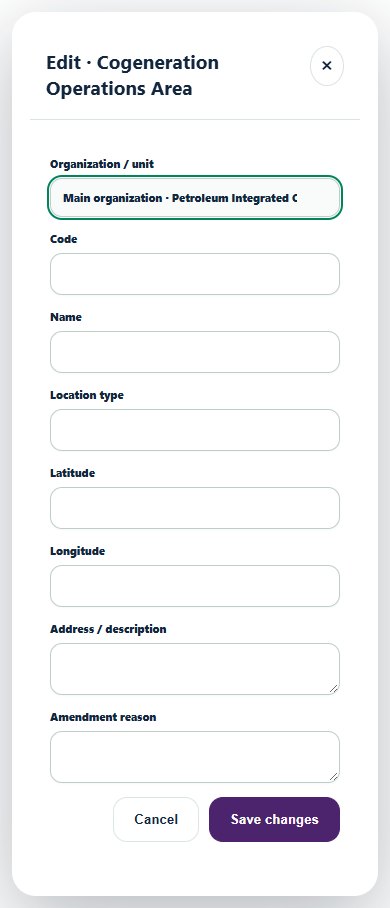
- Organization Administrators select Edit on unused records to open a popup. Choose the main organization or a unit, update the location/boundary, enter an amendment reason and save. Used evidence and operational references protect the original location/boundary; use View to retire a record and create a replacement when permitted.
- Create locations or geofences and capture authorized record location evidence. Open linked source records from map evidence where permitted.
Authorized role examples
GIS Reader; Organization Administrator for configuration; designated field user for evidence capture.
Example scenario
An administrator finds the demo-area geofence by unit, opens Edit, checks its centre coordinates and radius, then records the reason for an unused-boundary correction.
Before you start
Open GIS & Geofencing in your signed-in workspace.
Standard package access · Starter, Essential, Professional, Enterprise. Your assigned permissions, site scope and any active promotion also apply.
/workspace/gis- Tap More in the bottom navigation.
- Select the relevant shared service or search for it in the module picker.
- Open the linked controlled workspace before taking an action.
The service displays only the records/functions authorized by your active role and organization-unit scope.
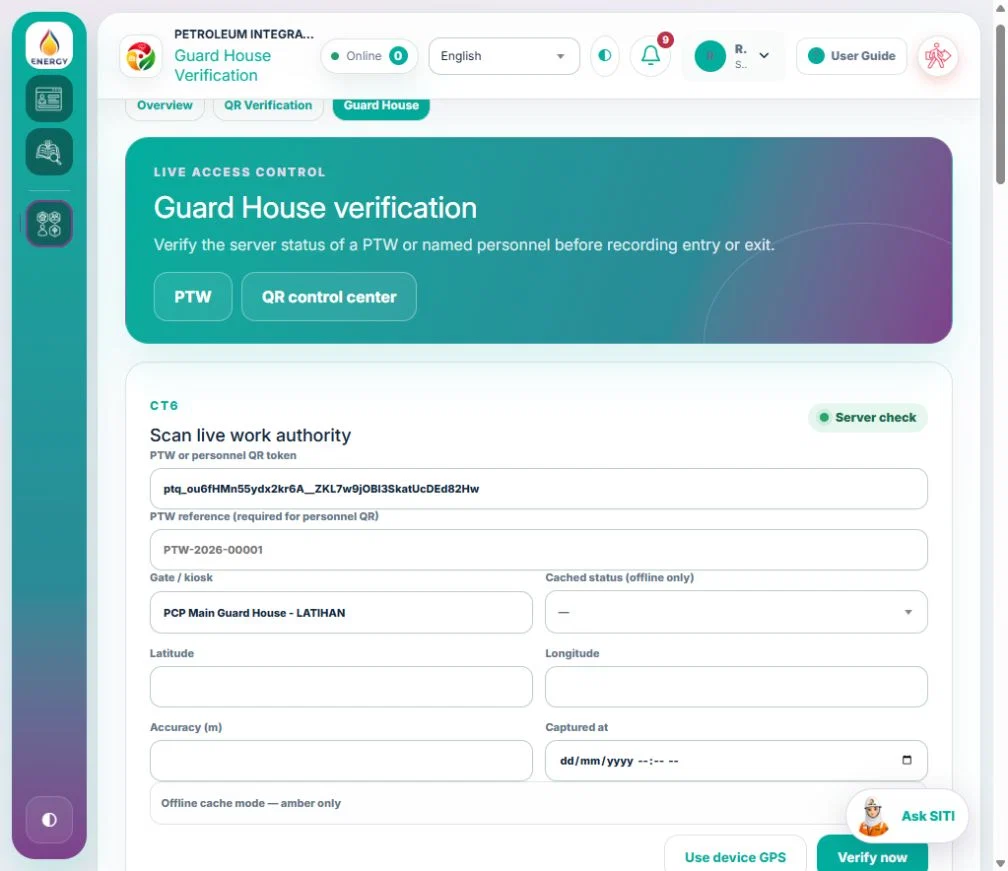
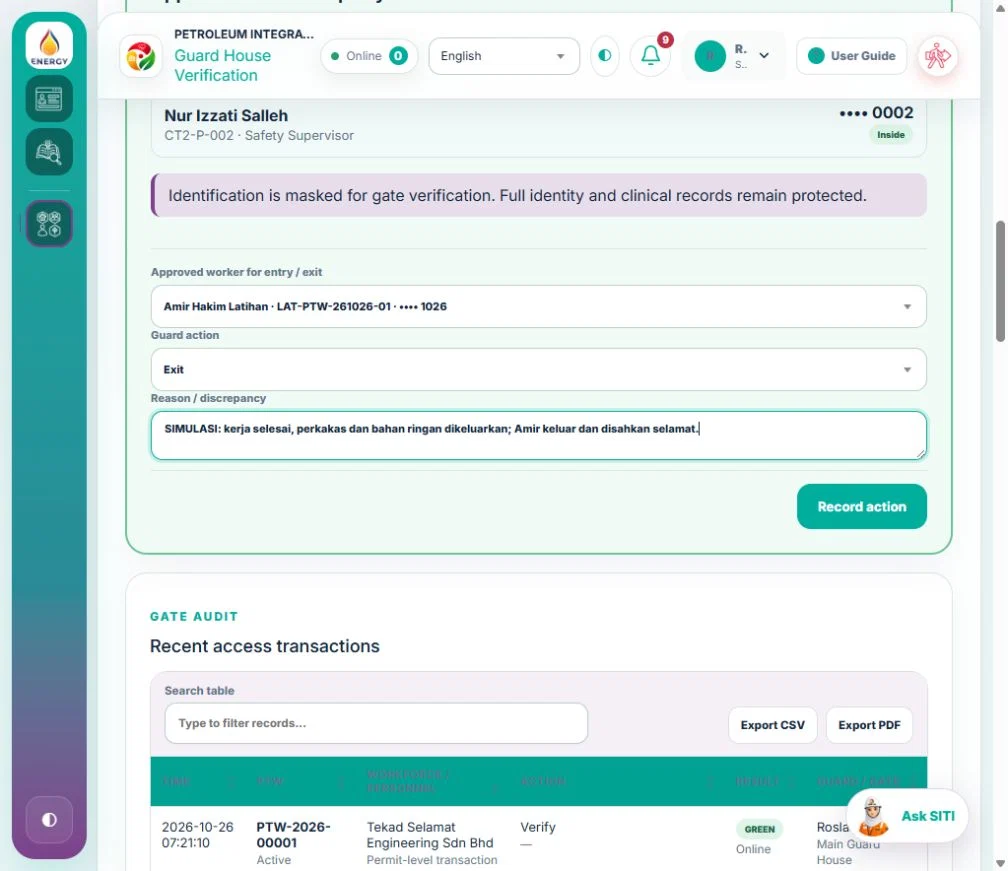
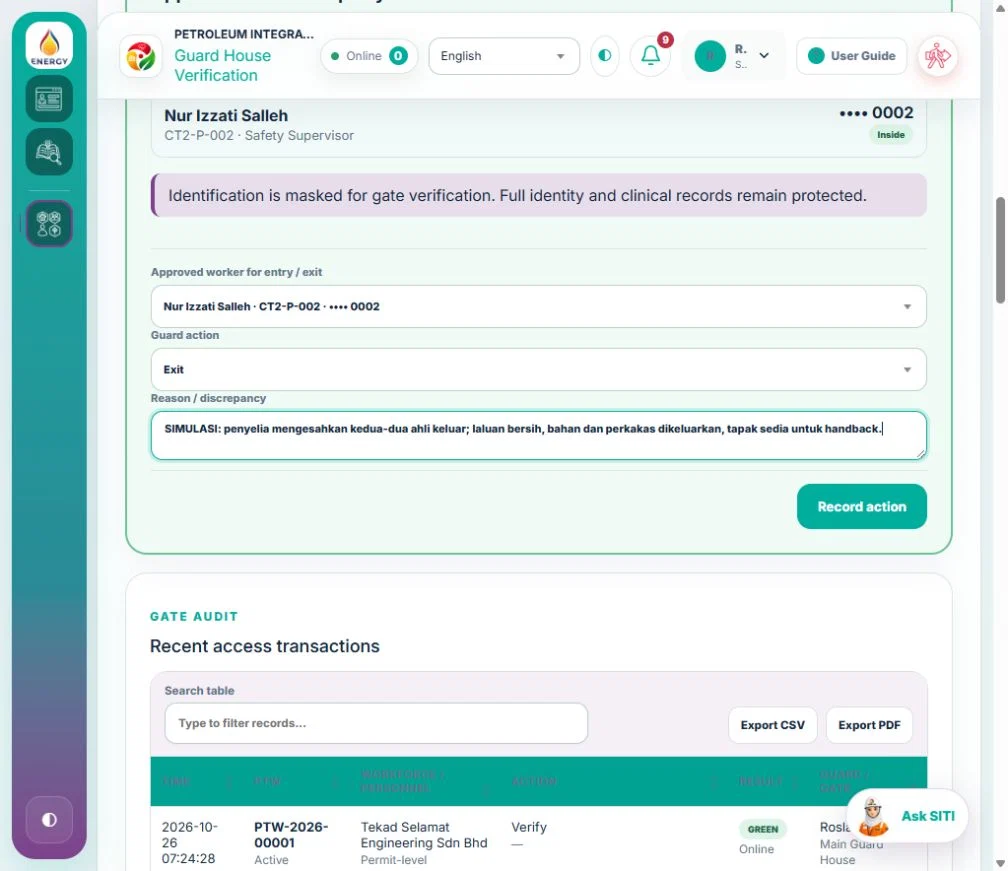
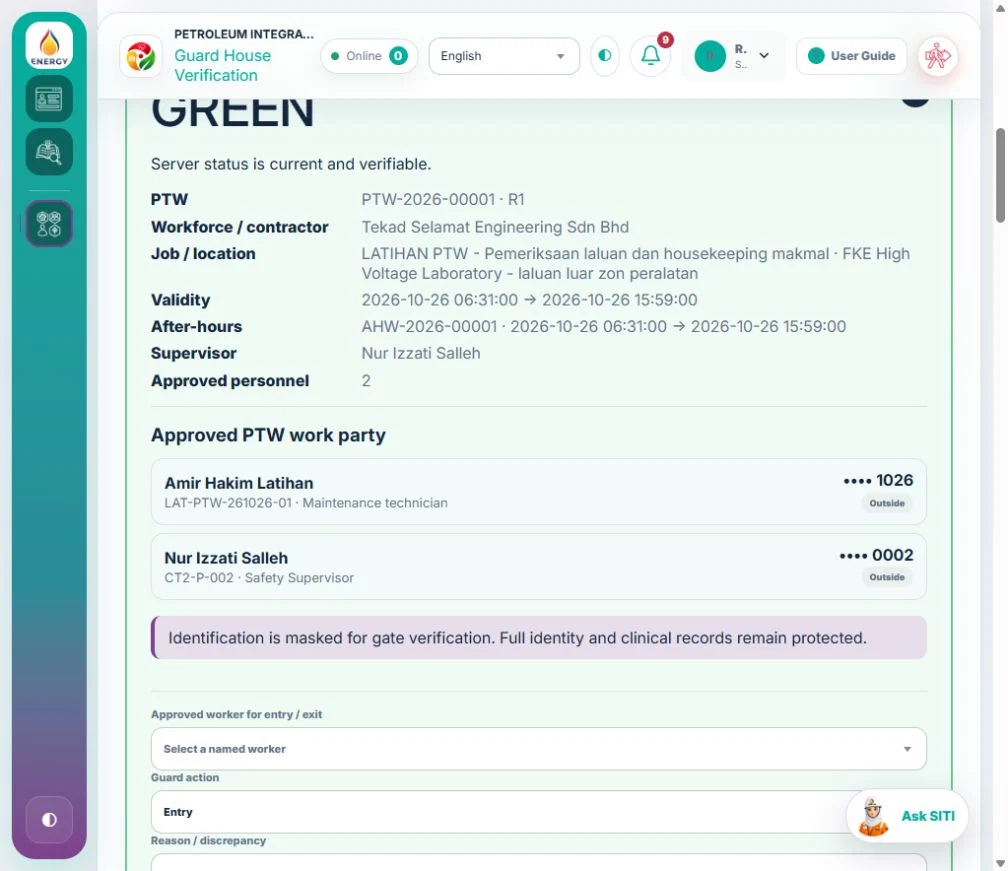
03 SHARED SERVICESQR Verification & Guard HouseScan/verify current controlled access records, permits and readiness at entry/exit.
Working steps
- Issue and manage QR verification where authorized.
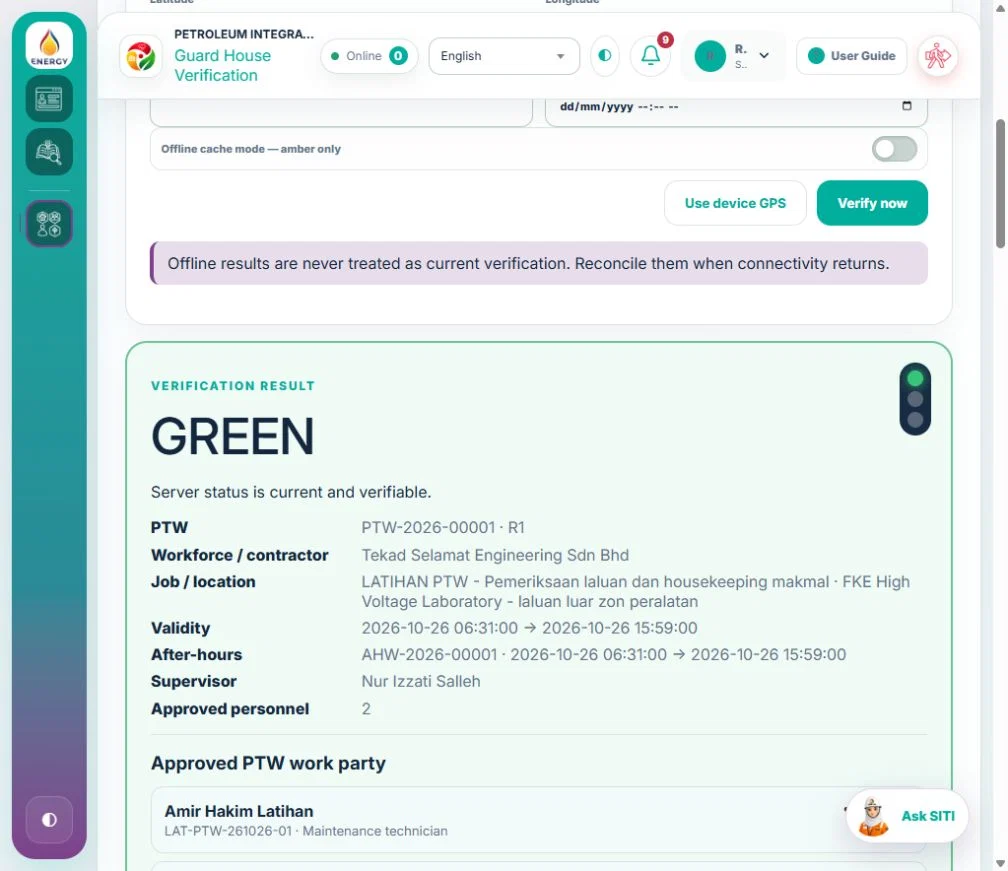
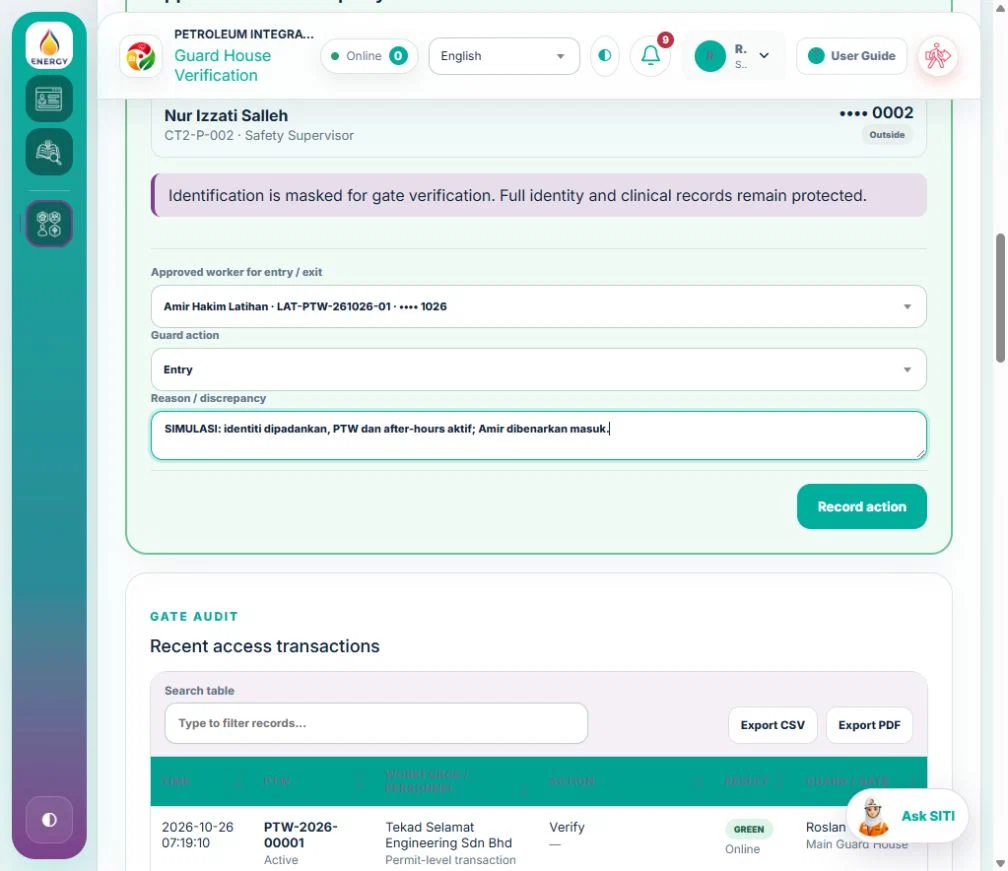
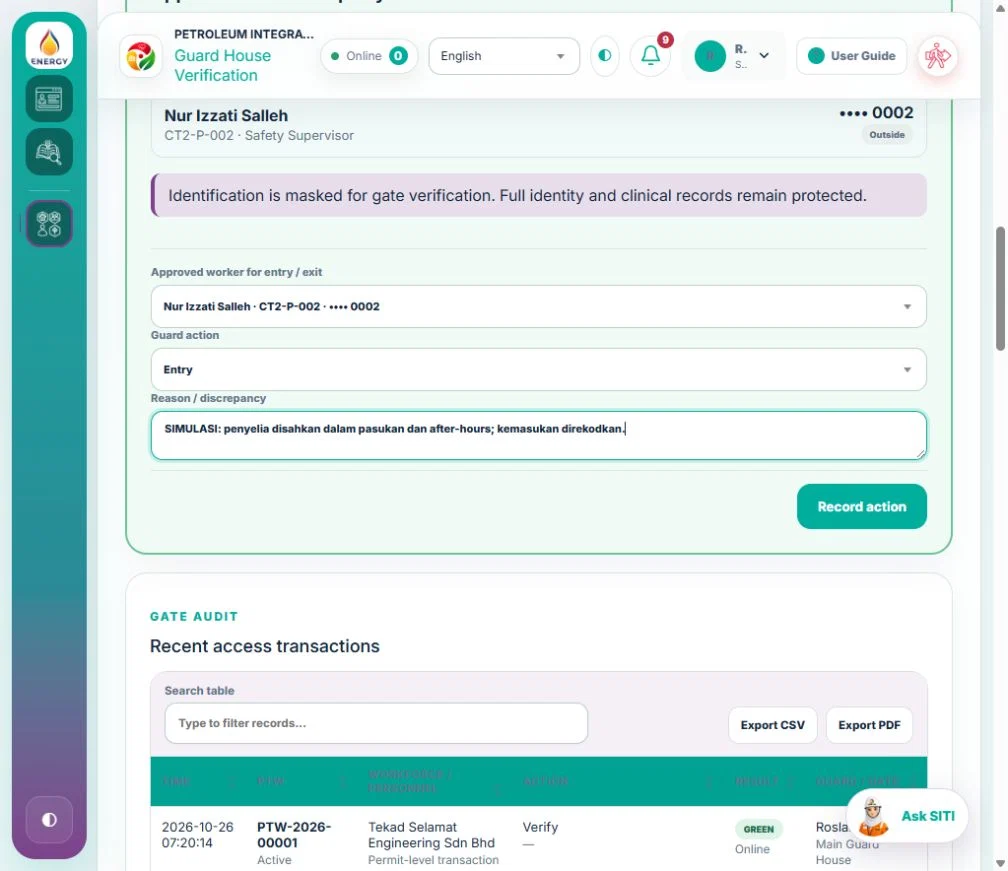
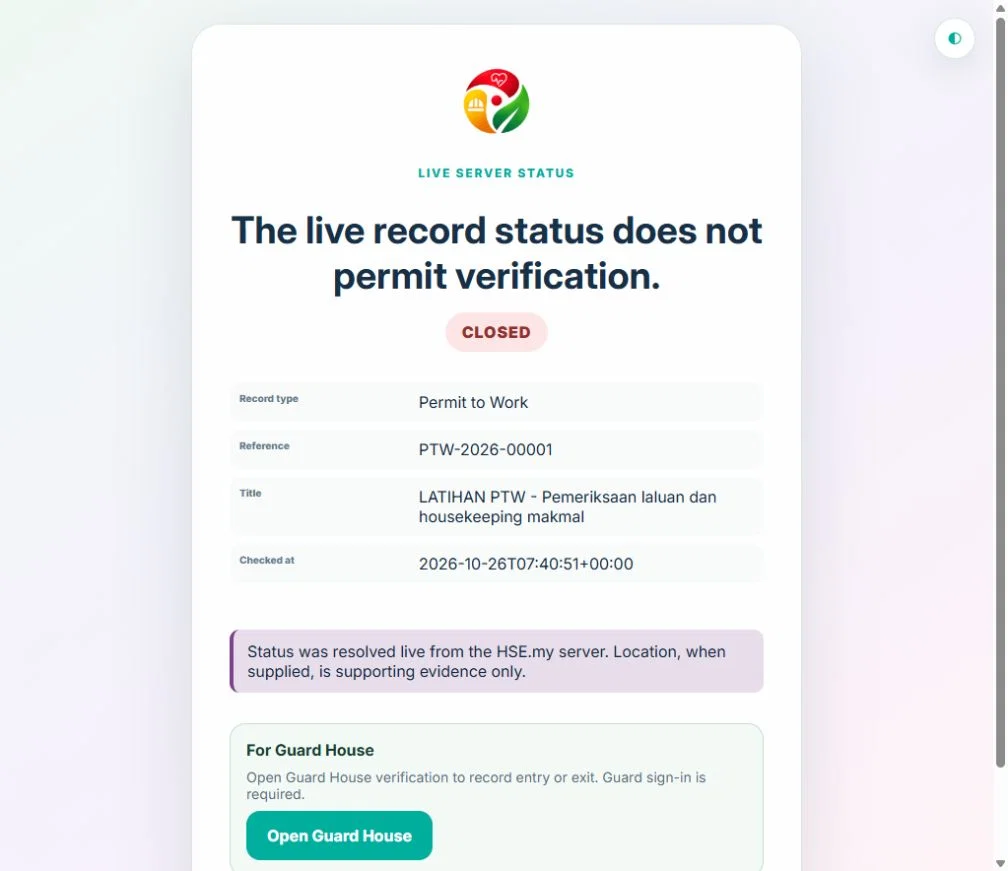
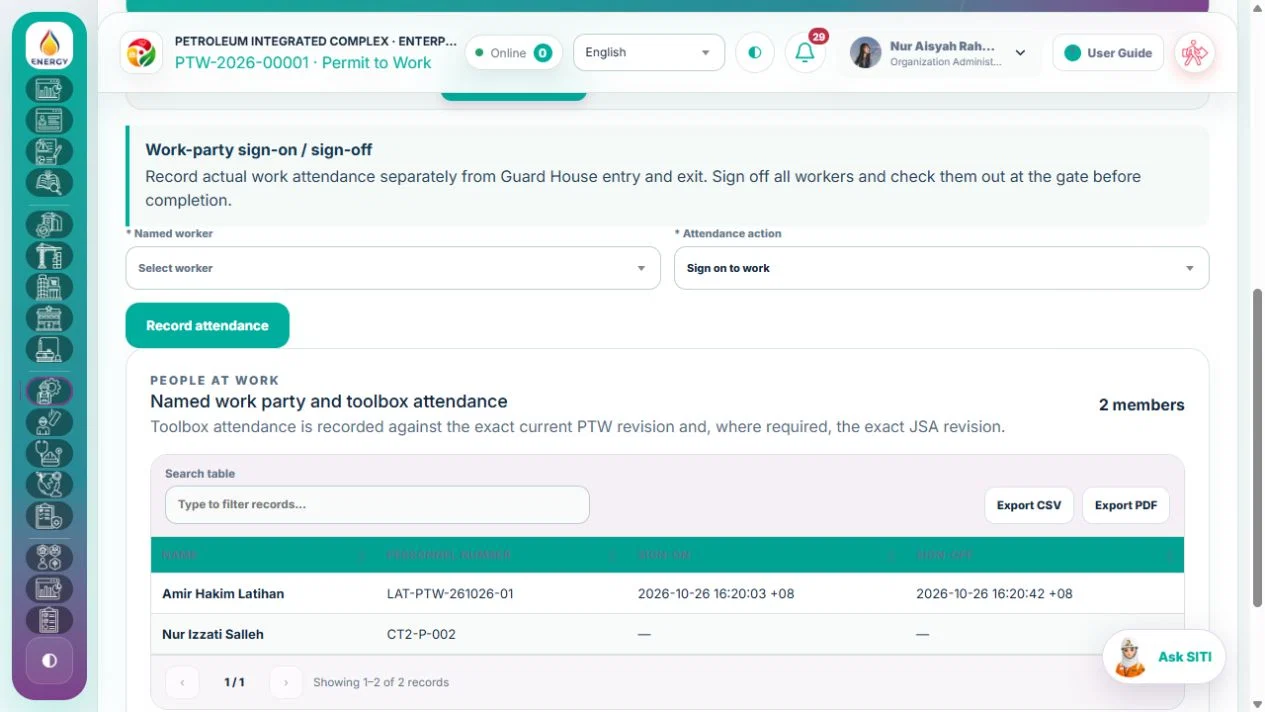
- At Guard House, scan the PTW operational QR and review the current controlled status before recording entry/exit. The document verification QR is a separate public check of the issued PDF; it is not a gate-access decision.
- Never treat a printed or expired QR as a replacement for live verification.
Authorized role examples
QR Issuer/Scanner; Security Guard for verification only.
Example scenario
A guard scans a PTW QR at the gate and confirms the permit, current JSA revision and after-hours approval before allowing entry.
Before you start
Open QR Verification & Guard House in your signed-in workspace.
Standard package access · Starter, Essential, Professional, Enterprise. Your assigned permissions, site scope and any active promotion also apply.
/workspace/qr- Tap More in the bottom navigation.
- Select the relevant shared service or search for it in the module picker.
- Open the linked controlled workspace before taking an action.
The service displays only the records/functions authorized by your active role and organization-unit scope.
04 SHARED SERVICESEvidence & GPS in the workflowAttach evidence where the work is performed and save it with the business action.
Working steps
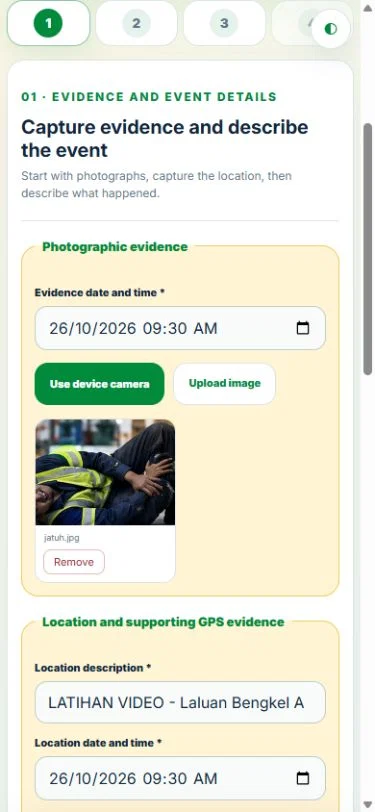
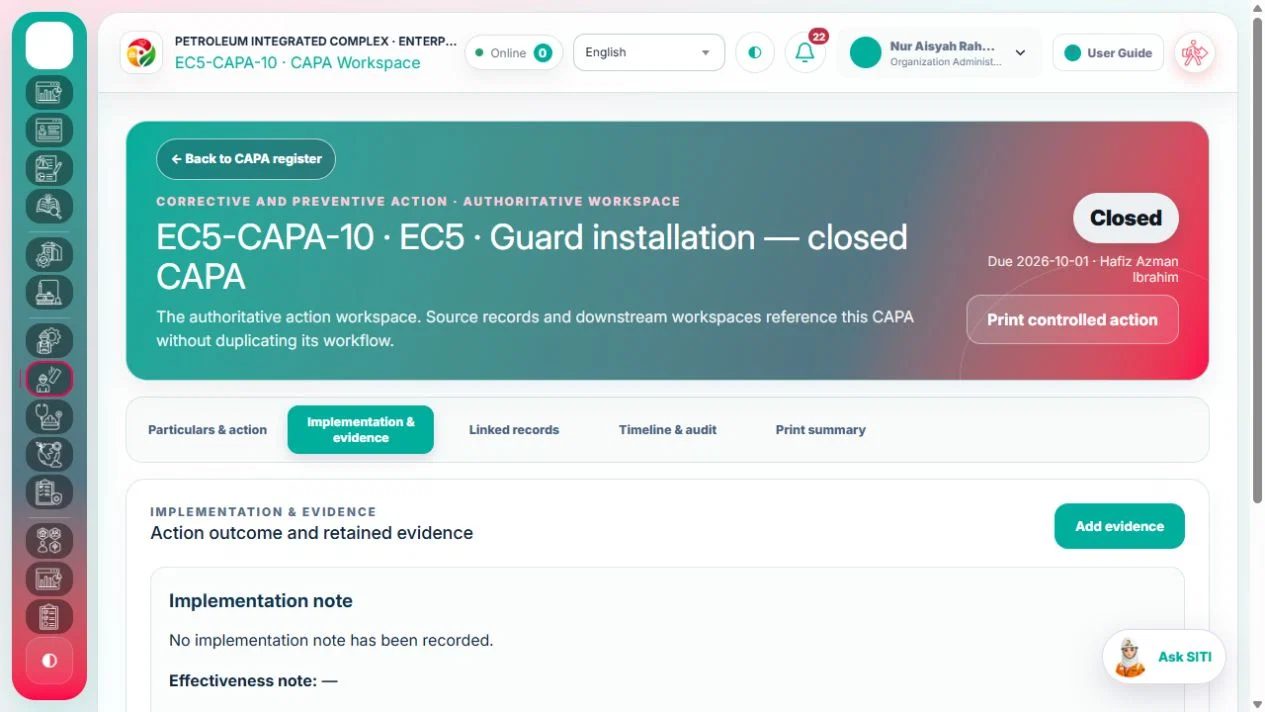
- Open the relevant stage: Event triage / control review / closure, CAPA implementation or effectiveness, JSA job step or control, Inspection criterion, PTW review / toolbox, or an industry review draft.
- Expand Evidence & GPS for this step. Attach up to five photographs or documents and describe what they demonstrate. Save the form once. Required evidence and independent approval checks still apply.
- For field work, select Capture device GPS and allow device location access. Review the coordinates and accuracy. Use a fresh reading when saving; if a geofence exception requires justification, record the reason and follow the existing override review.
- For laboratory sampling, attach the report in Record result, or select an existing authorised clean report. Agriculture release and receipt evidence is attached in its release/receipt form.
- For SHASSIC and OSHWA, attach criterion evidence inside Save response / Save criterion. For facilities and equipment maintenance, attach the work evidence while saving the record or sending completed work for verification.
- For Retail recall/disposition and Waste load/receipt/output, attach the supporting document in that operation form. It is linked to the exact operation and does not bypass independent checks.
- Equipment certificate files belong to the certificate draft/correction form. Identity, insurance and competency documents retain their own readiness/validity review; personnel Evidence archive is for reading history.
- Open Evidence / History to view earlier files and locations. This archive no longer has a separate Add evidence or Add GPS action. Accepted versions and closed records retain their evidence; changes use the controlled revision/reopening process.
- PTW site verification, activation and guard QR checks keep their own live GPS and independence requirements. Supporting GPS does not replace those controls. Clinical records remain restricted.
- Submit files online. An offline text draft does not retain file contents; reselect the files before synchronising. If a stage fails, resolve its error and reselect attachments. A CAPA saved finding remains available if the following transition needs more work.
Authorized role examples
The current stage owner or authorised reviewer, within their organization and unit scope.
Example scenario
An Action Owner records completed CAPA work, attaches the completion photo, captures GPS and selects Save & send for verification. A different authorised reviewer records effectiveness with their own supporting evidence.
Before you start
Open Evidence & GPS in the workflow in your signed-in workspace.
Standard package access · Starter, Essential, Professional, Enterprise. Your assigned permissions, site scope and any active promotion also apply.
/workspace- Tap More in the bottom navigation.
- Select the relevant shared service or search for it in the module picker.
- Open the linked controlled workspace before taking an action.
The service displays only the records/functions authorized by your active role and organization-unit scope.
05 SHARED SERVICESHSE Overview & My DashboardHSE Overview presents organization assurance indicators; My Dashboard presents the signed-in user’s own actions, reports and training.
Working steps
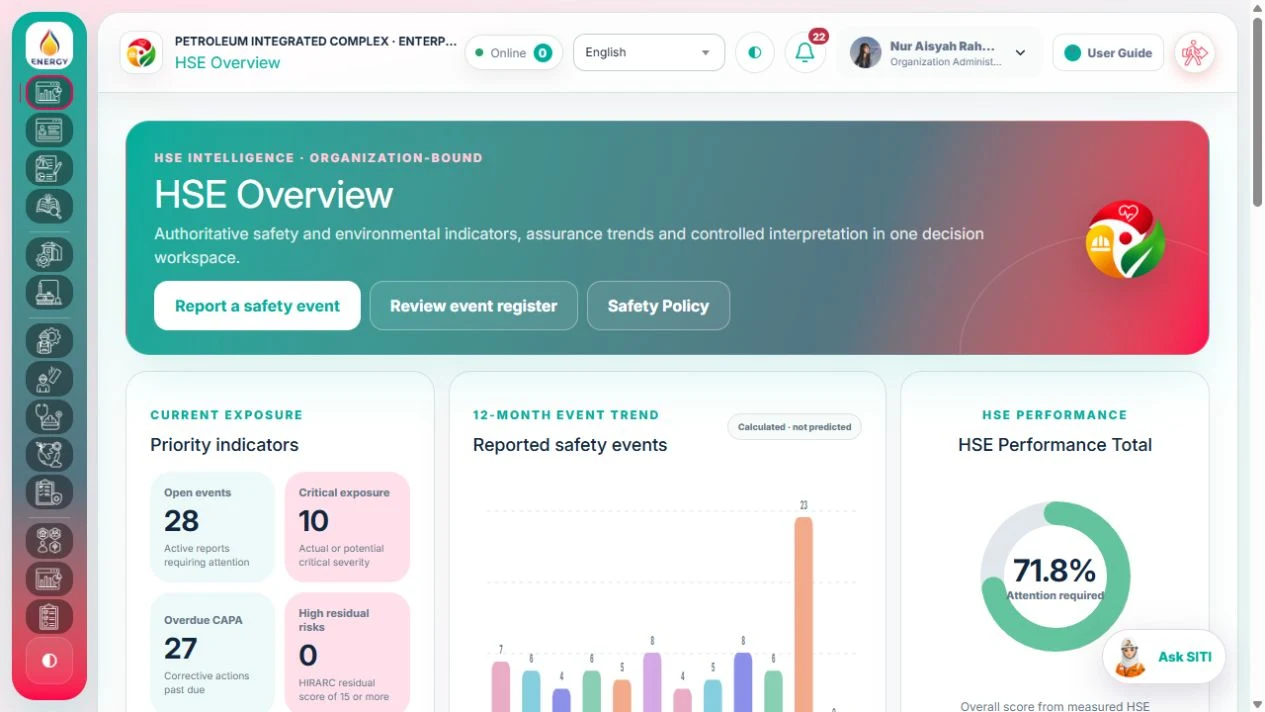
- Review priority cards, charts and the source register behind each analysis. The second overview row contains Accident Pyramid, GIS and Verified performance in matching columns. Verified performance uses the same six-month independently verified Construction project reports as the Construction workspace. Select Hours, TRIR or LTIFR to change its monthly chart. Any missing project-month withholds six-month rates; available verified hours remain visible. Open Review reporting basis to inspect the existing reports. Only accessible projects within your authorized overview units appear.
- Open HSE Performance Total → Details for the complete Leading, Control and Lagging indicator catalogue across safety, operations, health, environment and governance. Search an indicator or filter by domain and data availability.
- Expand Formula & source to see the calculation, source records and basis. Percentages and rates without a denominator show a dash; zero counts mean no matching records. All recorded dates are included and validity is checked today.
- HSE Performance Total now averages all measured percentage indicators, with equal weight per indicator. Leading, Control and Lagging groups are collapsed initially; each group heading shows its average and measured/eligible percentage count. Expand a group to see indicators; search and filters open matching groups. Separate category KPI cards are removed. The total is calculated from individual indicators, not the three category averages. The former five core cards have been removed. A badge identifies every indicator included in the score. Missing denominators, inaccessible indicators and percentages outside 0–100% do not contribute. Counts, rates, costs and quantities remain available as evidence but need approved targets before they can become percentage scores. Package and organization-unit permissions apply.
- Use My Dashboard to check assigned actions, reports, training and notifications.
- Open the source workspace from a card or register row; dashboard values are not editable.
Authorized role examples
HSE Manager, Supervisor and any user with the relevant dashboard/analytics access.
Example scenario
A supervisor sees a rising overdue-CAPA indicator, opens the filtered source register, then opens the relevant CAPA workspace.
Before you start
Open HSE Overview & My Dashboard in your signed-in workspace.
Standard package access · Starter, Essential, Professional, Enterprise. Your assigned permissions, site scope and any active promotion also apply.
/workspace- Tap More in the bottom navigation.
- Select the relevant shared service or search for it in the module picker.
- Open the linked controlled workspace before taking an action.
The service displays only the records/functions authorized by your active role and organization-unit scope.
06 SHARED SERVICESAction Inbox & notificationsPersonal queue for workflow actions, review requests, expiry alerts and linked-record follow-up.
Working steps
- Open the linked record directly from the actionable notification.
- Complete the permitted workflow action in the owning workspace.
- Use review-request links to respond without editing the requesting module directly.
Authorized role examples
The assigned workflow actor or authorized reviewer for the linked organization unit.
Example scenario
A HIRARC review request arrives from JSA. The assessor opens the request, responds in HIRARC, and the requesting JSA reflects the updated review status.
Before you start
Open Action Inbox & notifications in your signed-in workspace.
Standard package access · Starter, Essential, Professional, Enterprise. Your assigned permissions, site scope and any active promotion also apply.
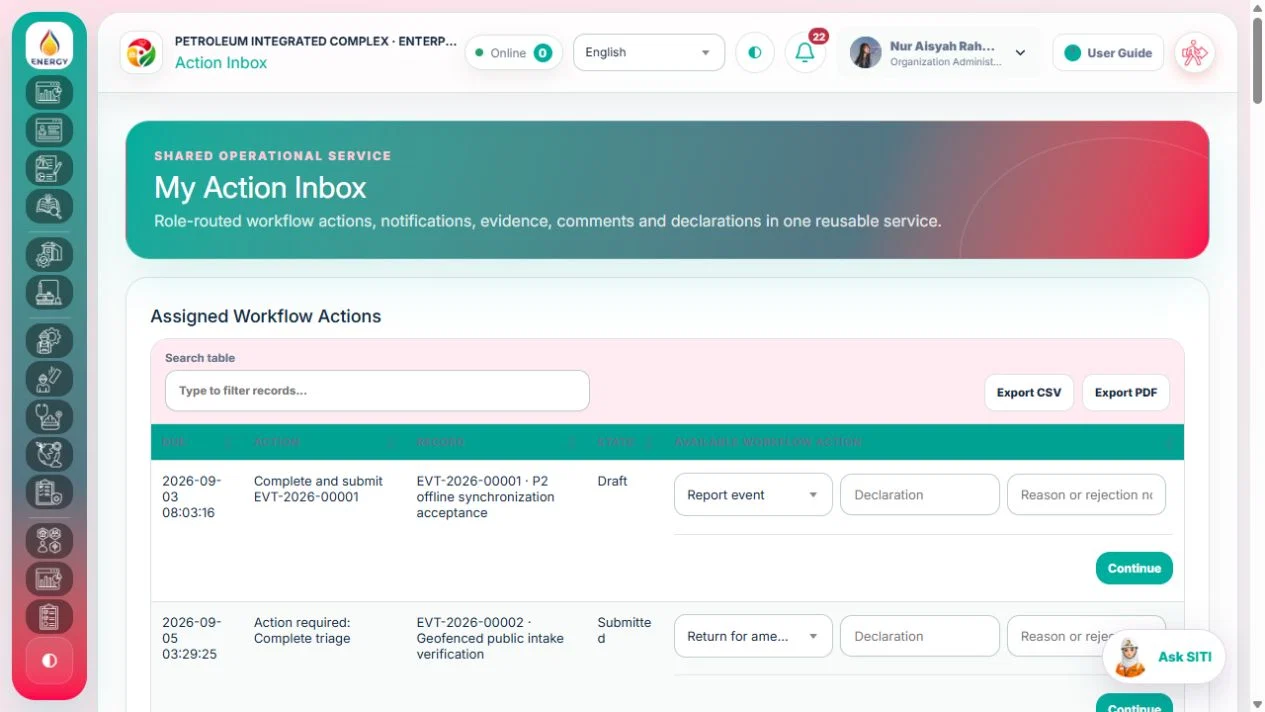
/actions- Tap More in the bottom navigation.
- Select the relevant shared service or search for it in the module picker.
- Open the linked controlled workspace before taking an action.
The service displays only the records/functions authorized by your active role and organization-unit scope.
07 SHARED SERVICESPrinting & public document verificationFind Print / PDF, choose documents and formats, and scan the document QR without an account for ordinary documents.
Working steps
- Save the record, then use Print / PDF on the right of the workspace header. On mobile it is below the title, at the right within the header. Detail popups use their own header.
- One document opens directly. With several choices, use Search documents / references, check the record or certificate reference and select Print / PDF beside the intended output. Close or Escape returns to the header.
- PTW offers A4 full form, A5 compact card, A6 gate card and Toolbox & attendance where authorized. For equipment certificates or maintenance, open the relevant asset tab before choosing the child record from the header.
- The topbar Print / PDF shortcut opens Print forms & documents. Select the form / module, then use the library header Print / PDF to find a recent record, form variant or shared report. Table means a table export, not the full controlled record.
- Scan the document verification QR using a phone camera and open the trusted issuing site. Ordinary document checks need no login; restricted clinical checks require authorized sign-in. Localhost links are not publicly reachable from another device.
- Compare Document type, Reference, Revision, Status when printed, Print ID, Printed at and Pages. Read Checked at and the verification result. Source changed requires a current print; revoked, unavailable or integrity-unconfirmed documents need the issuer to resolve the issue. Reports are dated snapshots, not re-evaluated current source data.
- Issued PDF SHA-256 identifies the exact digital file. The QR can be copied; compare the digital file hash when needed. Public verification does not disclose the full document or attachments and does not authorize site entry, activate PTW or close work.
- Use the detailed Print / PDF & public document verification guide linked on this page for all seven result messages and troubleshooting.
Authorized role examples
Authorized users print within their existing scope. Public recipients can verify ordinary documents; restricted records require the appropriate organization and permissions.
Example scenario
A recipient scans a printed form, compares its Print ID and revision, sees Source changed, and asks the issuer for a new print. The guard separately uses the PTW operational QR.
Before you start
Open Printing & public document verification in your signed-in workspace.
Standard package access · Starter, Essential, Professional, Enterprise. Your assigned permissions, site scope and any active promotion also apply.
/workspace/printouts- Open the record; use Print / PDF at the right below its title in the header.
- Search the document or format and select the matching output.
- Public recipients scan the document QR with the phone camera; ordinary verification needs no account.
Document verification confirms issued-document metadata and stored-file integrity; it does not approve work or authorize entry. See the printing and QR guide for status meanings.
No module or function matches this search. Try a role, module name or action such as “print”, “evidence” or “CAPA”.
NEED HELP?
Share the record reference, workspace URL and displayed error reference.
Do not include restricted medical, identity or personal data in a support request.