Projects, CDM, design risks, site work, SHASSIC and project handover.
Search by function, activity, role or workflow action.
Browse by operating domain
Dedicated workspace
Plan a crane lift in a project zone, link the lift activity to its Work Package, JSA and active PTW, then verify completion.
Use the standard User Guide button in the topbar whenever you need help. All industry instructions are maintained here.
01START HEREYour workflow from setup to closureWho does what, in which order, and how source controls apply.
Set up access and working scope
The organization administrator selects the industry, enables available workspaces and assigns roles with organization-unit scope. Additional workspaces can be disabled from Industry workspaces; the default workspace cannot be disabled. Disabling retains records and history. Package entitlements still control available functions.
Activity workflow
Create the activity with its operating context, location, owner, planned dates and internal, contractor or mixed workforce.
Open Detail, complete the readiness checks, resolve failed checks and attach evidence that passes scanning. Use Work controls to link saved records from the correct organization unit.
Submit for review. A reviewer independent of the creator and owner approves the activity.
Start within the approved date window. Permit-required work also needs a directly linked active PTW within its validity window.
Complete the work, attach completion evidence and request verification. An independent reviewer closes it after directly linked PTW and CAPA are resolved.
Open shared modules without leaving your industry
Open your industry workspace and select the required module from the grouped menu, such as HIRARC, Permit to work, CAPA or Assets & certificates. Resources → Shared services lists the available connections.
The register opens within the industry page. Select Open workspace to review a record and follow its linked Work Package, JSA, permit or other source record in the same industry context.
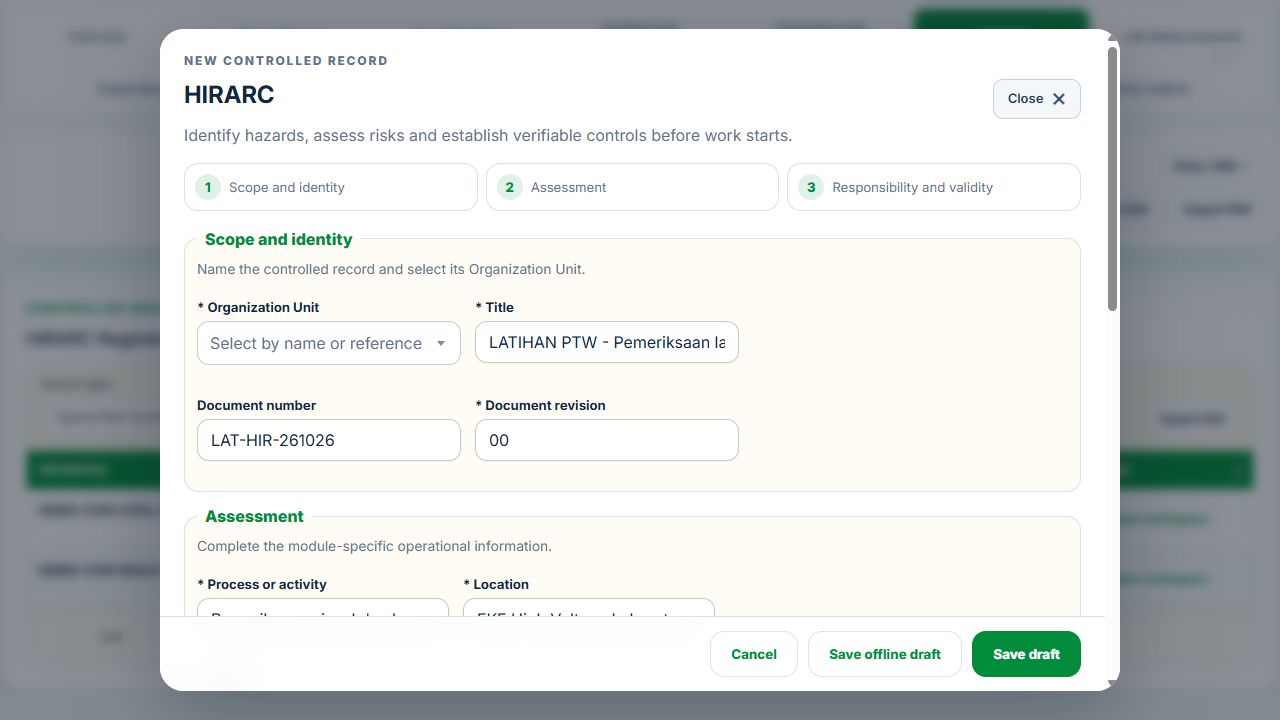
Use New record, Add, Edit or Renew where available. The original form opens in a modal. Select the correct site and organization unit; registers follow the module’s filters and your authorized scope.
Save or submit through the form’s existing controls. Required evidence, assignment, status and independent approval still apply. Use Close at the upper right to dismiss the form; closing a modal does not close the business record.
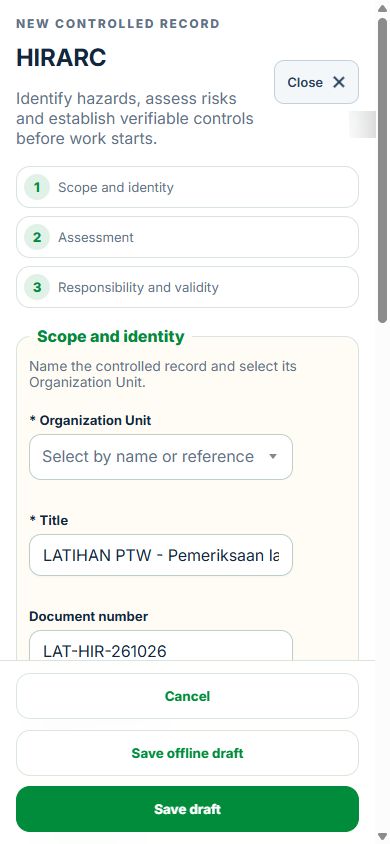
Use the record’s Print / PDF control for its controlled document. Printing and downloads open separately. On mobile the same forms fill the screen, with scrollable content and accessible Close controls.
Desktop · Original HIRARC form and Close controlMobile · Same fields and actions, full-screen form
How linked controls work
Work controls shows the source record, current status, direct links and dependencies reached through a Work Package or PTW. A typed reference does not create a relationship. Activity approval does not approve a Work Package, verify LOTO or activate a permit. Follow each source record's own approval and release workflow; reopen Detail to refresh its status.
Use Add and Edit to open the permitted form. Detail holds evidence, linked records, workflow and history. On mobile, table rows become labeled cards with the same actions.
Construction workflow
Use the grouped menu above the hero. Planning contains projects, activities and calendar; Risk & permits contains CDM, HIRARC and work authorization; Resources contains equipment and readiness; Operations contains construction work categories. Monitoring & response, Assurance & reports, and Help & workspaces contain the related follow-up modules. Select the down arrow to open a group. Project context follows construction submenu links.
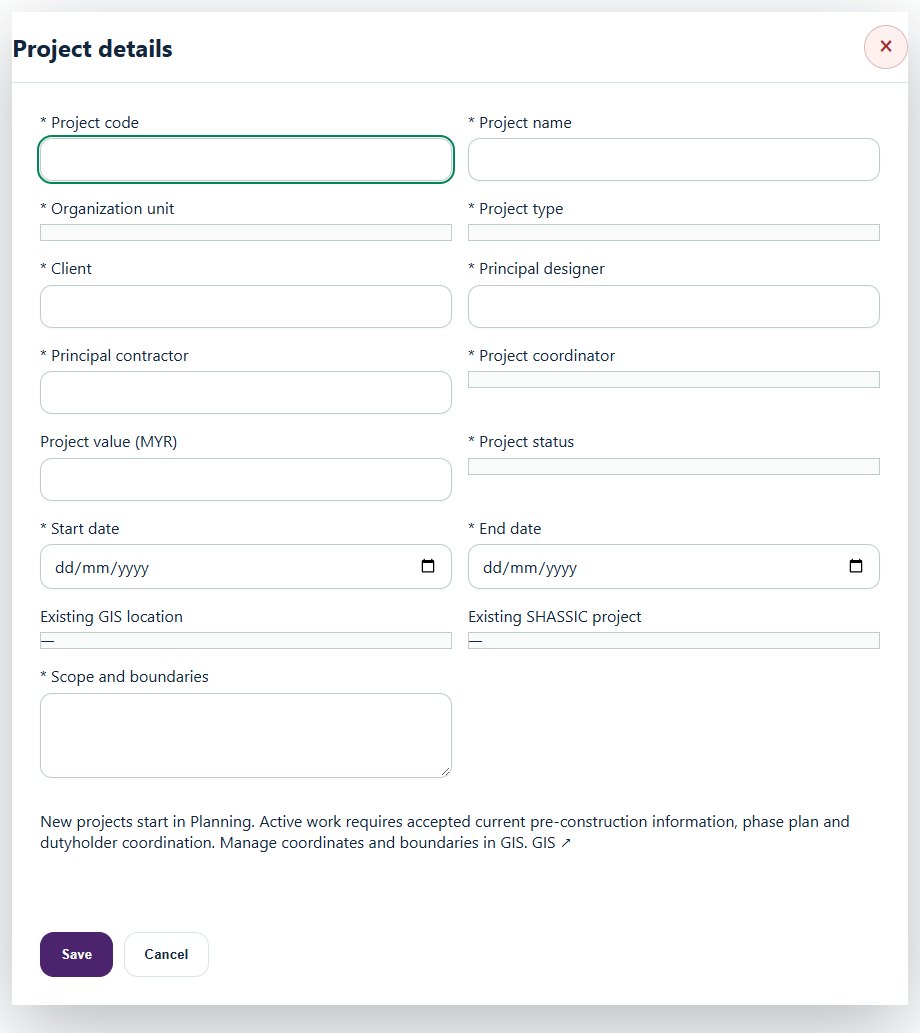
Create a project and work zones. Select existing GIS locations and, if applicable, the existing SHASSIC project. Keep the organization unit aligned with its HSE source records.
Prepare pre-construction information, the construction phase plan and dutyholder coordination in CDM. Attach clean evidence, submit for review and obtain independent acceptance before activating the project.
Add the appropriate construction activity. In Projects & zones, link the draft activity to its project and zone. Open its Source controls to link the authoritative HIRARC, Work Package, JSA, PTW, inspection and CAPA records.
Use the existing HIRARC, JSA and PTW workflows for risk assessment, control verification and work authorization. Open SHASSIC under Assurance & reports for construction safety and health assessment; link the existing SHASSIC project from Projects & zones where applicable.
Use the existing Work Package for internal, contractor or mixed teams. Existing PTW checks still enforce JSA, competency, equipment, isolation, gas tests, site verification and toolbox acknowledgement as applicable. Construction checks are additional requirements.
Record material changes or incidents as a Change / incident reassessment item and link the source event, MOC or CAPA. Resolve the review and reverify changed risk controls before progressing work. Use the existing stop-work / suspension controls for work already in progress.
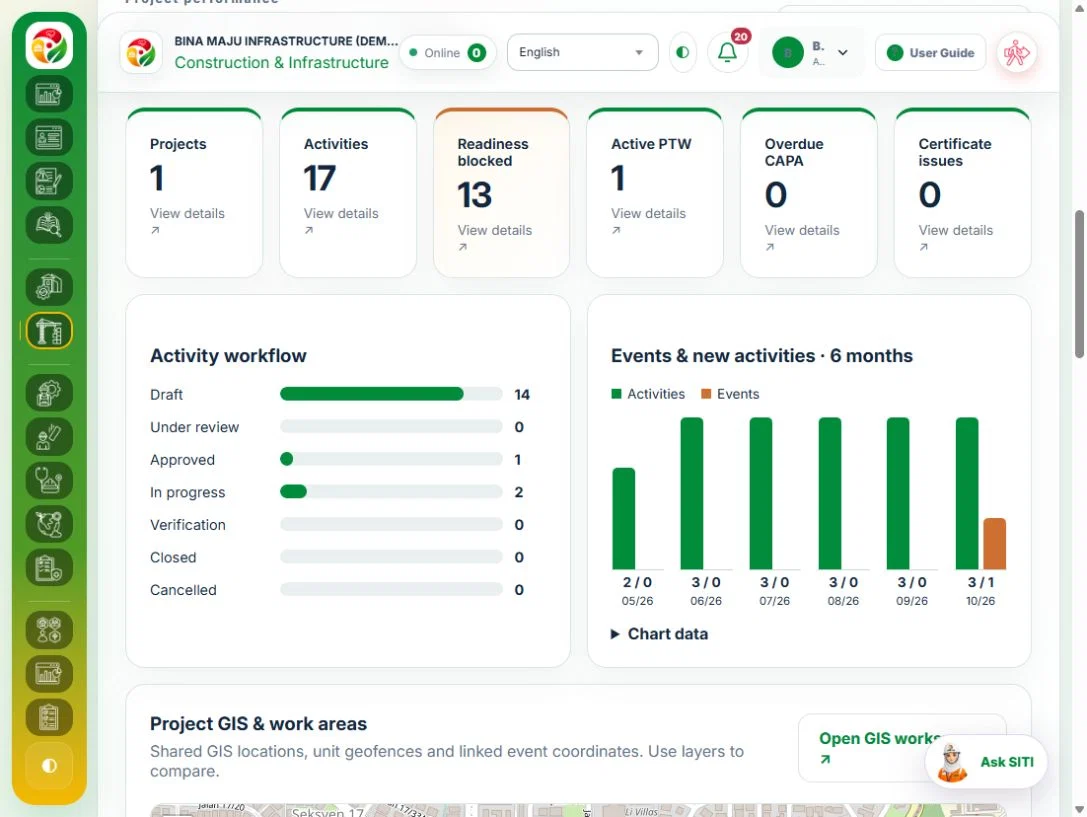
Review KPI cards, source links, workflow charts and GIS. Enter actual monthly exposure hours and reconciled case totals; an independent reviewer verifies them. Incomplete project-months show unavailable rates, never an assumed zero.
Close source work, permits and CAPA, accept the safety & health file and then complete the project. Accepted documents retain their revision history.
The activity checklist does not replace competent technical assessment, approved work methods or statutory submissions. BIM, hardware telemetry and AI vision are not connected by this release.
02Construction & InfrastructureOverview, scope and navigationStart with the right operating context.
How to use this section
Open the enabled industry from the navigation rail or the mobile More menu. Expand the grouped top menu to choose the next stage of work.
Select the organization unit and available project, factory or site context. KPI cards, graphs, maps and registers reflect the scope supported by that workspace.
Follow a KPI or source link to the underlying record. A missing or incomplete reporting value is not an assumed zero.
On mobile, registers become labeled cards. Use the same Detail, Edit and permitted workflow controls from each card.
Desktop · Construction
03Construction & InfrastructureElectrical, hot work & confined spaceCoordinate isolation, testing, rescue and commissioning with source work controls.
How to use this section
Choose Add on the relevant activity card. Enter its organization unit, location, owner, planned dates and internal, contractor or mixed workforce.
Save the draft, open Detail and complete the readiness checks below. Explain failed or not-applicable answers; resolve failed checks and attach supporting evidence before review.
Open Work controls to link saved HSE source records. A typed reference alone does not create a relationship or grant approval.
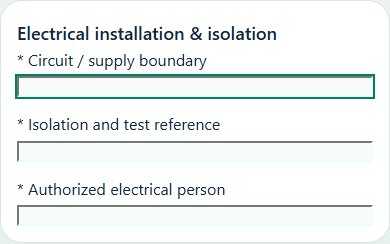
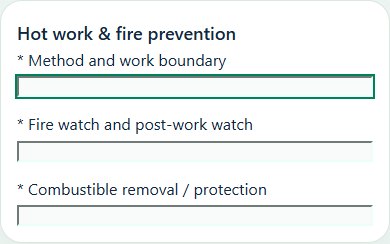
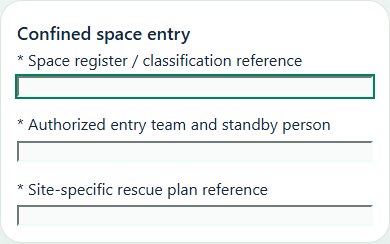
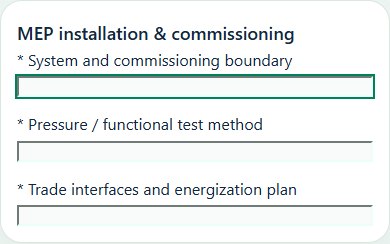
Desktop · Electrical installation & isolation · Activity formMobile · Electrical installation & isolation · Activity formDesktop · Hot work & fire prevention · Activity formMobile · Hot work & fire prevention · Activity formDesktop · Confined space entry · Activity formMobile · Confined space entry · Activity formDesktop · MEP installation & commissioning · Activity formMobile · MEP installation & commissioning · Activity form
Electrical installation & isolation
Record these details: Circuit / supply boundary · Isolation and test reference · Authorized electrical person
Readiness checks
Supply sources and stored energy identified
Isolation and absence of voltage verified by competent person
Tools, barriers and emergency arrangements checked
Re-energization and handback authorization agreed
A directly linked, active PTW within its validity window is required before this activity starts.
Hot work & fire prevention
Record these details: Method and work boundary · Fire watch and post-work watch · Combustible removal / protection
Readiness checks
Ignition, fuel and adjacent areas assessed
Permit, gas test where required and fire watch verified
Fire protection and emergency access confirmed
Post-work monitoring and handback recorded
A directly linked, active PTW within its validity window is required before this activity starts.
Confined space entry
Record these details: Space register / classification reference · Authorized entry team and standby person · Site-specific rescue plan reference
Readiness checks
Entry assessment, isolation and ventilation verified
Current atmosphere testing and monitoring confirmed
Authorized entrants, standby and communication checked
Rescue team, equipment and response arrangements verified
A directly linked, active PTW within its validity window is required before this activity starts.
MEP installation & commissioning
Record these details: System and commissioning boundary · Pressure / functional test method · Trade interfaces and energization plan
Readiness checks
Approved method and installation sequence reviewed
Isolation, stored energy and test boundaries verified
Concurrent trades, access and lifting coordinated
Test records and safe handback arrangements confirmed
A directly linked, active PTW within its validity window is required before this activity starts.
04Construction & InfrastructureChemicals & exposureManage construction chemical tasks using the existing chemical inventory and exposure controls.
How to use this section
Choose Add on the relevant activity card. Enter its organization unit, location, owner, planned dates and internal, contractor or mixed workforce.
Save the draft, open Detail and complete the readiness checks below. Explain failed or not-applicable answers; resolve failed checks and attach supporting evidence before review.
Open Work controls to link saved HSE source records. A typed reference alone does not create a relationship or grant approval.
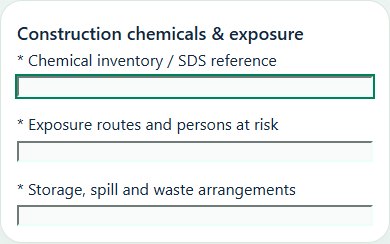
Desktop · Construction chemicals & exposure · Activity formMobile · Construction chemicals & exposure · Activity form
Construction chemicals & exposure
Record these details: Chemical inventory / SDS reference · Exposure routes and persons at risk · Storage, spill and waste arrangements
Readiness checks
Current SDS and task exposure assessment reviewed
Substitution, ventilation and handling controls checked
Training, protection and required monitoring confirmed
Spill response, storage compatibility and waste route agreed
05Construction & InfrastructureProjects & handoverCoordinate project phases, site boundaries, principal contractors and residual risks at handover.
How to use this section
Choose Add on the relevant activity card. Enter its organization unit, location, owner, planned dates and internal, contractor or mixed workforce.
Save the draft, open Detail and complete the readiness checks below. Explain failed or not-applicable answers; resolve failed checks and attach supporting evidence before review.
Open Work controls to link saved HSE source records. A typed reference alone does not create a relationship or grant approval.
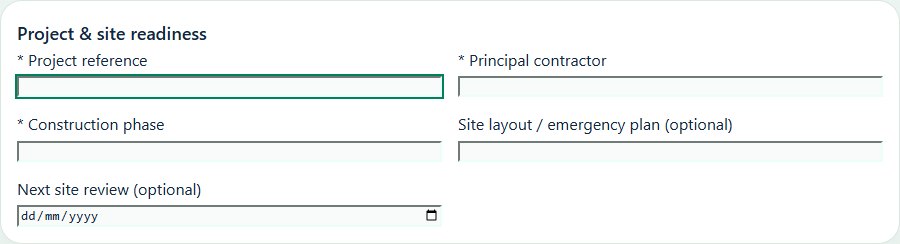
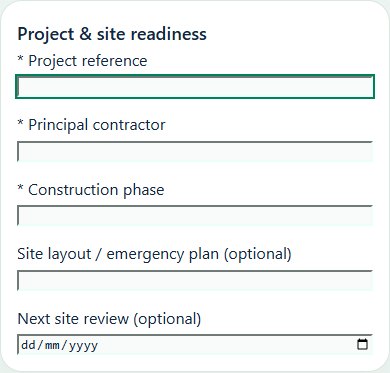
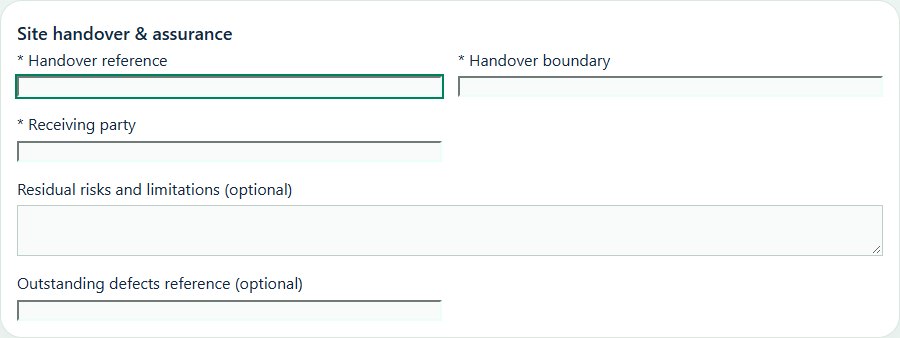
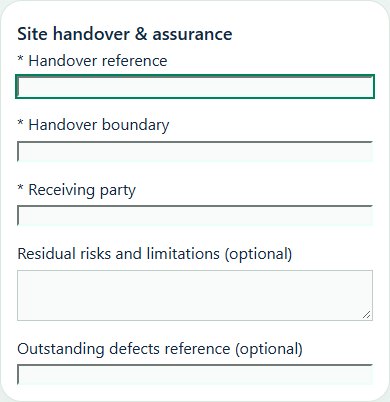
Desktop · Project & site readiness · Activity formMobile · Project & site readiness · Activity formDesktop · Site handover & assurance · Activity formMobile · Site handover & assurance · Activity form
Project & site readiness
Record these details: Project reference · Principal contractor · Construction phase · Site layout / emergency plan · Next site review
Readiness checks
Site boundaries and public segregation confirmed
Emergency access and assembly points checked
Induction and workforce competency reviewed
Current risk assessments and inspection programme reviewed
Site handover & assurance
Record these details: Handover reference · Handover boundary · Receiving party · Residual risks and limitations · Outstanding defects reference
Readiness checks
Outstanding defects and CAPA reconciled
Retained inspection and test evidence checked
Temporary works and utilities made safe
Receiving party briefed on residual risks
06Construction & InfrastructureLifting operationsReview lift plans, load data, crane setup, lifting teams and exclusion zones.
How to use this section
Choose Add on the relevant activity card. Enter its organization unit, location, owner, planned dates and internal, contractor or mixed workforce.
Save the draft, open Detail and complete the readiness checks below. Explain failed or not-applicable answers; resolve failed checks and attach supporting evidence before review.
Open Work controls to link saved HSE source records. A typed reference alone does not create a relationship or grant approval.
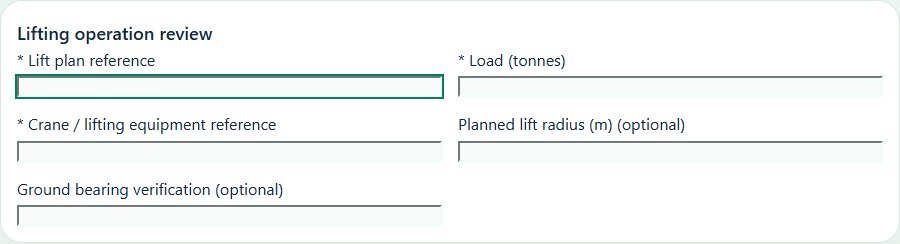
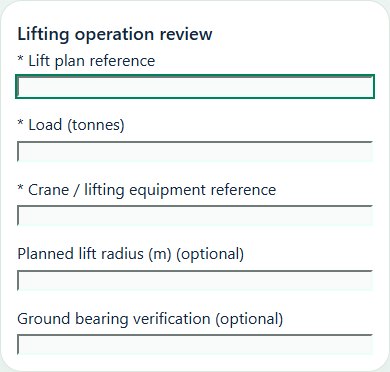
Record these details: Lift plan reference · Load (tonnes) · Crane / lifting equipment reference · Planned lift radius (m) · Ground bearing verification
Readiness checks
Lift plan and competent lifting team checked
Equipment and lifting gear certification checked
Ground condition and exclusion zone verified
Weather limits and communication agreed
A directly linked, active PTW within its validity window is required before this activity starts.
07Construction & InfrastructureScaffolds & temporary worksTrack scaffold handover, design checks, formwork loading and concrete pour readiness.
How to use this section
Choose Add on the relevant activity card. Enter its organization unit, location, owner, planned dates and internal, contractor or mixed workforce.
Save the draft, open Detail and complete the readiness checks below. Explain failed or not-applicable answers; resolve failed checks and attach supporting evidence before review.
Open Work controls to link saved HSE source records. A typed reference alone does not create a relationship or grant approval.
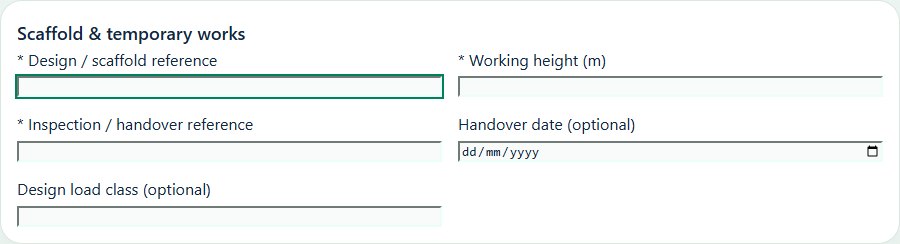
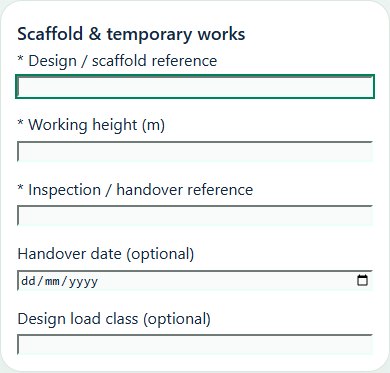
Record these details: Design / scaffold reference · Working height (m) · Inspection / handover reference · Handover date · Design load class
Readiness checks
Design and load limits reviewed
Competent inspection and handover checked
Access, edge protection and ties checked
Alterations and reinspection controls agreed
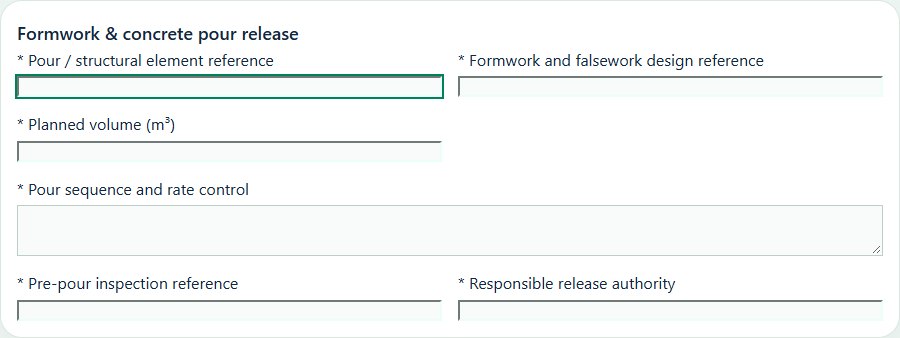
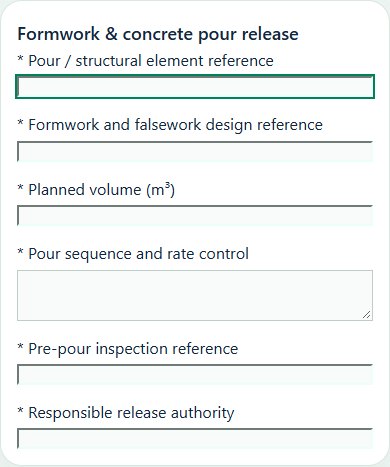
Formwork & concrete pour release
Record these details: Pour / structural element reference · Formwork and falsework design reference · Planned volume (m³) · Pour sequence and rate control · Pre-pour inspection reference · Responsible release authority
Readiness checks
Design, load assumptions and support conditions reviewed
Formwork inspection and release recorded
Pump positioning, outriggers and exclusion zones checked
Access, edge protection and hose handling reviewed
Pour sequence, monitoring and stop criteria briefed
Striking and back-propping subject to separate authorized release
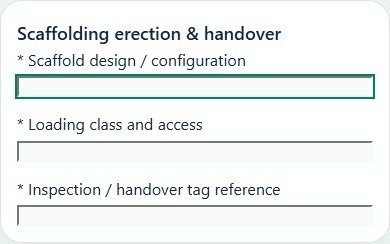
Scaffolding erection & handover
Record these details: Scaffold design / configuration · Loading class and access · Inspection / handover tag reference
Readiness checks
Design, foundation and ties checked
Competent erection team and exclusion zone confirmed
Platforms, edge protection and safe access verified
Inspection tag and reinspection after changes recorded
A directly linked, active PTW within its validity window is required before this activity starts.
08Construction & InfrastructureExcavation & demolitionControl underground services, ground stability, demolition sequence and public interfaces.
How to use this section
Choose Add on the relevant activity card. Enter its organization unit, location, owner, planned dates and internal, contractor or mixed workforce.
Save the draft, open Detail and complete the readiness checks below. Explain failed or not-applicable answers; resolve failed checks and attach supporting evidence before review.
Open Work controls to link saved HSE source records. A typed reference alone does not create a relationship or grant approval.
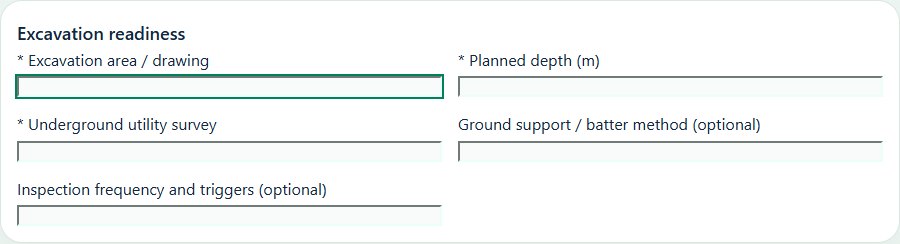
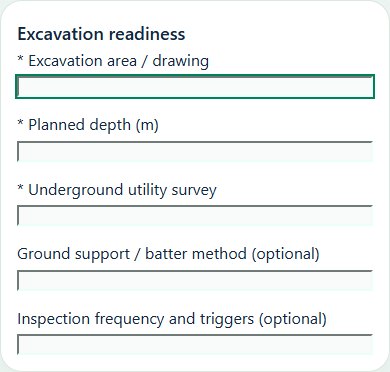
Record these details: Excavation area / drawing · Planned depth (m) · Underground utility survey · Ground support / batter method · Inspection frequency and triggers
Readiness checks
Utilities identified and isolated where required
Ground support and collapse controls reviewed
Access, water ingress and atmosphere considered
Barricades and daily inspection assigned
A directly linked, active PTW within its validity window is required before this activity starts.
Demolition & structural alteration
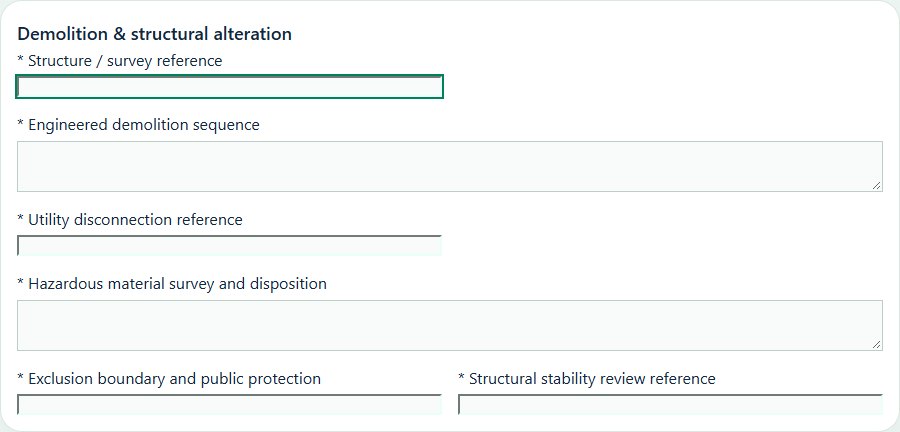
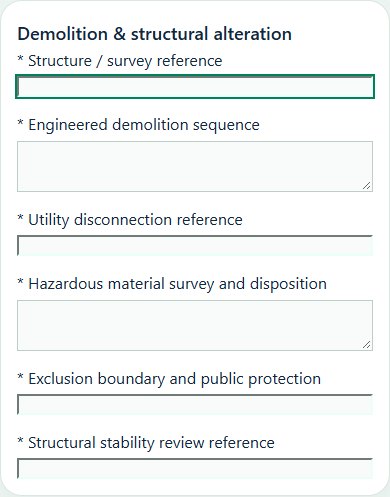
Record these details: Structure / survey reference · Engineered demolition sequence · Utility disconnection reference · Hazardous material survey and disposition · Exclusion boundary and public protection · Structural stability review reference
Readiness checks
Structural survey and sequence accepted by responsible competent persons
Services and stored energy isolated and verified
Hazardous materials assessed before disturbance
Collapse and debris zones segregated from workers and public
Dust, noise and vibration controls and monitoring agreed
Stop-work triggers, rescue and emergency access briefed
A directly linked, active PTW within its validity window is required before this activity starts.
09Construction & InfrastructureWork at heightRecord access methods, fall protection and task-specific rescue arrangements.
How to use this section
Choose Add on the relevant activity card. Enter its organization unit, location, owner, planned dates and internal, contractor or mixed workforce.
Save the draft, open Detail and complete the readiness checks below. Explain failed or not-applicable answers; resolve failed checks and attach supporting evidence before review.
Open Work controls to link saved HSE source records. A typed reference alone does not create a relationship or grant approval.
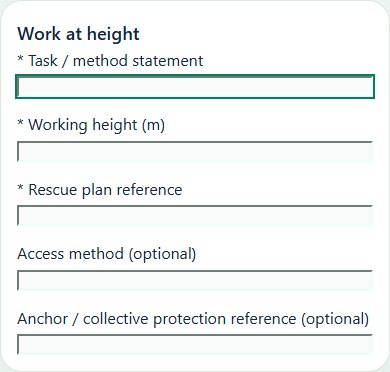
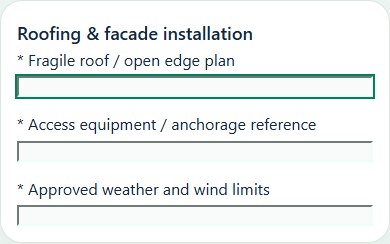
Desktop · Work at height · Activity formMobile · Work at height · Activity formDesktop · Roofing & facade installation · Activity formMobile · Roofing & facade installation · Activity form
Work at height
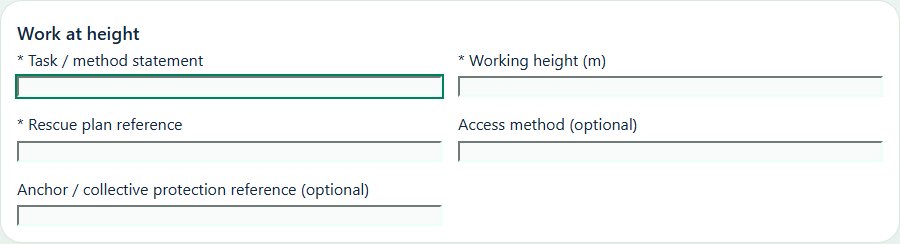
Record these details: Task / method statement · Working height (m) · Rescue plan reference · Access method · Anchor / collective protection reference
Readiness checks
Collective protection selected where practicable
Access equipment and anchor suitability checked
Competency, harness and rescue readiness checked
Falling objects and weather controls checked
A directly linked, active PTW within its validity window is required before this activity starts.
Roofing & facade installation
Record these details: Fragile roof / open edge plan · Access equipment / anchorage reference · Approved weather and wind limits
Readiness checks
Load-bearing surfaces and anchorages verified
Fall prevention and dropped-object protection installed
Lifting, weather and public interfaces coordinated
Rescue method briefed and equipment available
A directly linked, active PTW within its validity window is required before this activity starts.
10Construction & InfrastructureTraffic & public protectionManage deliveries, road interfaces, pedestrian segregation and temporary diversions.
How to use this section
Choose Add on the relevant activity card. Enter its organization unit, location, owner, planned dates and internal, contractor or mixed workforce.
Save the draft, open Detail and complete the readiness checks below. Explain failed or not-applicable answers; resolve failed checks and attach supporting evidence before review.
Open Work controls to link saved HSE source records. A typed reference alone does not create a relationship or grant approval.
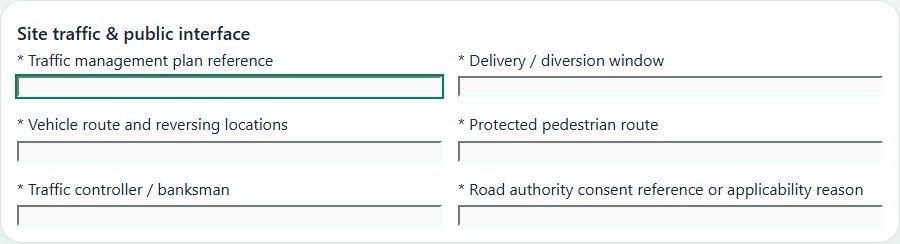
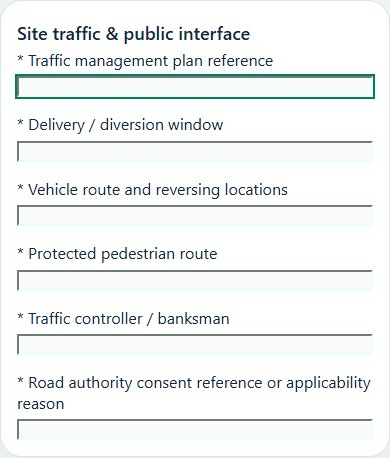
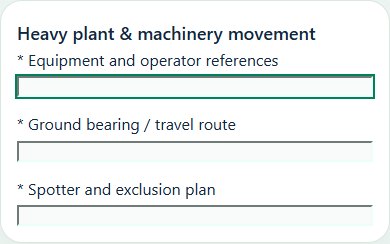
Desktop · Site traffic & public interface · Activity formMobile · Site traffic & public interface · Activity formDesktop · Heavy plant & machinery movement · Activity formMobile · Heavy plant & machinery movement · Activity form
Site traffic & public interface
Record these details: Traffic management plan reference · Delivery / diversion window · Vehicle route and reversing locations · Protected pedestrian route · Traffic controller / banksman · Road authority consent reference or applicability reason
Readiness checks
Routes and turning areas checked against vehicle size
Public and workforce pedestrian routes segregated
Delivery timing and traffic controllers confirmed
Diversion signs, lighting and barriers inspected
Road authority requirements reviewed where applicable
Emergency access maintained throughout the work
Heavy plant & machinery movement
Record these details: Equipment and operator references · Ground bearing / travel route · Spotter and exclusion plan
Readiness checks
Equipment inspection and operator competence confirmed
Ground, gradients and overhead services assessed
Pedestrian separation and reversing controls checked
Parking, refuelling and emergency arrangements agreed
11Construction & InfrastructureCDM, design risks and controlled project documentsPrepare project evidence and retain accepted revision history.
How to use this section
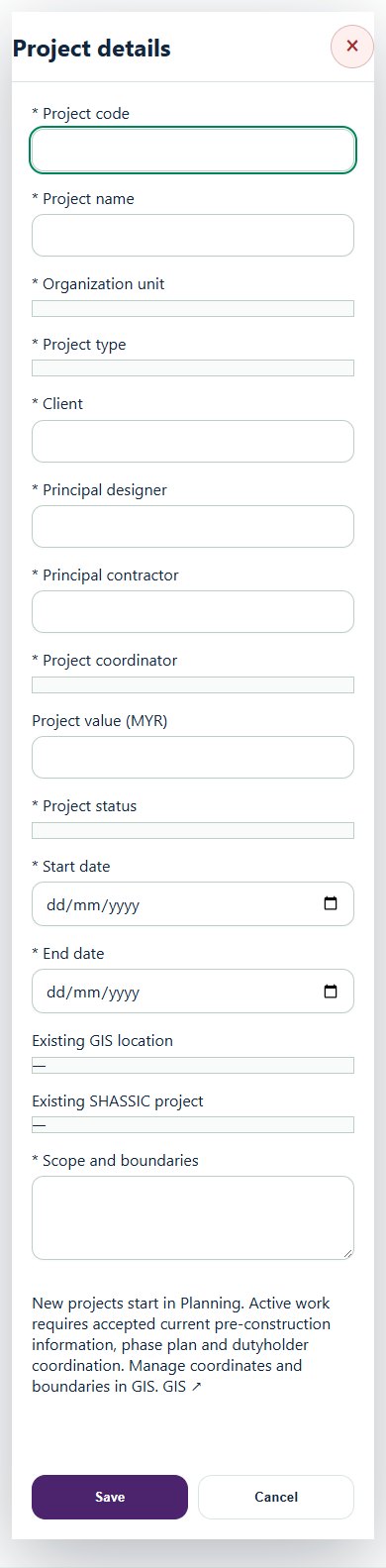
Create the project and work zones; select existing GIS and SHASSIC project references where applicable.
In CDM, choose the document or review type: Pre-construction information, Construction phase plan, Design risk / residual risk, Dutyholder coordination, Change / incident reassessment, Temporary works design / release, Safety committee / coordination meeting, Occupational health monitoring plan, Environmental management plan, Safety & health file / handover.
Save the record, attach clean evidence and obtain independent acceptance. Use a new revision when accepted content changes.
Resolve change or incident reassessments and reverify affected risk controls. Use source stop-work or suspension controls for work already in progress.
Reconcile monthly exposure hours and cases. Independent verification is required before complete reporting periods produce rates. Close source work and accept the safety and health file before project completion.
Desktop · Project detailsMobile · Project details
12Construction & InfrastructureAssets, certificates, calendar and reportingUse one source record across industry views.
How to use this section
Assets & equipment is a filtered view of Equipment. Use its shared Add, Edit and Detail forms, certificate records and approval workflow.
Certificates & compliance summarizes source certificates and linked legal obligations. Amend the source record instead of entering a duplicate certificate.
All industries use Equipment Certificates & renewals: required types, PIC reminders, draft evidence, independent verification and retained replacement history. Use Maintenance & work controls for internal, contractor or mixed repair work and controlled return to service.
Use Calendar & recurring work to plan due dates. A new cycle creates a fresh draft and requires fresh readiness checks and approval.
Apply the desired scope and filters before exporting CSV or PDF. Open Action Inbox for assigned reviews and follow-up.